
Event Management
This section covers the core day-to-day management tools every organizer needs: your team permissions and roles, box office rentals, event guidelines, discount codes, taxes, and what to do if an event needs to be cancelled.
Team Permissions & Roles
Quick answer: Five account types: Owner, Moderator, Box Office Manager, Ticket Scanner, and the retired Viewer role. Invite from Dashboard, then Team. After someone accepts, fine-tune their app and dashboard permissions individually.
Running events is rarely a solo job. The Ticketing Co. lets you add team members to your organization and assign them roles that control exactly what they can access and do, so your box office staff can run the door without seeing financial data, and your co-organizers have the same reach you do.
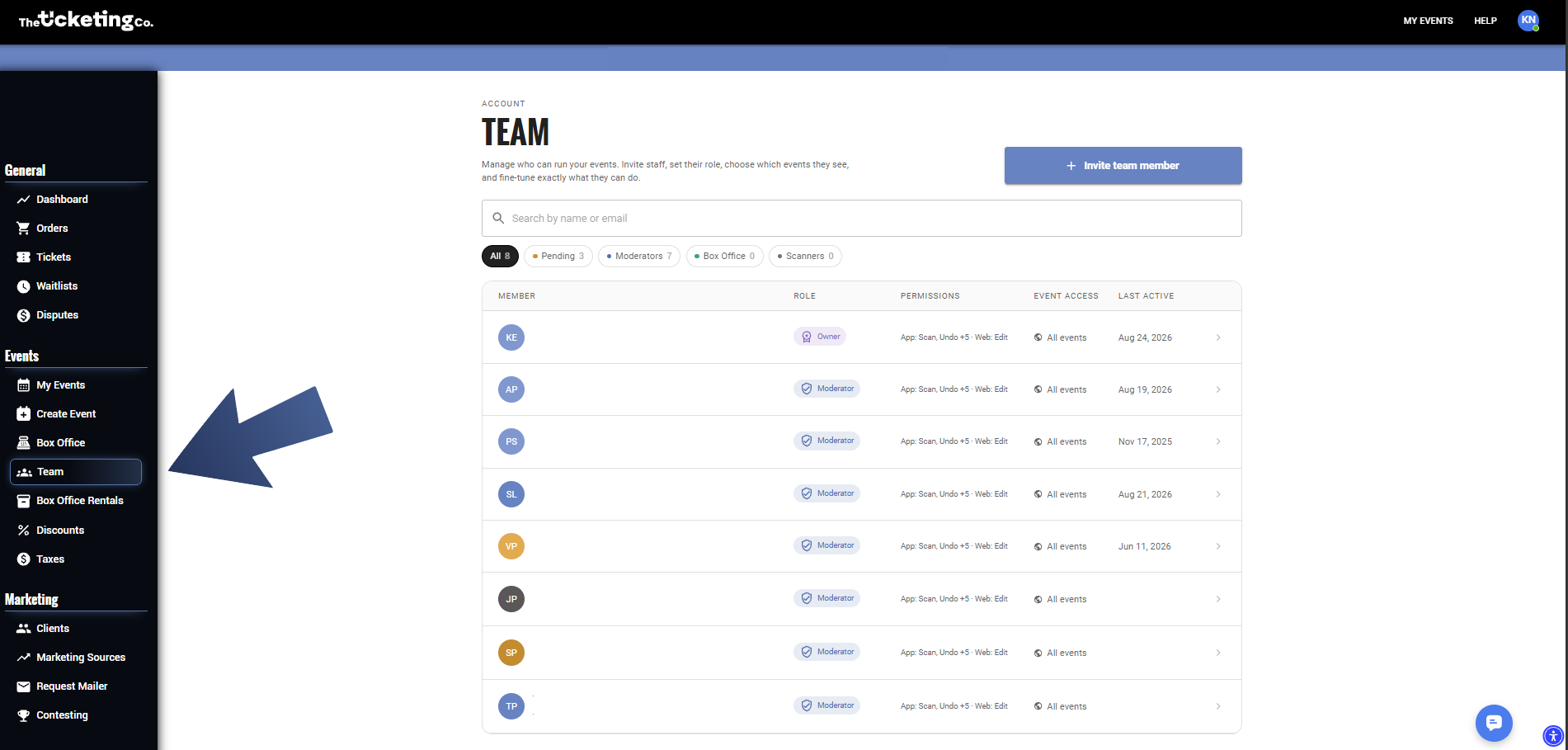
Team: pending and accepted team members
The team roles
There are five account types in total, including the Owner. Every person you invite is assigned one of the roles below. Viewer is a retired role. It can no longer be assigned to anyone new, but organizers who already have a Viewer on their team will still see them listed.
Owner
Full access to everything: events, orders, settings, payouts, team management, and billing.
Only one Owner per organization. This is the account that created the organization.
Moderator
Full access, including all financial information. This is the same permission set as the Owner for what they can see and do. Three things stay Owner-only: a Moderator cannot edit or remove another Moderator, cannot change the Owner, and cannot transfer ownership. Nobody, Owner included, can change their own access.
Use this role for co-organizers, business partners, or anyone who needs complete dashboard access.
Box Office Manager
Run the door: They have access to everything that is needed to run the box office from adding scanners to check the check-in statistics.
No access to financial data or event settings. Designed for on-site managers who need operational control without back-office visibility. By default this role starts with no web dashboard access at all; it is phone-only until you grant a web tier.
Ticket Scanner
Scan tickets, check attendees in, and sell tickets at the door. The most restricted role.
Use this for door staff, volunteers, and temporary event-day workers.
Full permissions breakdown
The table below shows what each role can do across the web dashboard and the mobile app. App access permissions can be fine-tuned individually after inviting a team member.
Permission | Owner | Moderator | Box Office Manager | Ticket Scanner |
|---|---|---|---|---|
Create and edit events | ||||
Publish events | ||||
View orders and ticket buyers | ||||
Send complimentary tickets | ||||
Access event analytics | ||||
Export buyer data | ||||
Manage discounts and promo codes | ||||
Edit organization settings | ||||
Manage team members | ||||
View and request payouts | ||||
Scan and check in attendees (app) | ||||
Undo check-in (app) | ||||
Check in from guest list (app) | ||||
Sell at box office (app) | ||||
Add new guests to guest list (app) | ||||
See attendance stats (app) | ||||
Add and manage ticket scanners (app) |
App access and web dashboard permissions
When you invite a team member, you assign a starting role. After they accept, you can fine-tune their exact permissions at any time by clicking > (right arrow) icon next to their name in Team.
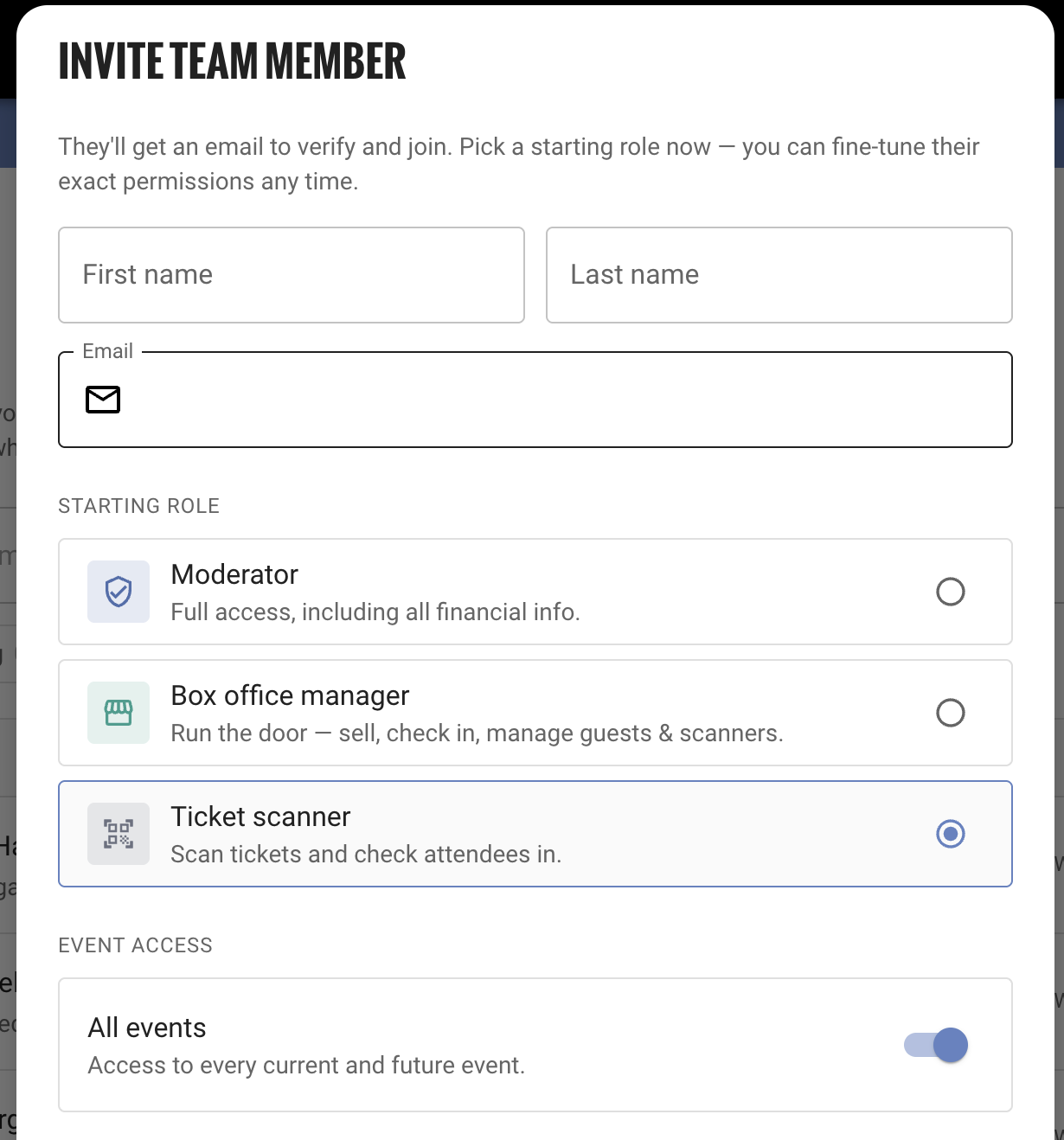
Invite Team Member: role selection and event access
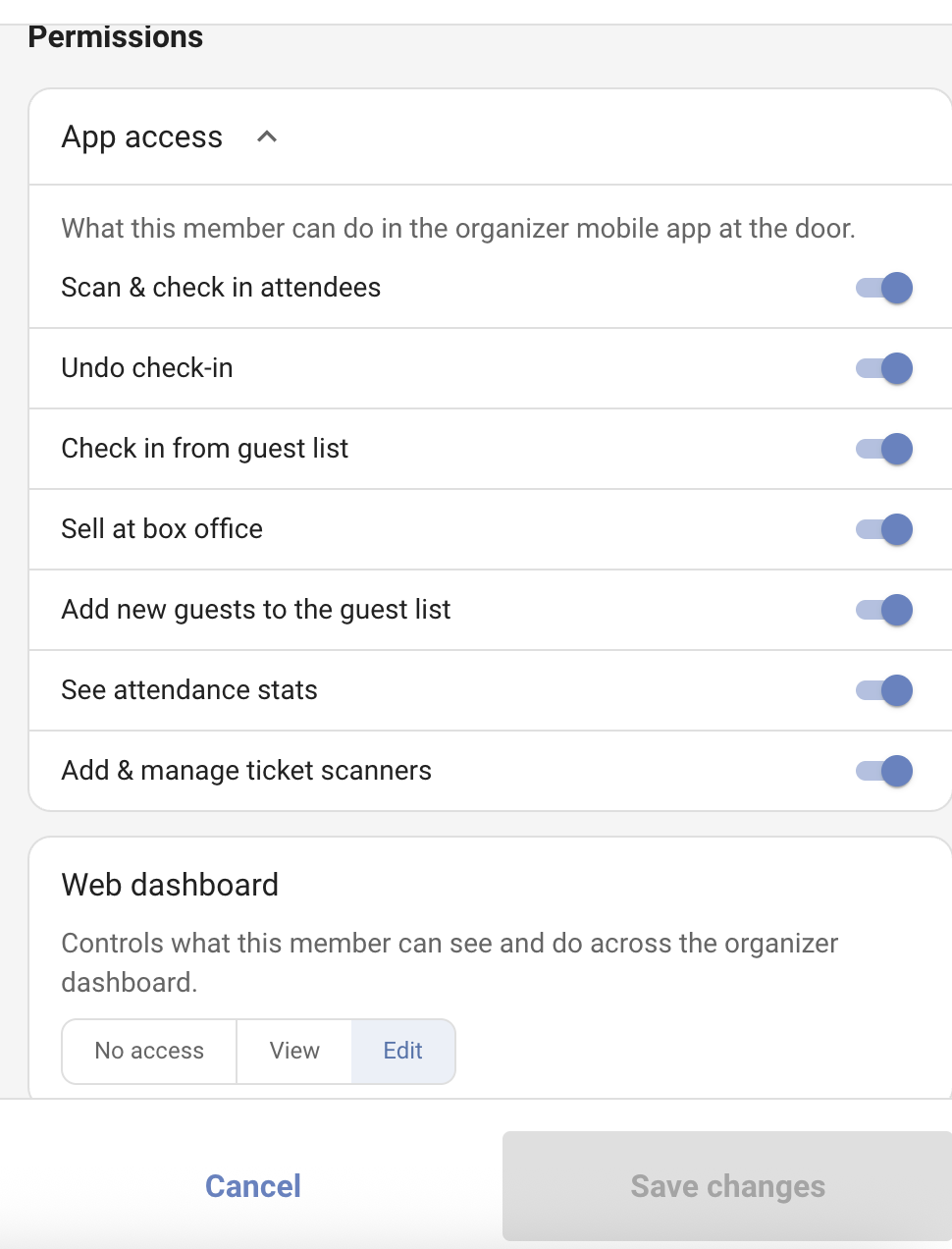
Permissions: App access toggles and Web dashboard level
App access controls what the team member can do in the organizer mobile app at the door. Each permission can be toggled individually:
Scan and check in attendees
Undo check-in
Check in from guest list
Sell at box office
Add new guests to the guest list
See attendance stats
Add and manage ticket scanners
Web dashboard access is set separately with three levels: No access, View (read-only), or Edit (full write access). Box Office Managers and Ticket Scanners default to No access, so they cannot log in to the web dashboard until you raise their level by hand. Moderators do not have this restriction.
Tip The Ticket Scanner role is designed for door staff. It gives them exactly what they need and nothing more. Assign this role to anyone who does not need access to your financial or event data.
Adding a team member
Go to your Dashboard and click Team under Events in the left sidebar.
Click Invite Team Member.
Enter their first name, last name, and email address.
Select their starting role: Moderator, Box Office Manager, or Ticket Scanner.
Toggle All Events on if you want them to have access to every current and future event, or leave it off to assign specific events.
Click Submit. They will receive an email invitation to join your organization.
Once they accept, they will appear in your team list with access based on their assigned role.
Note Team members need a The Ticketing Co. account to accept an invitation. If they do not have one yet, the invitation email will walk them through creating one first.
Removing a team member
Go to Dashboard, then Team.
Find the team member you want to remove.
Click the Trash icon next to their name.
Confirm. They will immediately lose access to your organization.
Note Removing a team member does not delete their The Ticketing Co. account. It only removes their access to your specific organization. If they are a member of multiple organizations, their other access is unaffected.
Box Office Rentals
Quick answer: Submit a rental request from the Box Office Rentals tab. The team confirms availability, sends a quote and rental agreement, then coordinates delivery. Request at least two weeks ahead.
The Ticketing Co. rents scanners so your box office runs without a problem on event day. Whether you need one unit for a small venue or several for a festival, submit a rental request and the team will confirm availability and coordinate delivery.
Also need DJ equipment?
The Ticketing Co. rents CDJ 3000s, DJM 900nxs2, and other DJ gear in the New York City area.
Contact equipment@theticketing.co for availability and pricing.
How to submit a rental request
Go to the Box Office Rentals tab in your dashboard, or reach out to a Ticketing Co. team member directly.
Fill in all required fields marked with an asterisk. Optional fields can be left blank.
Review your information, then click Submit Scanner Rental Form.
The team will review your request and reach out to confirm equipment availability and delivery details.
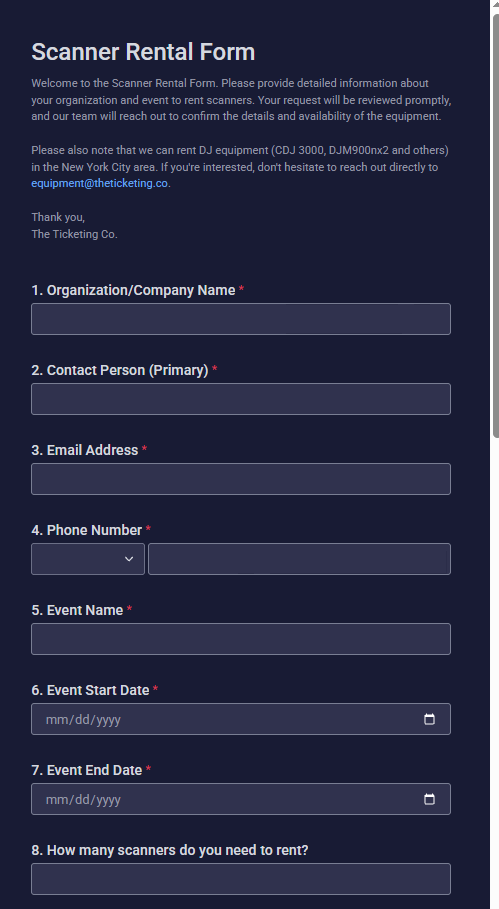
Scanner Rental Form: required fields including event details and quantity
What happens after you submit
The team reviews your request and checks equipment availability for your event dates.
A member of The Ticketing Co. team will contact you at the email or phone number provided to confirm details.
You will receive a quote on the rental.
If the quote is approved, you will receive a rental agreement to sign before the equipment is dispatched.
Delivery logistics are coordinated based on your specified address and required date.
You will receive the scanner by mail and return it after your event, unless it is a long-term rental.
Important Scanner availability is limited around peak event weekends. Submit your request at least two weeks before your event to confirm availability.
Tips for a smooth rental
Double-check your delivery address. Incorrect addresses delay equipment arrival.
Include a mobile number for the delivery contact so the logistics team can reach someone on site.
If you are not sure how many scanners you need, include your expected attendance in the Special Requirements field. The team will recommend the right quantity.
For multi-day events, note any dates when scanners are not needed so pickup can be planned accordingly.
Setting Up Event Guidelines
Quick answer: Add guidelines in Event Editor, then Settings and More. They appear on your event page and at checkout, where buyers must acknowledge them before purchasing. Editable any time.
Event guidelines set clear expectations for your attendees before they buy. They also protect you as an organizer by making your rules, including refunds, transfers, age restrictions, dress code, and more, clearly visible at checkout.
Why set event guidelines
Fewer support requests: buyers who know your refund policy in advance are less likely to dispute charges.
Legal protection: clear policies on age restrictions, ID requirements, and conduct are important for many venue types.
Better buyer experience: attendees arrive knowing exactly what to expect.
Reduced chargebacks: clear no-refund or limited-refund policies agreed to at checkout help defend against disputes.
How to add event guidelines
Go to your Event Editor.
Click Settings and More.
Scroll to the Event Guidelines section.
Type or paste your guideline text into the field.
Click Save. Your guidelines will appear on your public event page and at checkout.
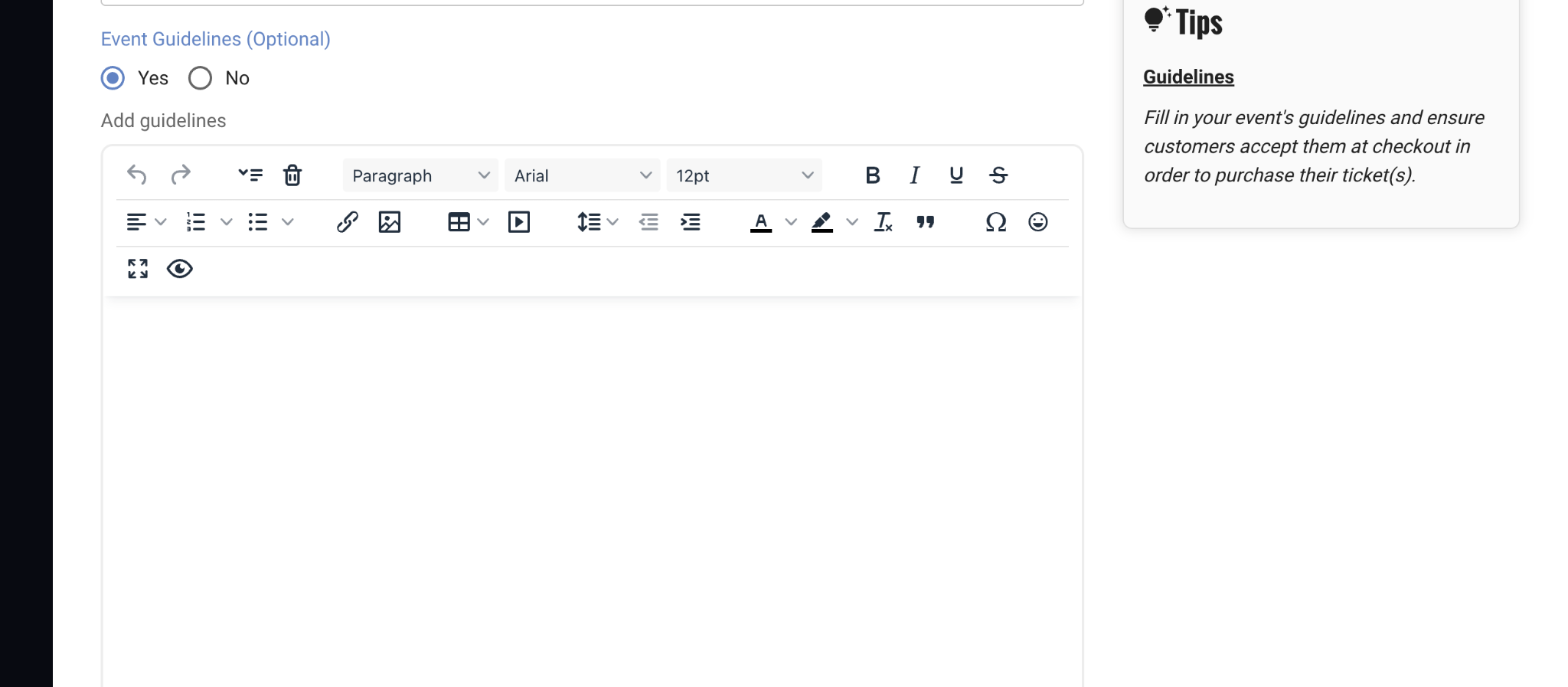
Event Guidelines: optional text editor in Settings and More
Note Guidelines are shown to buyers on your event page and during checkout. Buyers must acknowledge them before completing a purchase. This creates a clear record that your policies were communicated.
What to include in your event guidelines
Every event is different, but here are the most commonly needed policy types:
ID and entry requirements
Valid photo ID required for entry. The name on the ticket must match ID.
The ticket is non-transferable. The original buyer must be present.
Dress code
Dress code enforced: smart casual or above. No athletic wear, hats, or work boots.
Themed attire encouraged but not required.
Prohibited items
No outside food or beverages.
No professional cameras or recording equipment without prior press accreditation.
No re-entry once you leave the venue.
Health and safety
By attending, you confirm you are not experiencing symptoms of illness.
This event takes place outdoors. Organizers are not responsible for weather conditions.
Updating guidelines after publishing
You can update your event guidelines at any time, even after your event is live. Changes take effect immediately on your public event page. Buyers who have already purchased will not be automatically notified of policy changes. If you make a material change, send an email to your existing ticket holders directly from your Orders tab.
Discount Codes
Quick answer: Create codes at organization level (Dashboard, Events, Discounts) to reuse across events, or at event level via Promo Links. Type and amount cannot be changed after saving.
Discount codes let you offer reduced pricing to specific buyers, whether as a reward for loyal fans, a perk for press and industry, a promotional push to boost early sales, or a code tied to a specific campaign. This article covers how to create, manage, and track discount codes on The Ticketing Co.
Organization-level vs. event-level discounts
Discounts can be created at two levels, and it is worth understanding the difference before you start.
Organization-level discount | Event-level discount |
|---|---|
Created in Dashboard, then Events, then Discounts. Can be assigned to one or multiple events from a central place. | Created under Promo Links inside your event overview. Organization-level discount codes can be linked to your promo links. |
Best for: recurring codes you use across multiple events, such as a press code, a loyalty code, or a team discount you reuse. | Best for: one-off codes specific to a single event, such as a launch promo, a venue partnership deal, or a campaign tied to one date. |
Pro tip Organization-level discounts give you a single place to manage codes you use regularly. Instead of recreating the same code for every event, create it once at org level and assign it where needed.
Creating a discount code
From your organization dashboard
Log in and go to Dashboard, then Events, then Discounts.
Click Create.
Fill in the discount details. See the field reference below.
Click Save.
Assign the discount to one or more events.
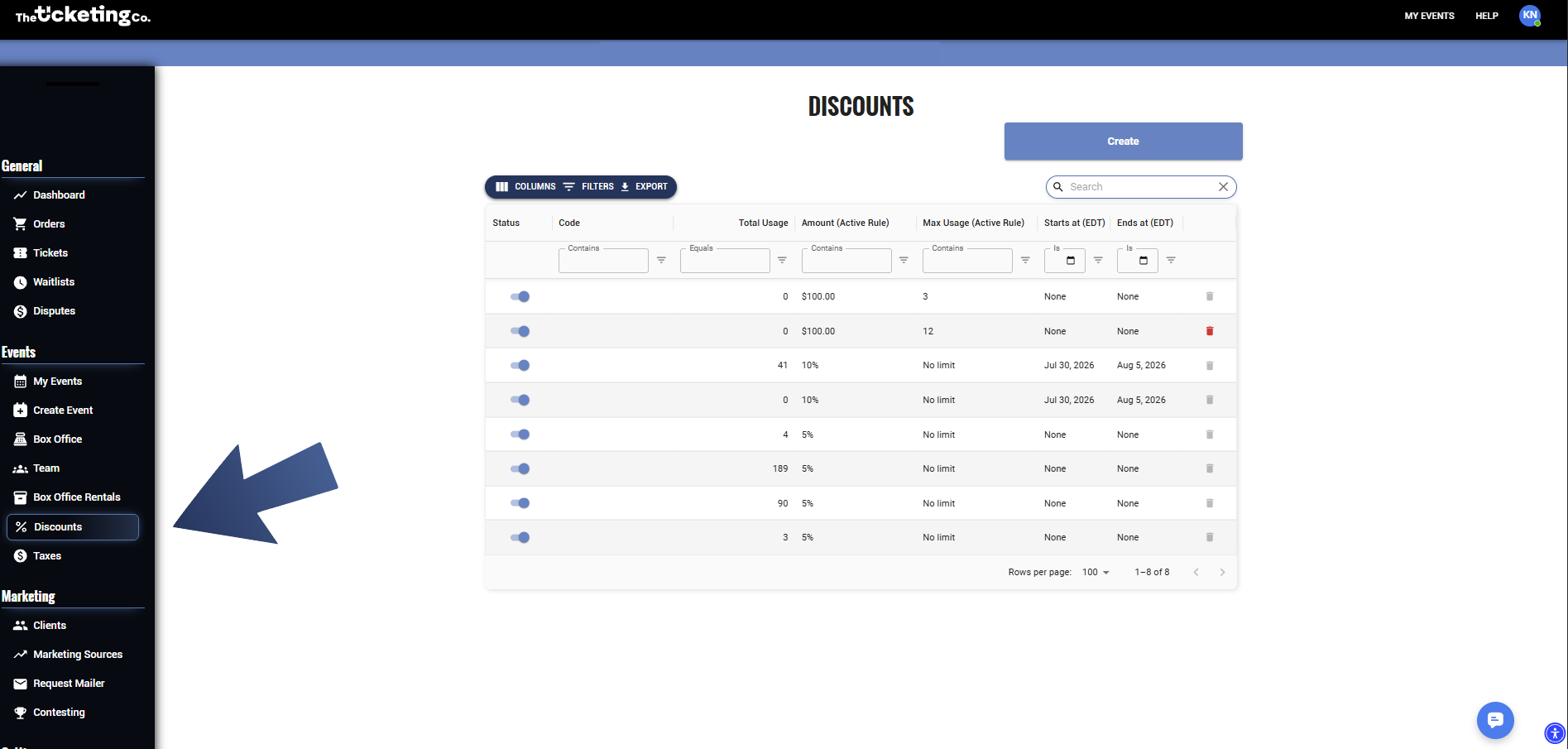
Discounts: organization-level discount list with status, code, and usage
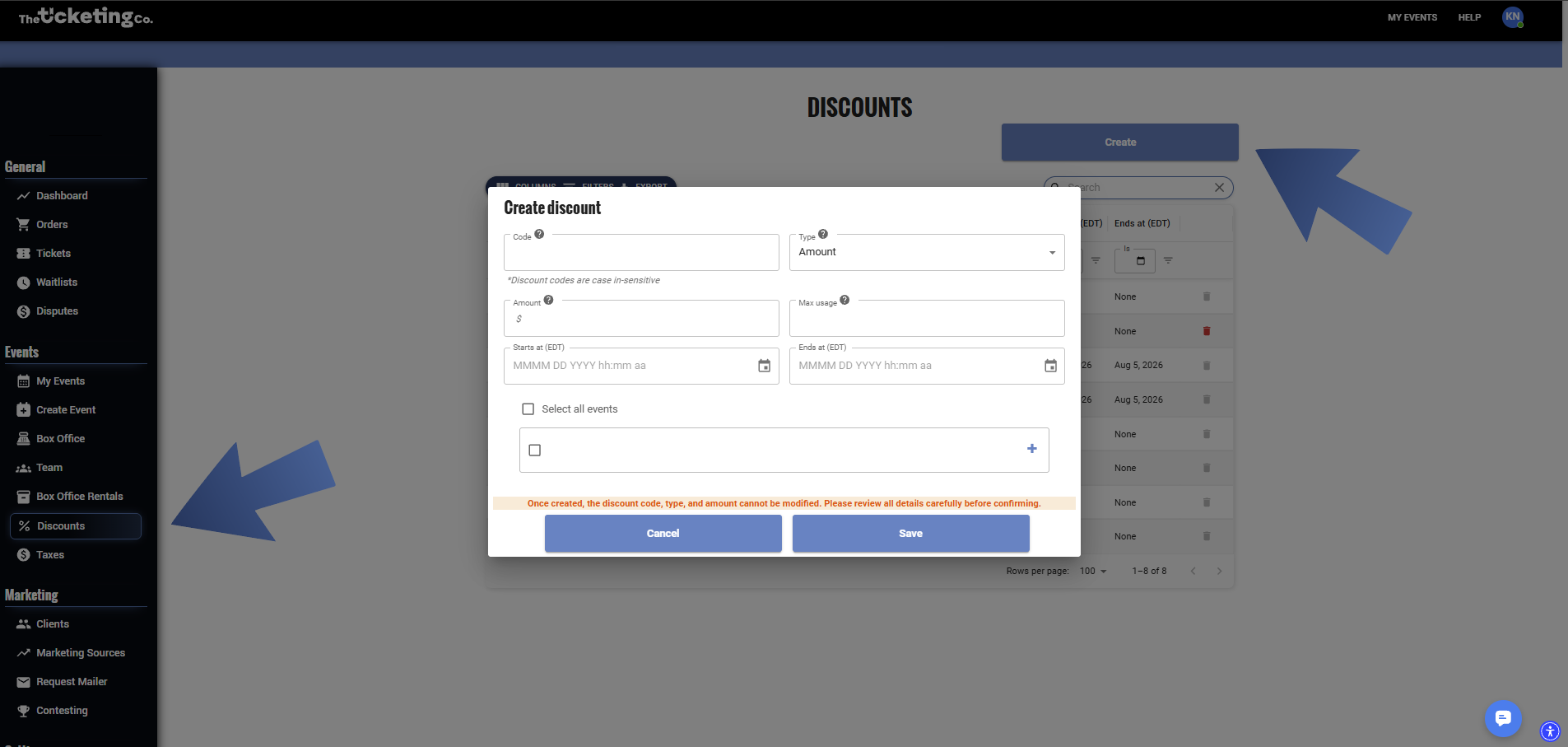
Create Discount: code, type, amount, max usage, dates, and event assignment
From inside a specific event
Open your event from Dashboard, then My Events.
Go to Promo Links inside the event.
Enter the promo link name and click Add.
Click the pencil icon to edit and add a discount code for this specific promo link.
Save. The promo link is automatically scoped to this event only.
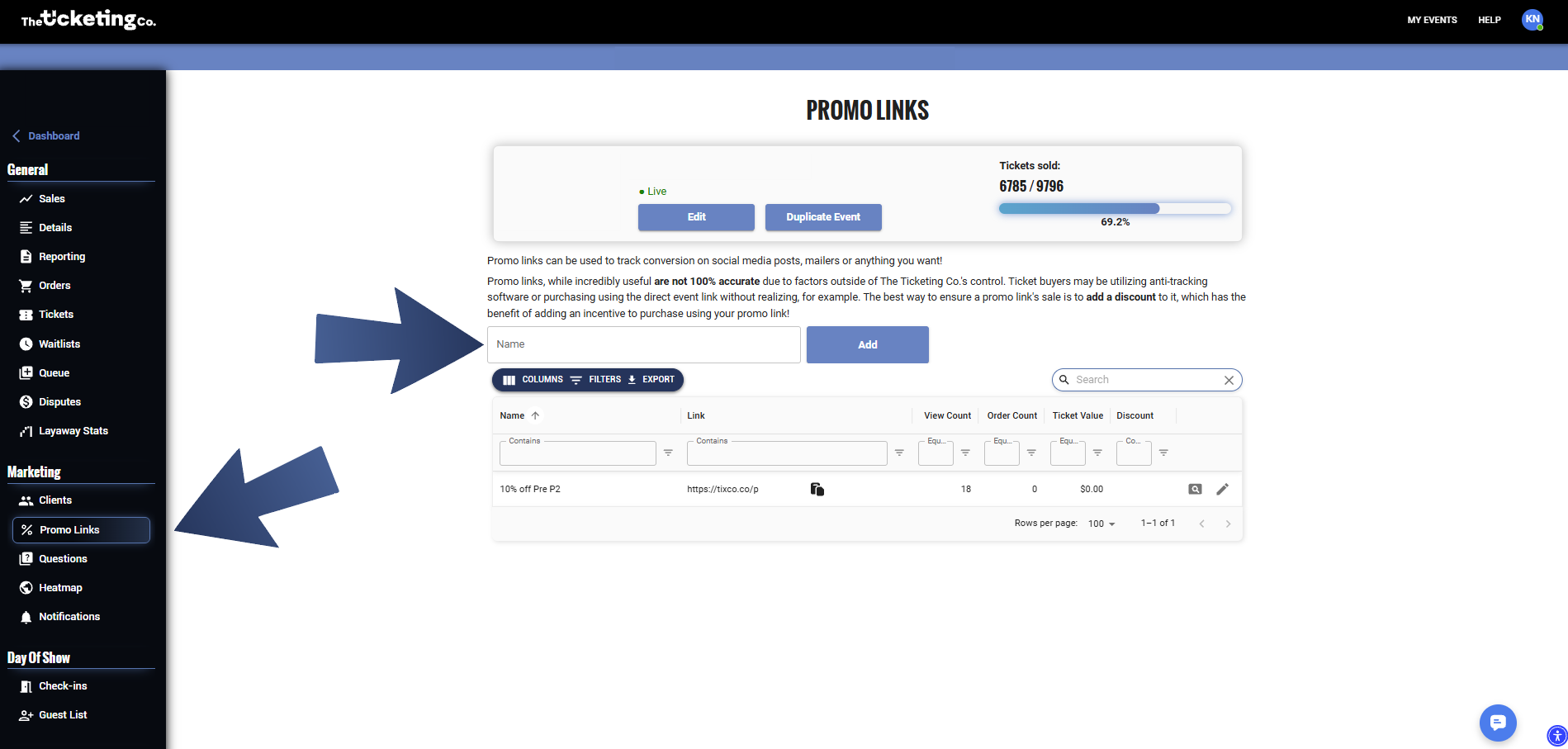
Promo Links: create a named promo link and attach a discount code
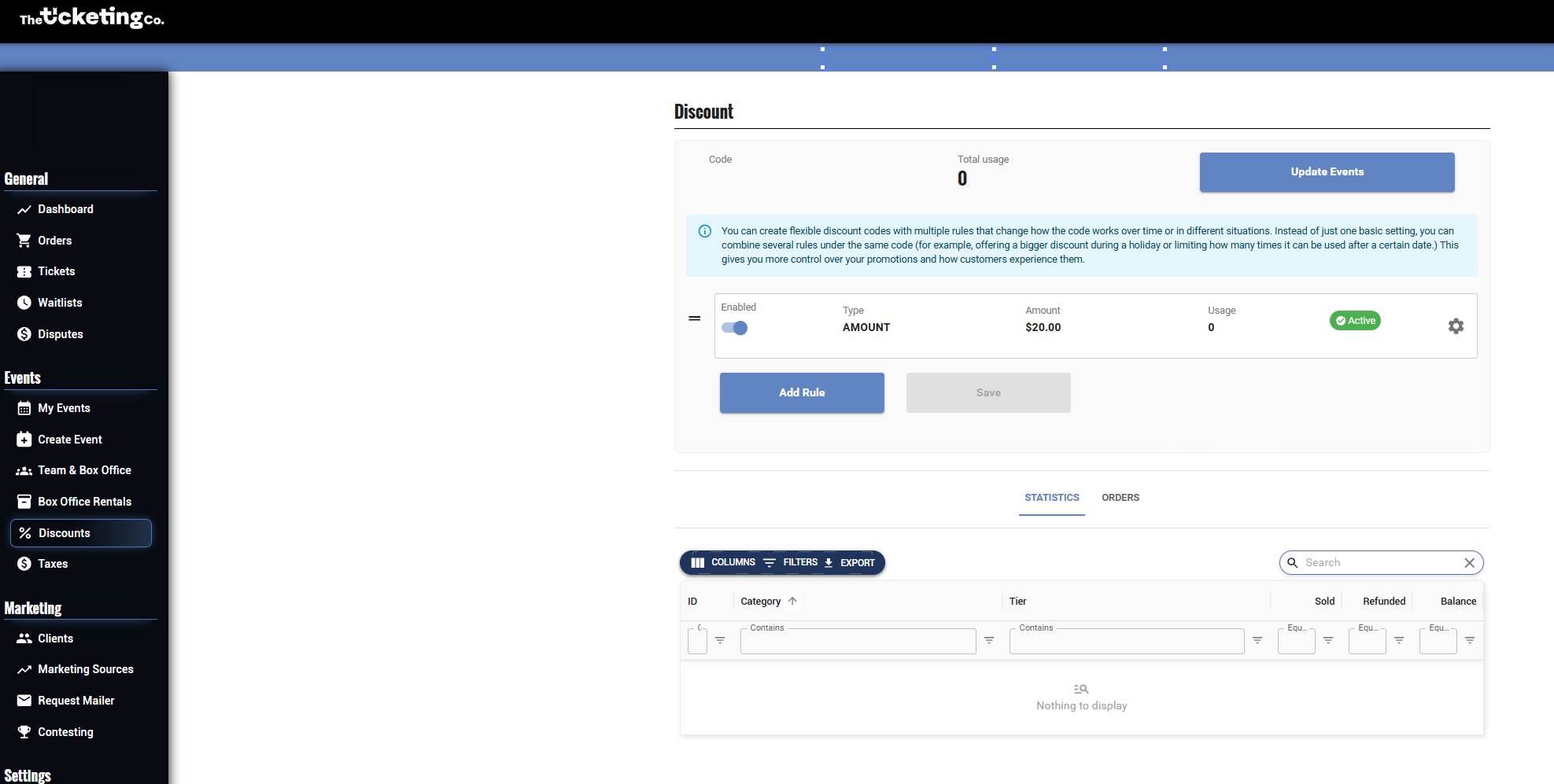
Discount detail: rules, amount, usage statistics, and event assignments
Discount fields: reference
Field | What it does |
|---|---|
Code | The code buyers enter at checkout. Make it memorable and relevant, for example PRESALE25 or VIPACCESS. Codes are case-insensitive. |
Discount type | Percentage (%) off the ticket price, or a fixed dollar ($) amount off. |
Discount amount | The percentage or dollar value of the discount. For example, 20 for 20% off or 10 for $10 off. |
Max usage | The maximum number of discounted tickets this code can issue across all buyers; one use equals one ticket, not one buyer. A max usage of 100 gives away 100 discounted tickets, which could be as few as 25 buyers if people are buying in fours. Leave blank for unlimited. |
Starts at | The date and time the code becomes active. Leave blank to activate immediately. |
Ends at | The date and time after which the code stops working. Leave blank for no expiry. |
Select all events | Make this discount code available for all your events. |
Select a specific event | Check off the event you want to apply this code to. Click the + icon to enable it for specific ticket tiers within that event. |
Discount code examples
Early bird promo: 20% off, first 100 discounted tickets
Code: EARLYBIRD · Type: Percentage, 20% · Max usage: 100
Press and industry: $15 off, no expiry
Code: PRESS2025 · Type: Fixed dollar, $15 · Max usage: Unlimited
Flash sale: 30% off for 48 hours only
Code: FLASH30 · Type: Percentage, 30% · Starts at: [sale start time] · Ends at: [48 hours later]
Tip For flash sales and time-limited promos, always set both a start date and an end date so the code activates and deactivates automatically. You will not need to remember to turn it on or off manually.
Editing a discount
Once created, the discount type and amount cannot be modified. Review all details carefully before saving. Max usage and the start and end dates can only be edited while the discount is switched off. Toggle it off in your discount list, make the change, then toggle it back on.
Disabling a discount
To pause a discount without deleting it: locate the discount in your list and click the toggle on the left side to deactivate. Toggle it back on to reactivate.
Deleting a discount
Find the discount in your list.
Click the trash icon on the right side of the code.
Confirm deletion.
Note A discount can only be deleted while it is unused. Once a code has been applied to an order, it can no longer be deleted. Disable it instead to stop it being used on future purchases.
Tracking discount usage
For every discount code you create, The Ticketing Co. tracks how many times it has been used and the total revenue impact. To view:
Go to Dashboard, then Discounts.
Find the discount you want to review.
Click the discount to open the detail view: usage count, orders placed with this code, total discount value given, and which events it has been used on.
How buyers apply a discount code
The buyer selects their ticket tier and quantity on your event page.
They proceed to checkout.
On the checkout screen, they see Add a Discount Code.
They enter the code and click Apply.
The discount is applied immediately and the order total updates to show the reduced price.
They complete payment at the discounted price.
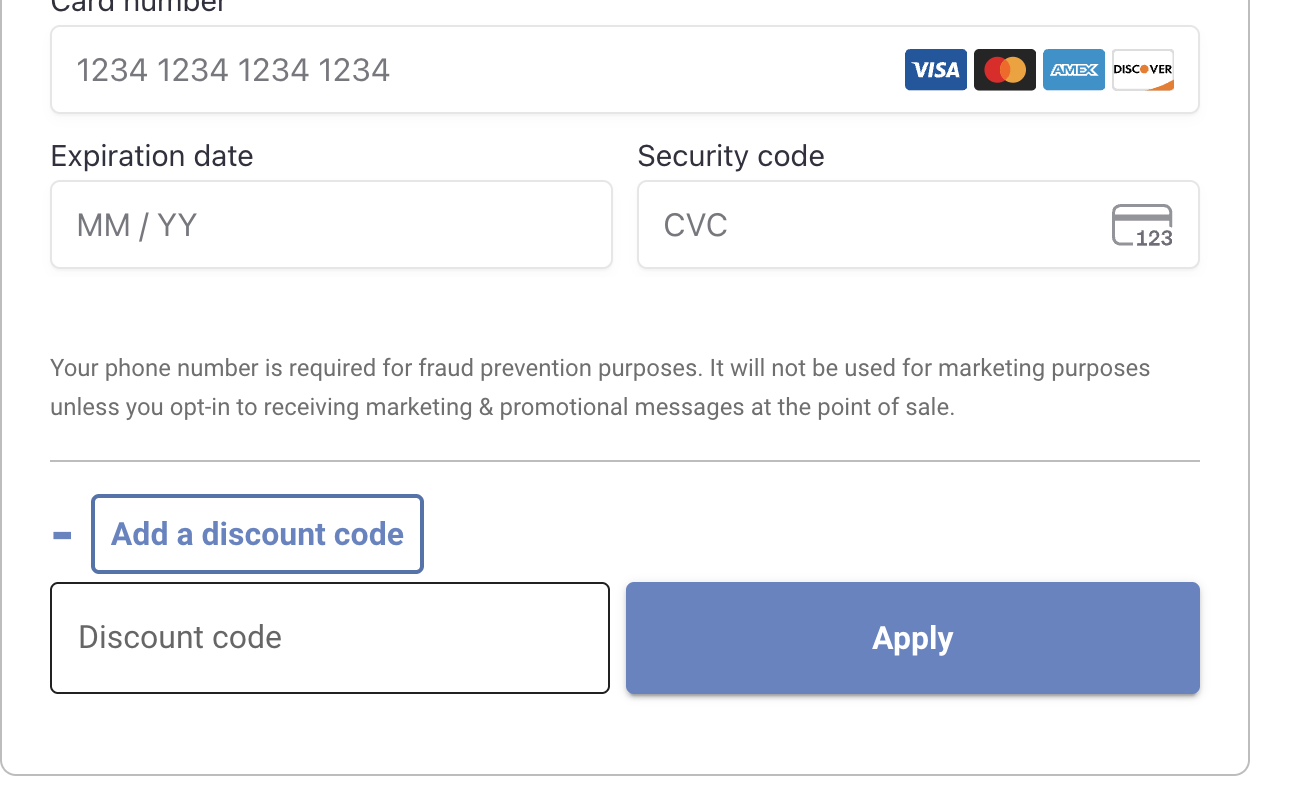
Buyer checkout: Add a discount code field and Apply button
Note Buyers can only apply one discount code per order. Codes cannot be stacked.
Troubleshooting discount codes
Buyer says the code is not working
Confirm the code is assigned to the event the buyer is purchasing from.
Check the expiry date. The code may have expired.
Check the start date. The code may not be active yet.
Check the usage limit. The code may have reached its maximum redemptions.
Codes are case-insensitive, and we strip every space out of a code before we look it up, so a stray space is never the cause. Check the code is still active, that its date window is open, and that it has not hit its max usage.
Code is valid, but no discount is appearing
Check the event and tier assignment. The code may be scoped to a different ticket tier than the one the buyer selected.
Verify the discount type and amount are set correctly in the edit view.
Usage count is lower than expected
Orders that are refunded still count toward the usage tally. The code was used even if the order was later refunded.
If you are tracking usage across multiple events, check the per-event breakdown in the discount detail view.
Cancelling an Event
Quick answer: Cancellation is permanent. Contact the team via the dashboard chatbot or the Contact Us form. They process refunds and notify ticket holders. Rescheduling is handled the same way and keeps the event live.
Sometimes events do not go ahead. Whether it is weather, a venue issue, or something unexpected, The Ticketing Co. team handles the process on your behalf to remove as much stress as possible.
Warning Cancelling an event is permanent and cannot be undone. Make absolutely sure you want to cancel before proceeding. If you need to reschedule rather than cancel, see the Rescheduling section below.
Before you cancel
Could you reschedule instead? Rescheduling keeps the event live with a new date and avoids cancellation entirely.
All ticket holders qualify for a full refund. Factor this in before proceeding.
Check how many tickets have been sold. Review your Sales tab so you know the scope before reaching out.
Notify attendees before cancelling. Buyers are less likely to dispute charges when they hear directly from the organizer.
How to cancel an event
Reach out to The Ticketing Co. team via the dashboard chatbot, the Contact Us form at theticketing.co/contact-us, or any team member you are already in contact with. The team will handle the cancellation, process refunds, and notify all ticket holders.
Note Refunds typically take 5 to 10 business days to appear on a buyer’s statement, depending on their bank or card issuer. Direct buyers to contact their bank if they have questions about timing.
Notifying your attendees
The Ticketing Co. team will send a cancellation notification to all ticket holders on your behalf. Include a personal cancellation message when you contact the team. Buyers appreciate hearing directly from the organizer, and a personal note reduces negative feedback significantly.
Post the cancellation on your social media channels as well. Some buyers follow the event page directly and may not receive email notifications immediately.
Rescheduling instead of cancelling
If your event is moving to a new date, you do not need to cancel. Reach out to The Ticketing Co. team via the chatbot, the Contact Us form, or any team member you are in touch with. The team will update your event and notify all ticket holders of the new date.
At the time of rescheduling, ticket holders will be given the option to request a refund if they cannot make the new date. The Ticketing Co. will process any refund requests on your behalf.
If you do not have a new date confirmed yet, that is fine. The team will notify ticket holders that a new date is coming and send a follow-up message once details are confirmed.
Tip When rescheduling, consider sending an SMS blast or targeted email to your attendees notifying them of the date change. Buyers who cannot attend the new date may request a refund. Handle these from your Orders tab.
Need help?
We usually reply within minutes.