
⚒️ Additional Features & Support
This section covers the tools that go beyond the basics of creating and selling tickets. From a built-in resale market to guest list management, contest collaboration, and a geographic view of your audience, these features give you more control over how your events run and how you grow them.
Resale Market
Quick answer: When an event sells out, the team can open a resale market on request. Ticket holders list, waitlisted buyers get a time-limited link, the old QR voids and a new one is issued. Resale fee is 10 percent of what the seller originally paid, deducted from the refund they receive.
When an event sells out, The Ticketing Co. can open a resale market so ticket holders who can no longer attend can sell their tickets to buyers on the waitlist. The entire transaction happens on the platform: secure, tracked, and handled the same way as a primary ticket sale.
This protects your buyers from unofficial resale channels and fake tickets, and keeps your event's ticket activity visible to you in your dashboard.
How the resale market works
The resale market can be activated upon request by The Ticketing Co. team member once an event or a specific ticket tier is sold out. Once activated, two things happen simultaneously:
Buyers who missed out can join the waitlist
Existing ticket holders can list their ticket for resale
When a resale ticket is purchased, the original ticket is voided, a new QR code is issued to the buyer, and the seller is refunded their original purchase price minus the resale fee. The Ticketing Co. handles the transfer automatically. No manual steps required from you.
The buyer experience
Joining the waitlist
The buyer visits your event page after tickets sell out.
They see the Sold Out notice and a Join Waitlist option.
They enter their details and join the waitlist for the ticket they want.
When a resale ticket for that tier becomes available, they receive an email notification with a time-limited link to purchase.
If they do not purchase within the hold window, the ticket moves to the next person on the waitlist.
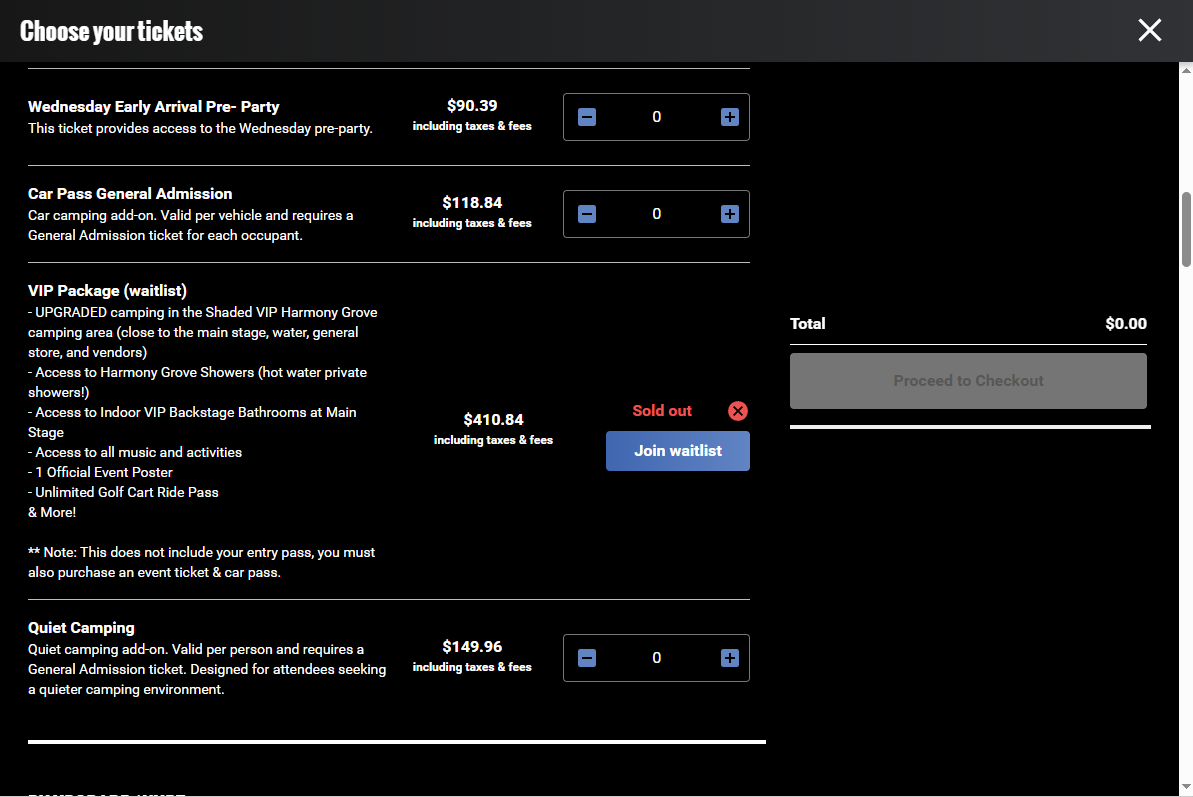
Sold Out notice with the Join Waitlist option on the event page
Note The waitlist hold window is time-limited. Buyers who receive a waitlist offer need to act on it promptly. The exact window length is set by The Ticketing Co. and displayed in the notification email they receive.
Listing a ticket for resale
The ticket holder logs in to their account on The Ticketing Co.
They open the ticket they want to sell.
They tap Sell your tickets.
The ticket is listed on the event page immediately.
When a buyer purchases it, the seller is refunded their original purchase price minus the 10 percent resale fee, back to the card they bought with, and the ticket transfers automatically.
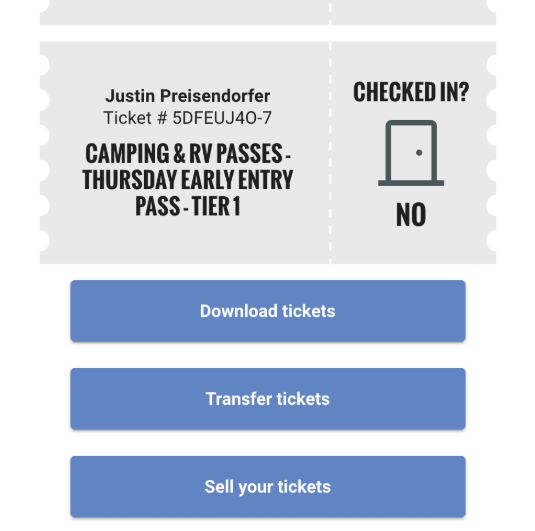
The Sell your tickets action in the ticket holder account
What you control as an organizer
The Ticketing Co. opens the resale market upon request when your event or tier sells out. From your event dashboard, you can:
Monitor active resale listings and completed resale transactions in the Waitlists tab.
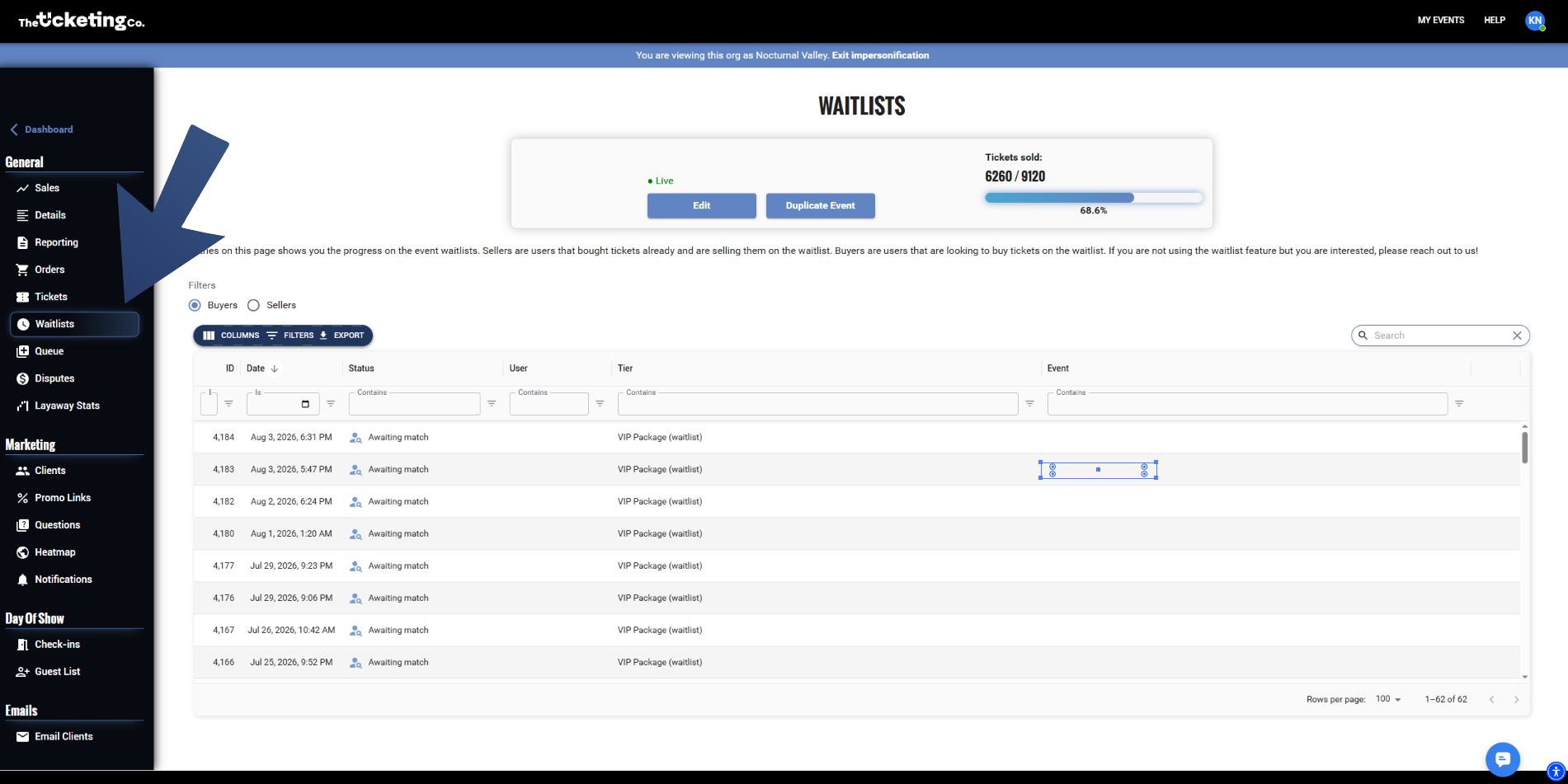
Waitlists tab showing active resale listings and completed transactions
Resale fees and restrictions
Topic | Detail |
|---|---|
Resale fee | 10 percent of what the seller originally paid for that ticket — face value plus fees and tax — not of the price it resells at. The seller gets their original purchase price back, less the 10 percent fee; they do not receive the resale price. The buyer pays exactly the listed price — nothing is added on top. |
Price cap | This is up to the organizers. You can set the price at “Door/Day of show” |
Who can list | Any ticket holder for a sold-out event or tier, subject to the restrictions below. |
Ineligible tickets | Tickets that have already been scanned, voided, refunded, transferred, or are part of an incomplete Layaway plan cannot be listed. |
QR codes | When a resale ticket sells, the original QR code is voided instantly. The buyer receives a new, unique QR code. Old codes will not scan at the door. |
Heatmap
Quick answer: The Heatmap tab plots every purchase by billing ZIP code on a live map. Denser clusters mean more buyers from that area. Use it to check whether paid campaigns converted where you pointed them.
The heatmap gives you a geographic view of where your ticket buyers are located. Every purchase is mapped to the buyer's billing ZIP code and plotted on a live map, so you can see at a glance whether your audience is local, regional, or drawing from further away.
Accessing the heatmap
Open your event from the Dashboard.
Click the Heatmap tab inside the event.
The map loads and plots buyer density across the country.
Use the zoom controls to drill into a specific city or neighbourhood, or zoom out to see the full regional picture.
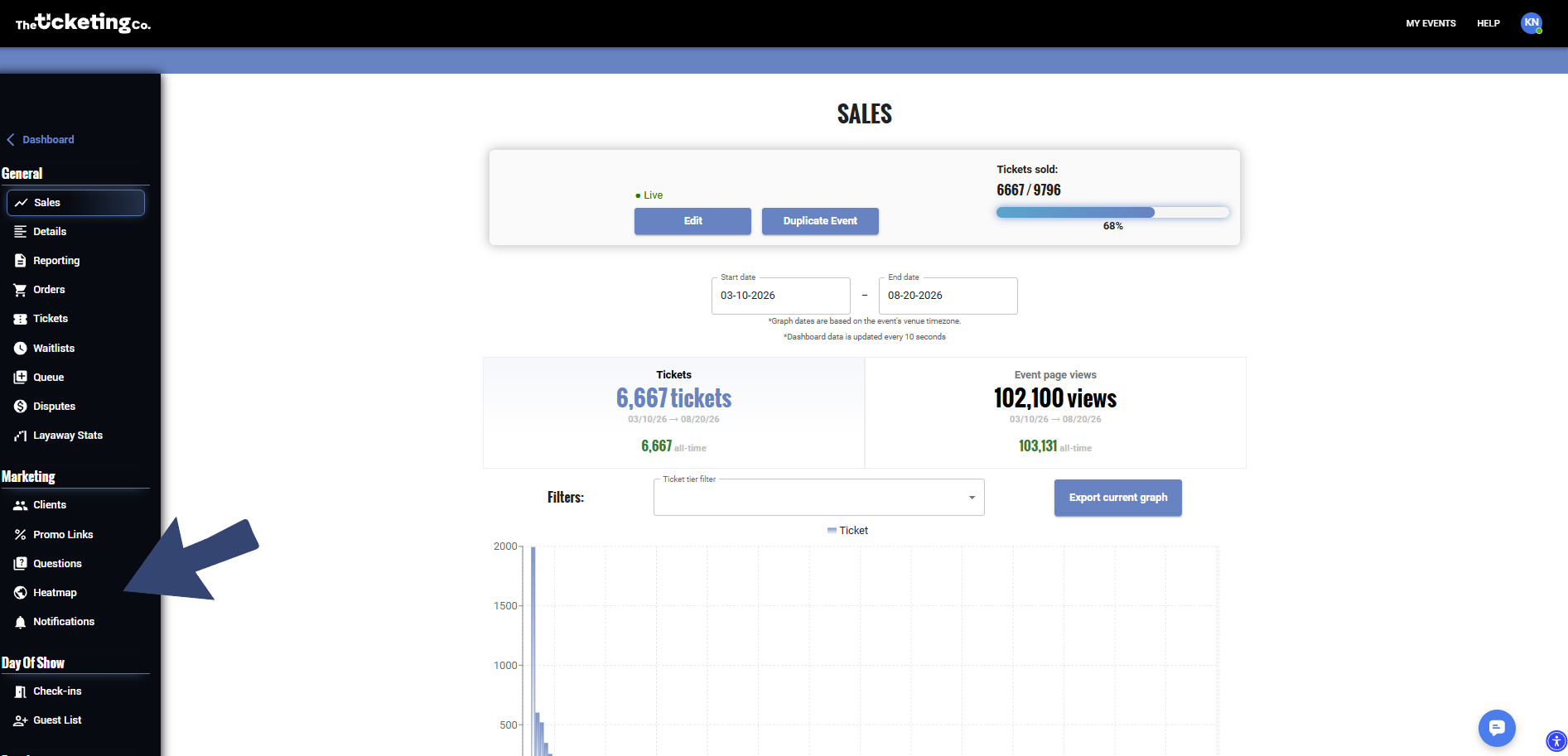
Heatmap tab plotting buyer density across the country
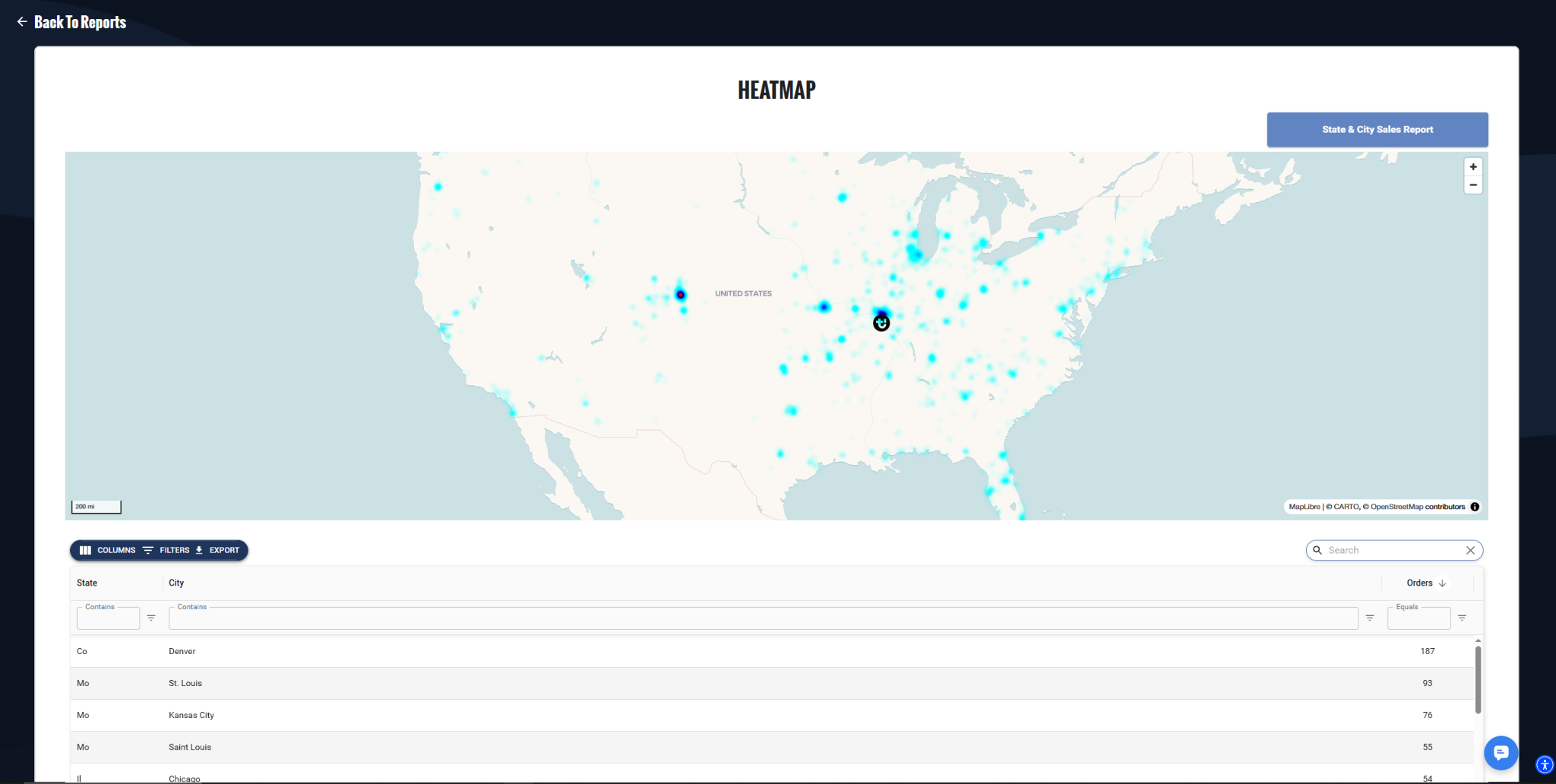
Zoom controls drilling into a specific city
Reading the heatmap
Warmer, denser clusters mean more buyers from that area. Lighter areas mean fewer. The heatmap updates in real time as new purchases come in, so you can watch your audience footprint grow as your event fills up.
What you see | What it tells you |
|---|---|
A tight cluster in your city centre | Your local marketing is reaching your core audience. |
A strong cluster in a city you did not target | Organic word of mouth or artist following is pulling buyers from outside your usual market. |
Very sparse outside a 10-mile radius | Your event is drawing locally but not regionally. Consider broader distribution or targeting for your next campaign. |
Clusters matching your ad spend geography | Your paid campaigns are converting where you pointed them. |
Note The heatmap is based on the billing ZIP code entered at checkout. It is directionally accurate for understanding your audience geography, not a precise attendance census.
How to use heatmap data
Targeting paid advertising — run the heatmap after an event, then compare it to your ad delivery geography. Where buyers came from outside your paid radius is an organic signal worth amplifying next time.
Deciding where to promote — if a neighbouring city is showing unexpected density, that market may be worth direct outreach: local press, venue partnerships, or targeted ads.
Planning future events — recurring event organizers can compare heatmaps across editions to see whether their audience is growing, staying the same, or shifting geography over time.
Reporting to partners — if a booking agent or sponsor wants to see where your audience comes from, the heatmap gives you a visual answer faster than any spreadsheet.
Request Mailer
Quick answer: Dashboard, then Request Mailer under Marketing. The team reviews your brief, sends a test for approval, then schedules the send. One week of advance notice is required.
The Request Mailer lets you ask The Ticketing Co. team to send a promotional email on your behalf to your past ticket buyers and beyond! If you want to announce a new event, promote an on-sale, or re-engage your existing audience, this is the direct path to their inboxes without needing your own email platform.
Note The mailer is sent by The Ticketing Co. to buyers from your previous events. The list is drawn from your verified ticket buyer history on the platform. The Ticketing Co. team reviews and sends the email on your behalf.
How to submit a mailer request
Go to your Dashboard and click Request Mailer under Marketing.
Fill out the request form (see the fields below).
Submit. The Ticketing Co. team will review your request and follow up to confirm details before sending.
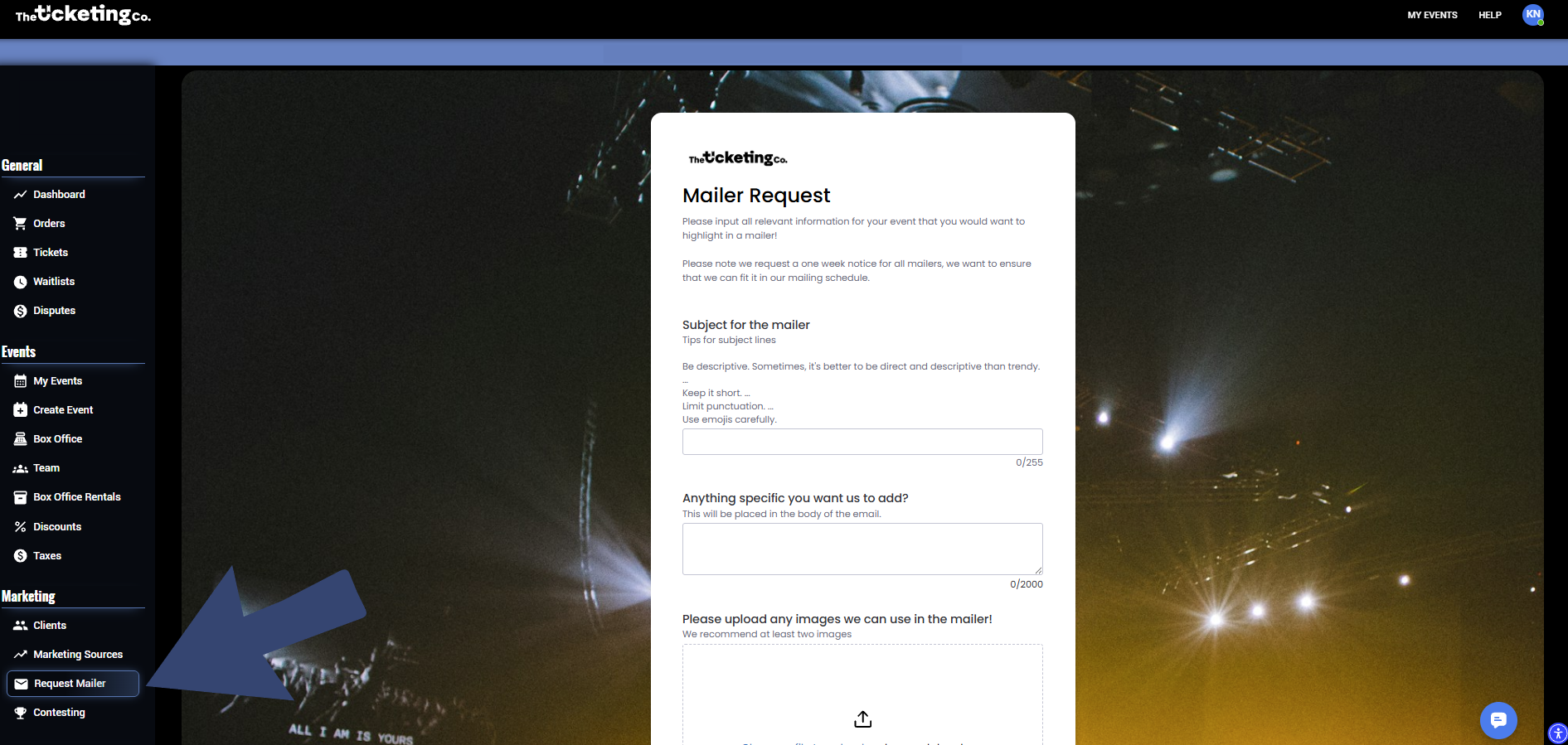
Request Mailer form under Marketing in the Dashboard
What to include in your request
Field | What to provide |
|---|---|
Subject for the mailer | Be descriptive. Sometimes, it's better to be direct and descriptive than trendy. Keep it short. Limit punctuation. Use emojis carefully. |
Anything specific you want us to add? | This will be placed in the body of the email. |
Please upload any images we can use in the mailer! | We recommend at least two images. (Ideally, a flyer for your event and a picture of the headliner or your past events) |
Date & Time to send out | What date would you want us to send out the mailer? Tuesdays-Thursdays usually do best around 11 am-2 pm. Please note we request a one-week advance notice on all mailers. |
What are the main cities/markets you are around? | Let us know what demographic you would like us to hit. |
Email to send test mailer to. | What is your email to send the test mailer for approval? If you prefer us to text, please leave your number below as well for quicker approval. |
Tip The cleaner and more specific your brief, the faster the team can turn it around. A single, focused message with one clear call to action performs better than a multi-message email that covers several topics. Keep it to one thing.
What happens after you submit
The Ticketing Co. team reviews your request and confirms the target list, send time, and creative direction.
If anything needs clarification, the team will reach out before proceeding.
Once confirmed, the team builds the email and sends the test email for approval.
Once it’s approved, it gets scheduled on the requested/agreed date & time.
Important The mailer is a team-managed service. Final approval on content, list, and send time sits with The Ticketing Co. Requests that do not meet platform guidelines will not be sent. Please note, we request a one week notice for all mailers, we want to ensure that we can fit it in our mailing schedule.
Contests
Quick answer: Dashboard, then Contesting under Marketing. The team creates the graphic and confirms the posting schedule before going live. You post and add the team as a collaborator, or ask them to post and add you.
The contest feature is a collaboration between you and The Ticketing Co. team. You request a contest for your event and the team helps create the graphic and runs a giveaway post on Instagram, getting your audience to like, comment, and share for a chance to win tickets.
Contests drive awareness, expand your reach to new audiences, and create organic engagement ahead of your event without paid advertising.
How to request a contest
Open your dashboard and click Contesting under Marketing.
Fill in the contest details form (see below).
Submit. The Ticketing Co. team will review your request, create the graphic, and confirm the posting schedule with you before going live.
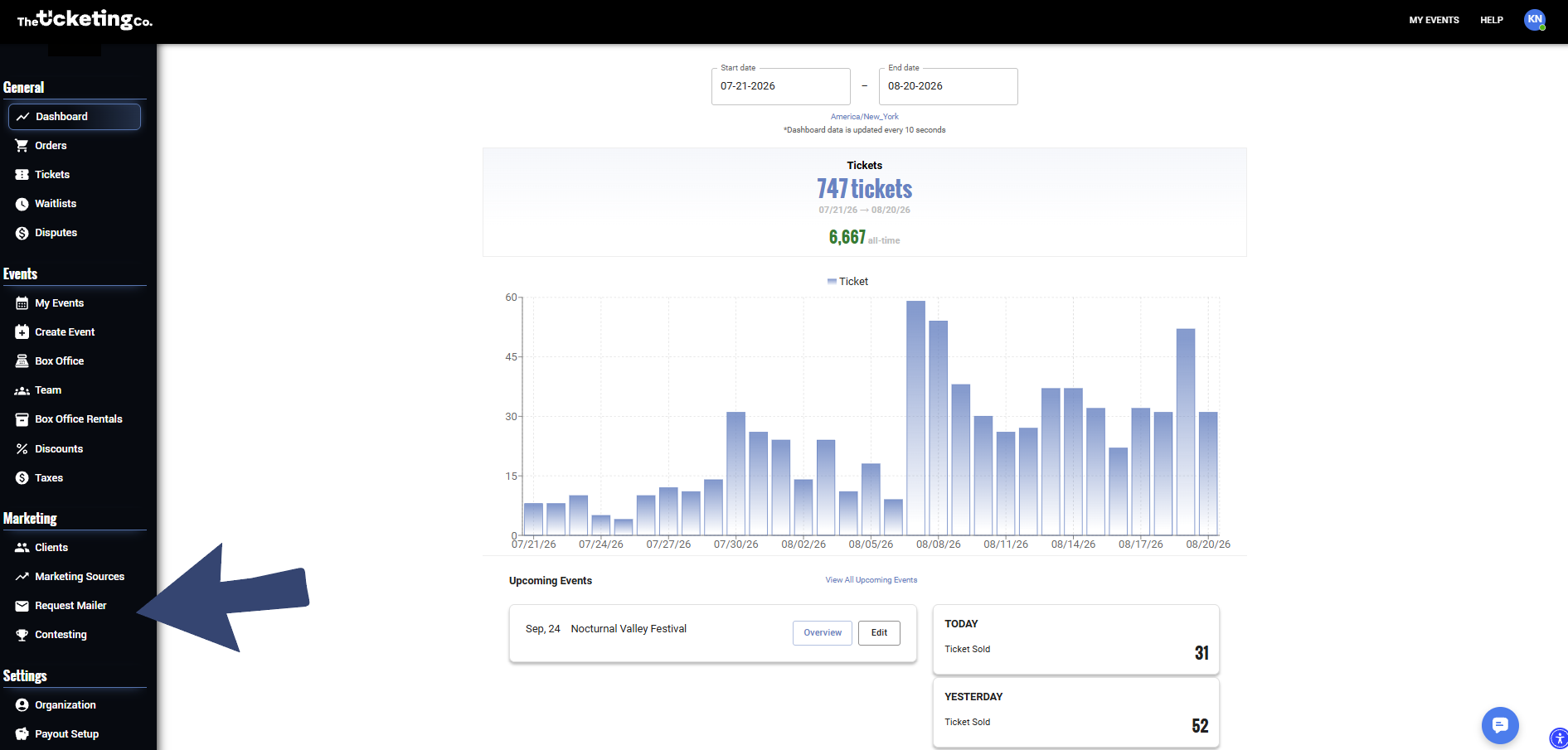
Contesting form under Marketing in the Dashboard
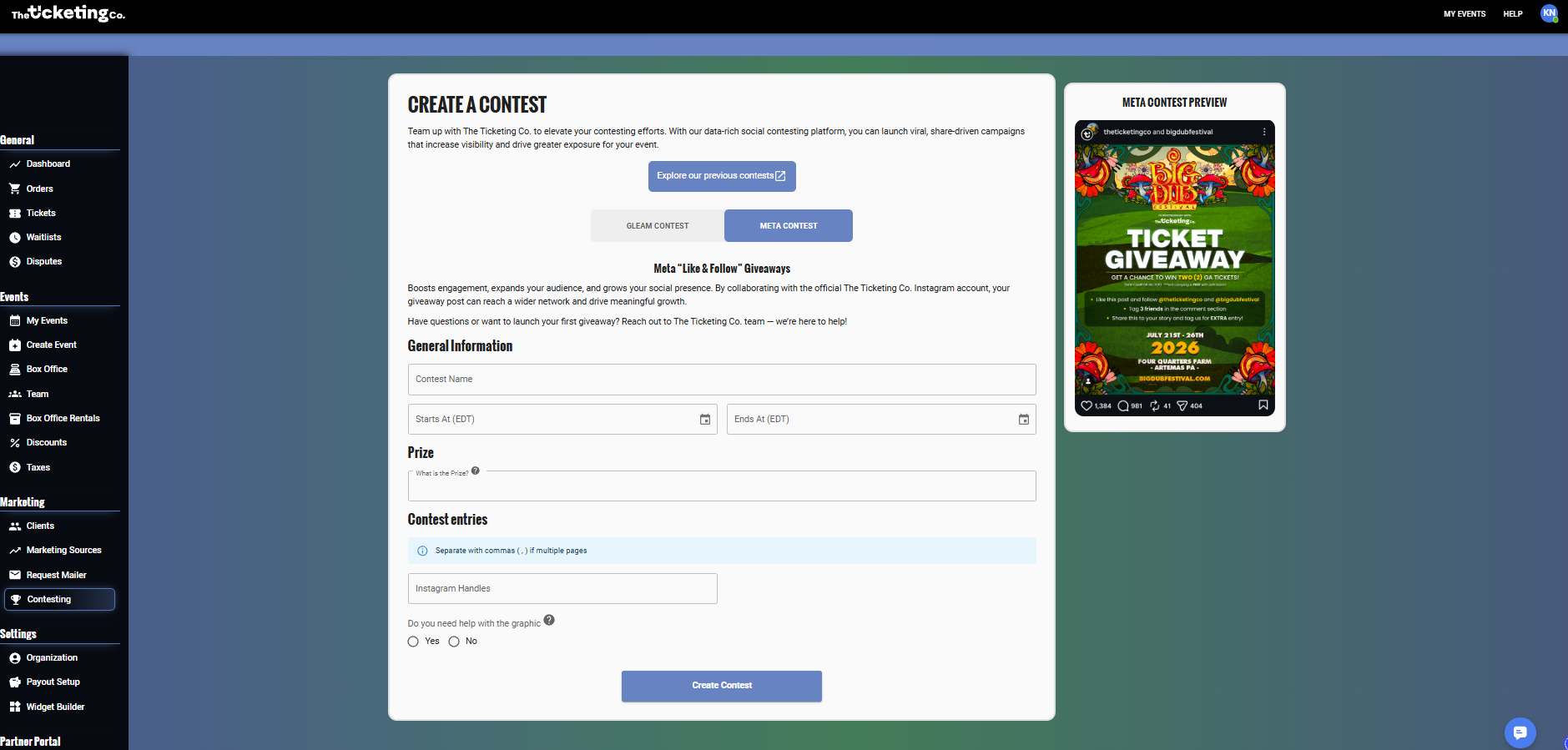
Contest details form fields
What to include in your contest request
Field | What to provide |
|---|---|
Contest name | What do you want to call this contest? Win 2 GA passes? Or Meet and Greet? This is up to you! |
Contest duration | How long the contest runs before a winner is selected. A 3 to 5 day window is typical. |
Prize | What would you like to give away? The bigger the prize, the stronger the incentive is to enter. |
Contest entries | Add any Instagram handles that are involved in this contest. |
Do you need help with graphics? | We can also assist you in creating custom branded graphics for your giveaway post to help it stand out and feel cohesive with your event’s visual identity. |
Tip The bigger the prize, the stronger the incentive is to enter. Attendees would be more eager to participate and share when the prize is strong.
After the contest runs
The Ticketing Co. team can help you pick a random winner or send you a couple of options to choose from.
Either The Ticketing Co. team or you can reach out to the winner via Instagram DM and send them their prize.
Note We ask you to post the contest and add us as a collaborator. You can always request us to do the posting and add you as a collaborator.
Promo Links
Quick answer: Promo Links are trackable URLs, one per person or channel, under Marketing inside the event. Each one reports clicks, orders, ticket value and tier, generates its own QR code, and can carry a discount that applies automatically.
Promo Links are unique, trackable URLs for your event. Create one for each person or channel you want to track and you will see exactly how many clicks and ticket sales came through each link.
The most common use is tracking your street team and artist appearances. Give each artist or street team member their own Promo Link and you can see whose promotion drove the most sales.
Creating a Promo Link
Open your event from the Dashboard.
Go to the Promo Links tab under Marketing inside the event.
Enter the name of the promo link and click Add.
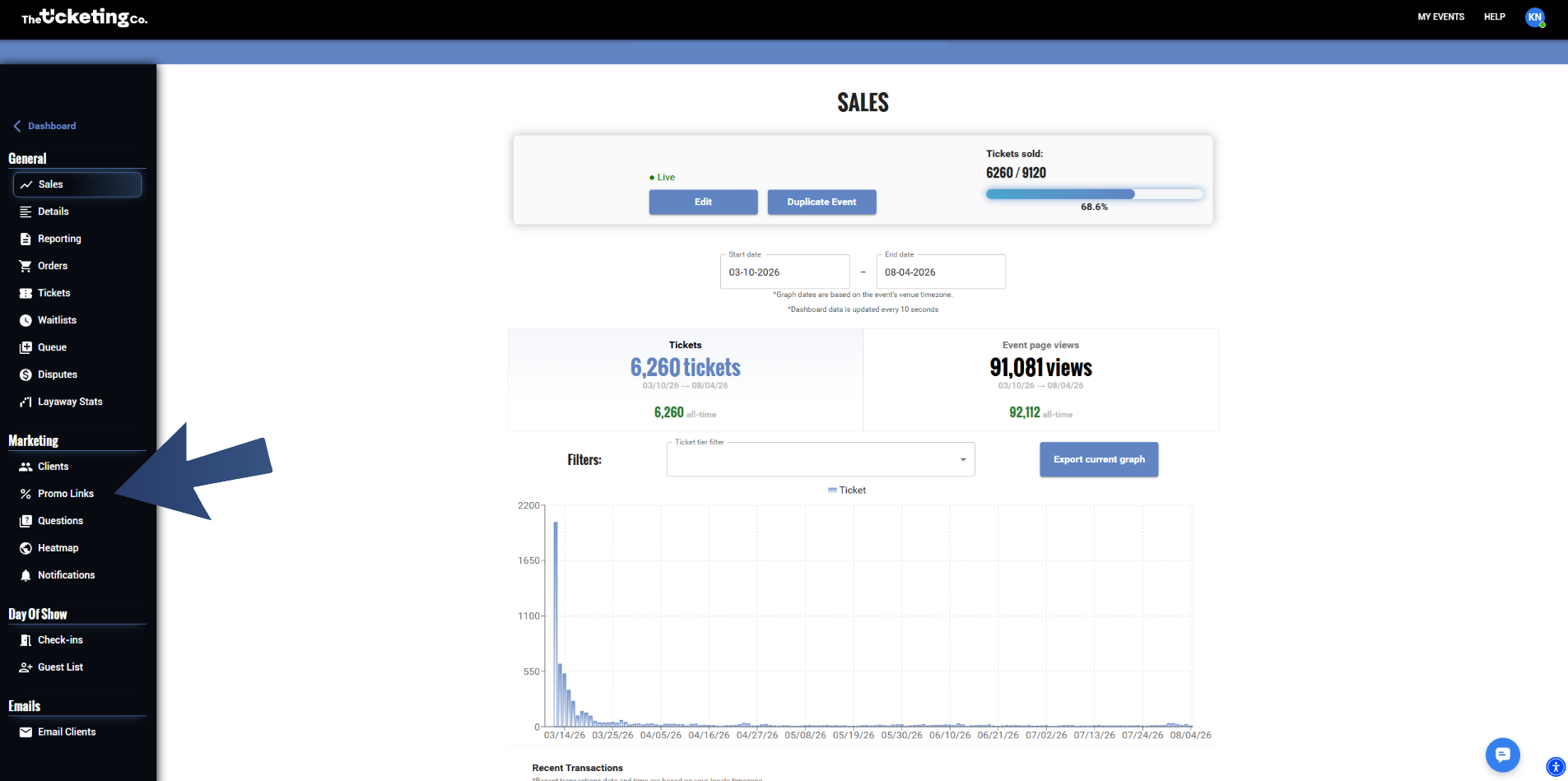
Promo Links tab under Marketing inside the event
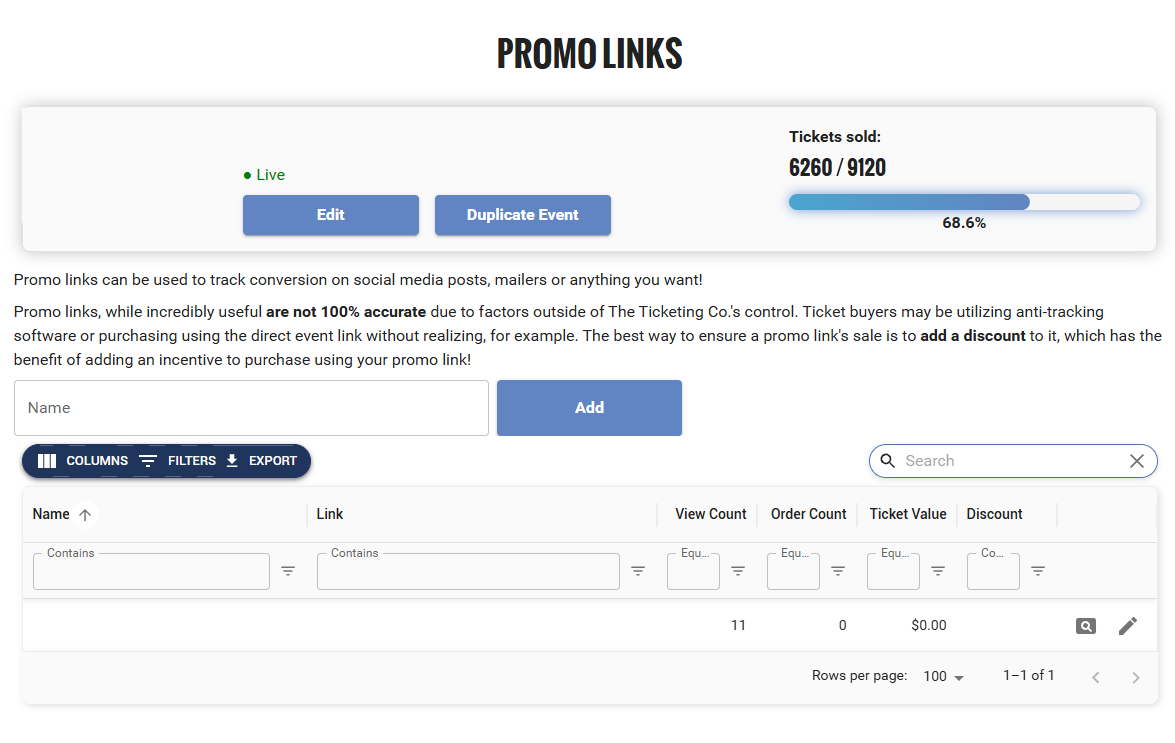
Naming a new promo link before adding it
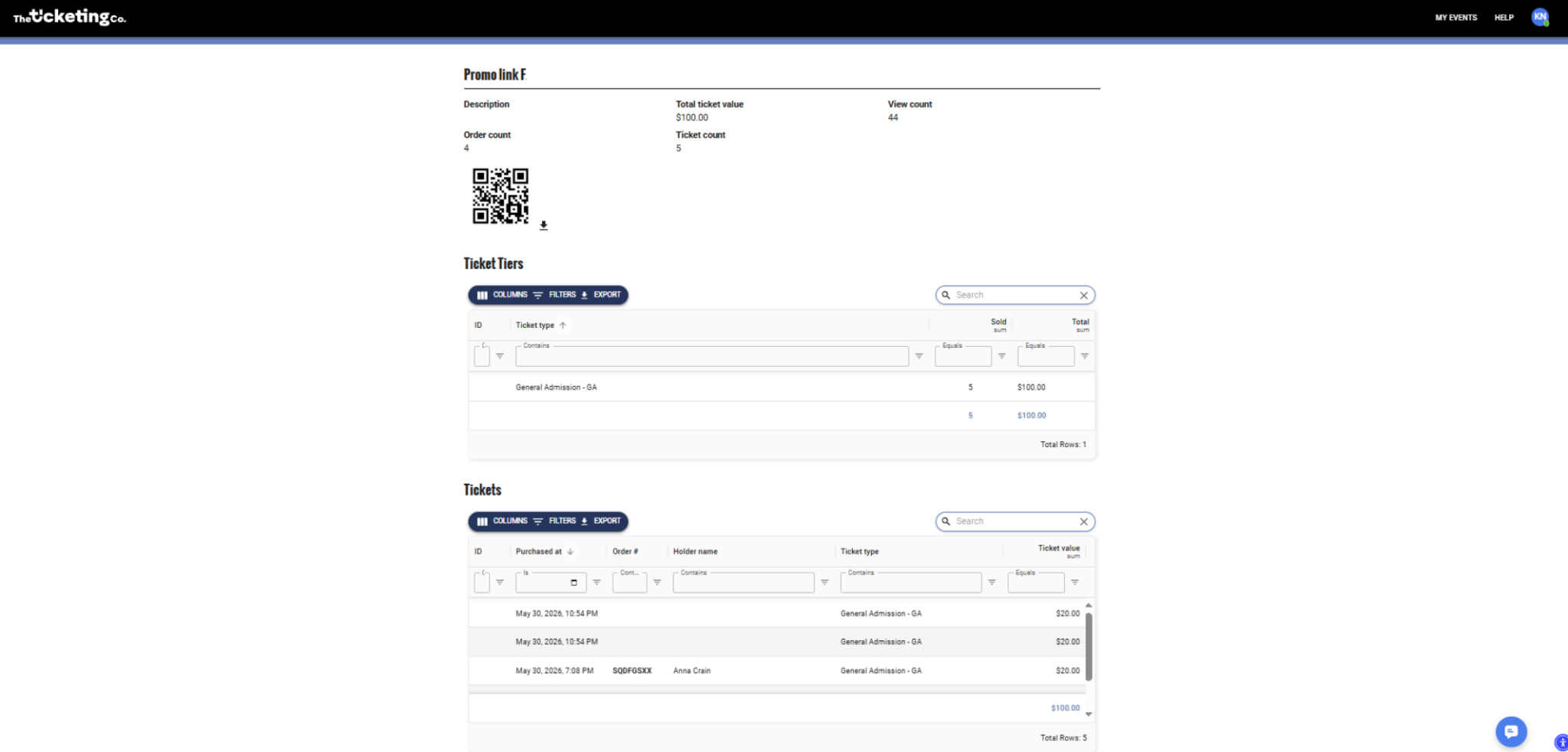
Full breakdown for a single promo link
What each Promo Link tracks
Total link clicks
Total orders placed through that link
Total ticket value
Ticket Tier
To see a full breakdown for a link, click the magnifying glass icon next to it in the Promo Links list.
The QR code
Every Promo Link automatically generates a QR code. Download it directly from the link detail view. The QR code is unique to that link, so scanning it counts as a click in your analytics.
Give the QR code to the relevant artist or street team member to use on printed materials, flyers, or their own social posts. Any ticket sold through that QR code is attributed to their link.
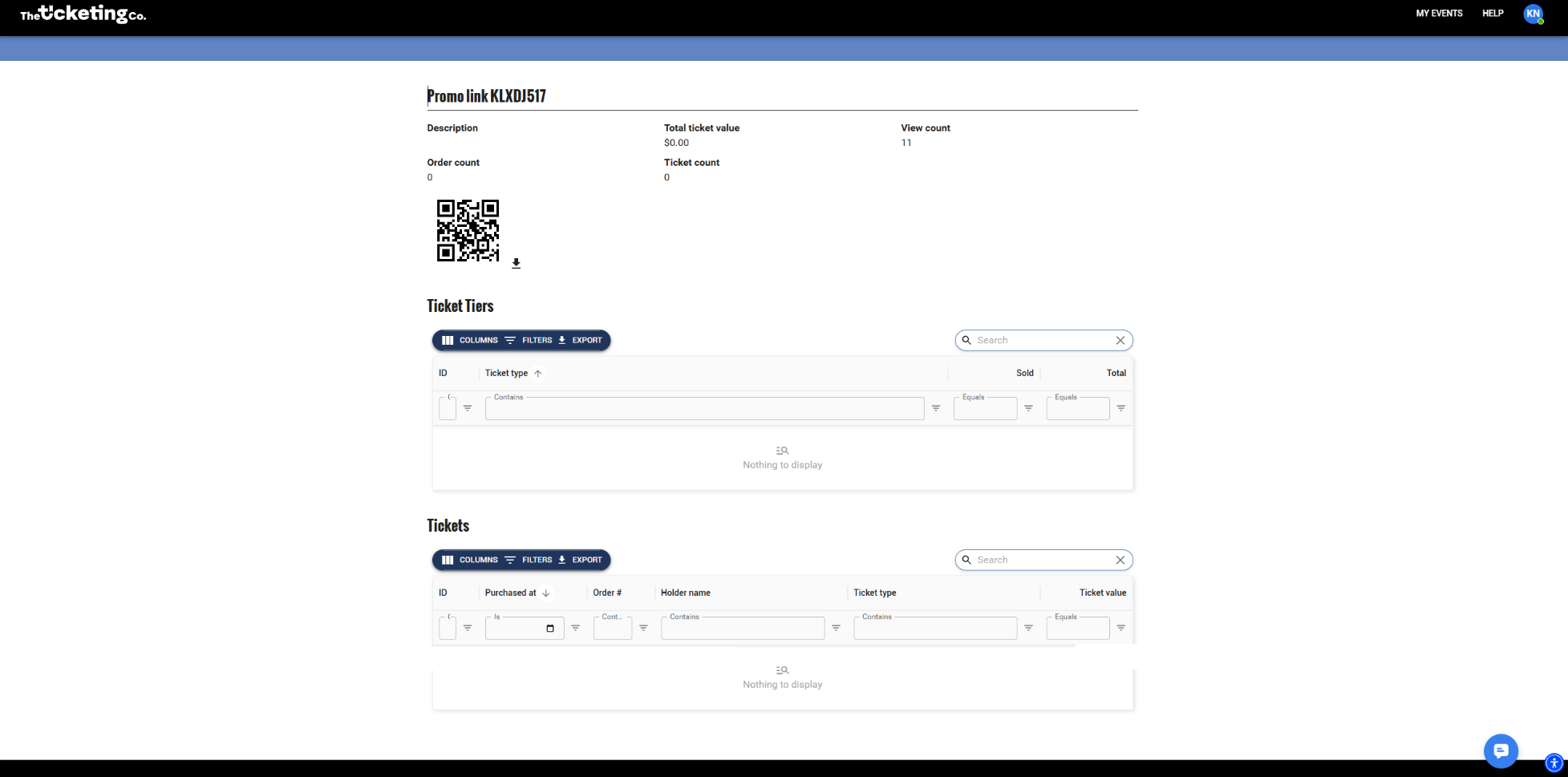
QR code generated for a promo link, ready to download
Tip Create a separate Promo Link for every person and every channel you want to track. If two people share the same link, you cannot tell which one drove which sales. One link per source keeps your data clean.
Attaching a discount to a Promo Link
Promo Links can carry a discount code that applies automatically when a buyer arrives through the link. Useful when you want to give a specific artist's audience a discount without asking them to enter a code manually.
Open the Promo Link and click the pencil edit icon.
In the Discount field, select the discount you want to attach.
Save. The discount will apply automatically for any buyer who uses that link.
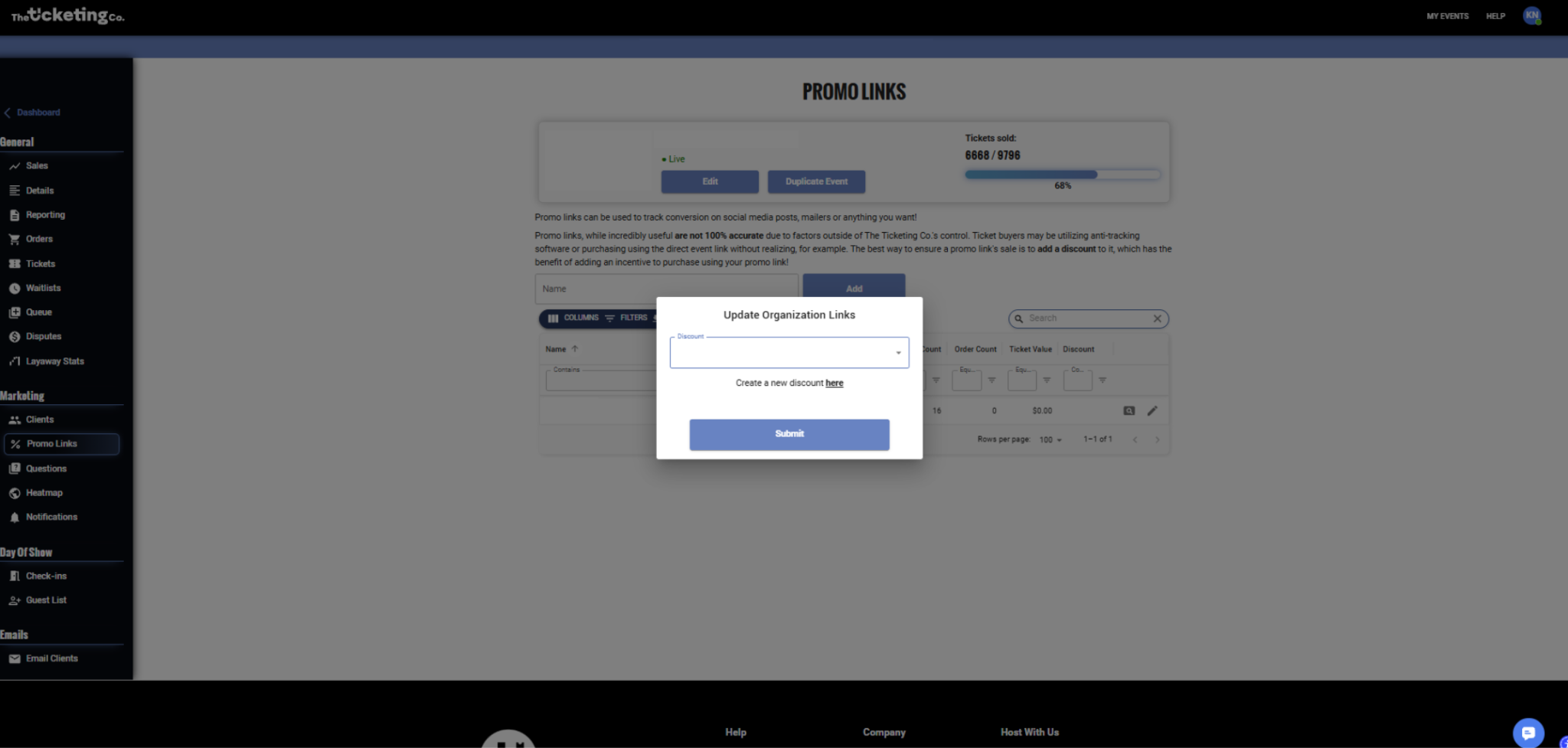
Selecting a discount to attach to a promo link
Note The discount must already exist in your organization before you can attach it to a Promo Link. See the Discount Codes article for how to create one first.
Notifications
Quick answer: Automated sales reports to any address on a daily, weekly or monthly schedule. Set them up in the Notifications tab under Marketing. Weekly suits most events and gives agents a regular pulse without inbox overload.
The Notifications feature sends automated ticket sales reports to any email address you specify on a schedule you choose. This is built for situations where someone other than you needs to stay informed of ticket counts: booking agents, event partners, co-promoters, or venue managers who have a contractual or operational interest in how your event is tracking.
What a notification report includes
Each notification email contains a sales snapshot for the selected event at the time it is sent:
Total tickets sold across all tiers
Tickets sold per tier
Tickets sold since the last report (for weekly and monthly reports)
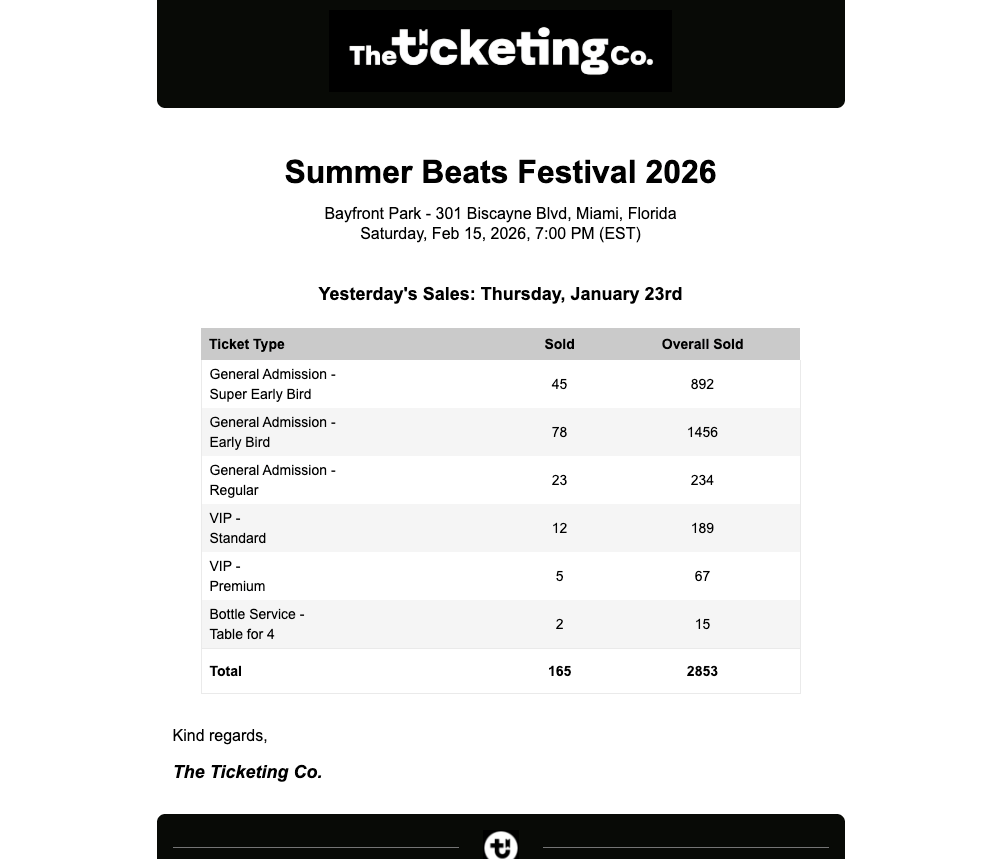
Sales snapshot as it appears in a notification email
Setting up a notification
Open your event from the Dashboard.
Go to the Notifications tab under Marketing inside the event.
Click Add Schedule.
Choose a report type. (Daily/Weekly/Monthly)
For Daily, pick which date you want to receive your notification
Send at time. Select the time you want the notification to go out.
Enter the recipient email address. You can add multiple recipients
Create schedule. Notifications begin on the next scheduled send.
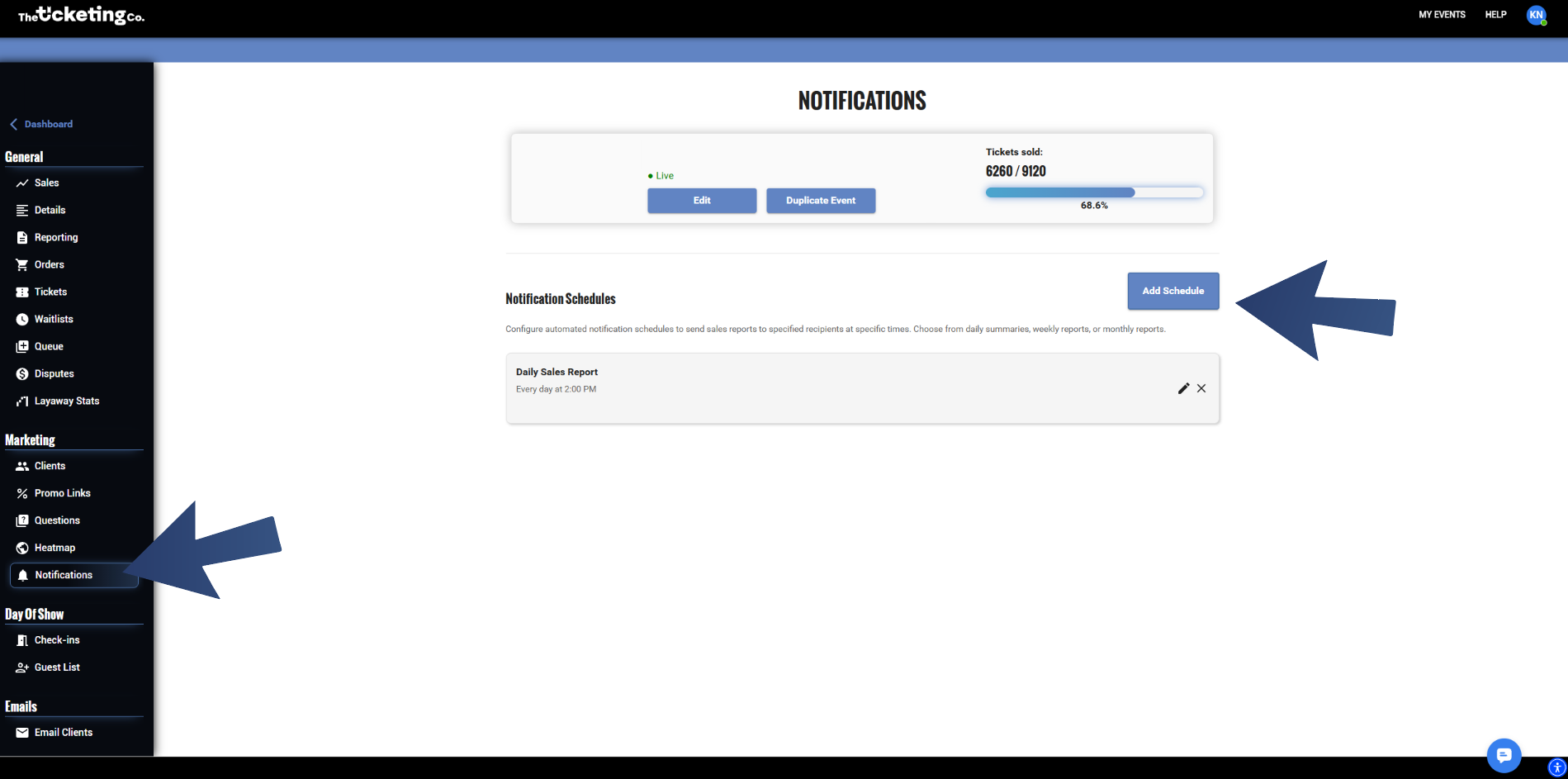
Notifications tab under Marketing inside the event
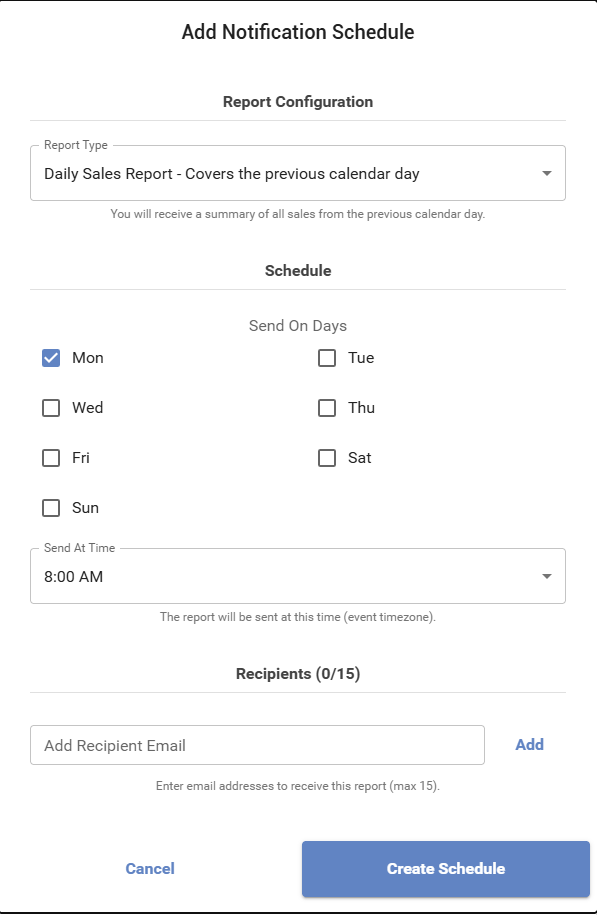
Add Schedule panel with report type, send time, and recipients
Managing recipients
You can add, edit, or remove notification recipients at any time from the Notifications tab. Removing a recipient stops their reports immediately.
Frequency | Best for |
|---|---|
Daily | High-volume events where daily counts matter for operations: staffing, bar stock, logistics planning. Also useful in the final week before an event when sales are moving fast. |
Weekly | The most common choice. Gives agents and partners a regular pulse on sales without inbox overload. Recommended for most events. |
Monthly | Long-horizon events with tickets on sale months in advance. Keeps partners informed without the noise of weekly updates when sales are steady. |
Tip For booking agents who require a minimum ticket count before confirming, set up a weekly notification so they can monitor progress against that threshold without asking you for updates manually.
Note Notification reports are automated sends based on a fixed schedule. They reflect the sales state at the time they send. For real-time counts, log in to your Dashboard and open the Sales tab.
Guest List
Quick answer: Guest List sits under Day of Show. Add guests one at a time or by CSV before the event, or from the app at the door. Door staff check them in by name, no QR code needed, and entries count toward your check-in total.
The Guest List feature lets you add named guests to your event outside of the standard ticket purchase flow. Guest list entries go directly into The Ticketing Co. app, where your door person can check them in by name without a QR code.
You can add guests from your Dashboard before the event, and you or your team can add guests directly from the app on event day.
Adding guests from the Dashboard
Adding a guest manually
Open your event from the Dashboard.
Go to the Guest List tab under Day of Show.
Click Add a Guest.
Enter the guest’s first name, last name, how many people are in their party, and their access (artist, press, VIP).
Optionally add a note (for example: Giveaway winner or 2 drink tickets).
Confirm. The guest appears in the list immediately and is visible in the app.
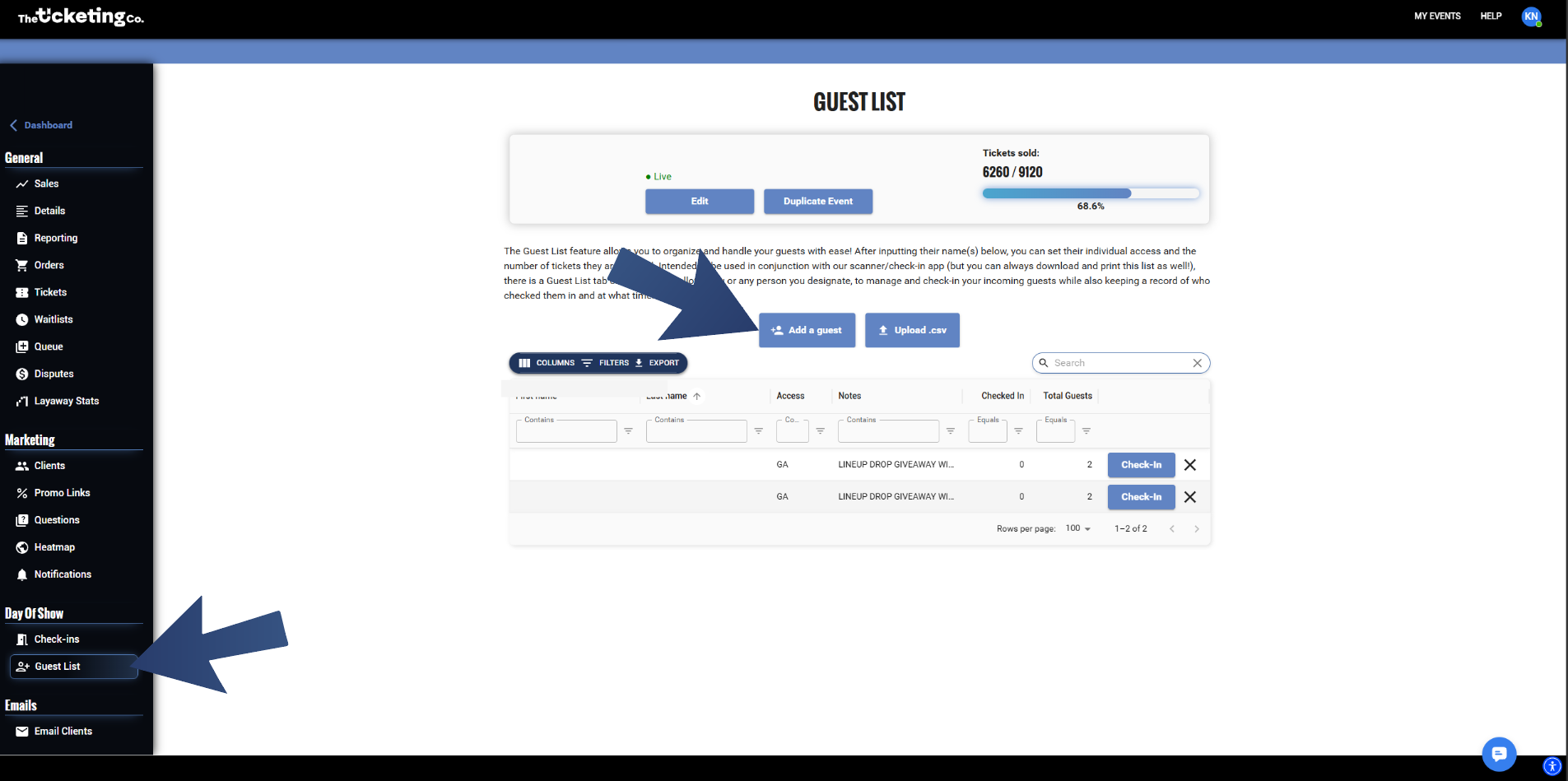
Guest List tab under Day of Show
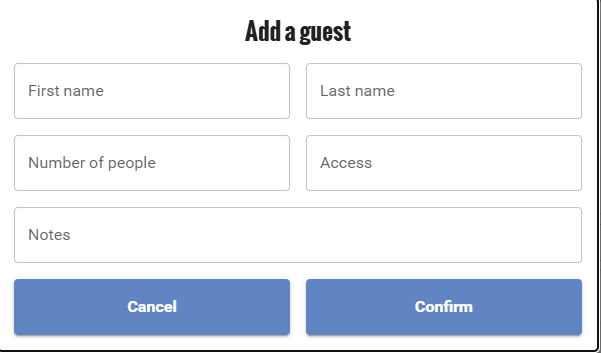
Add a Guest form with party size, access, and notes
Importing a guest list via CSV
If you have a large guest list to add at once, upload it as a CSV file rather than entering guests one by one.
Prepare your CSV with columns for: First Name, Last Name, Party Size, Notes (optional).
Go to the Guest List tab and click upload CSV.
Download the template
Upload CSV file.
Click Confirm. All guests are added to the list at once.
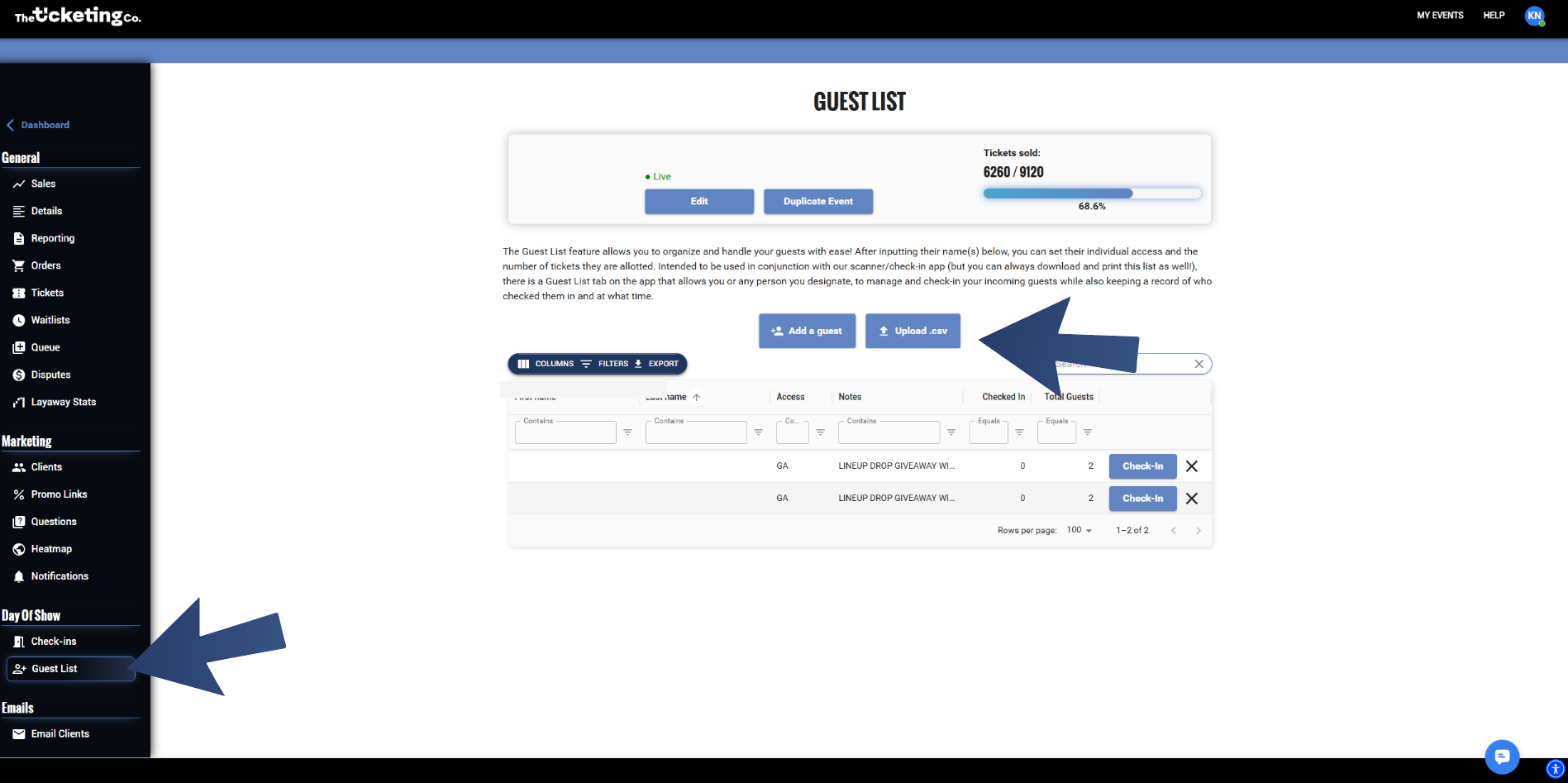
Uploading a guest list CSV from the Guest List tab
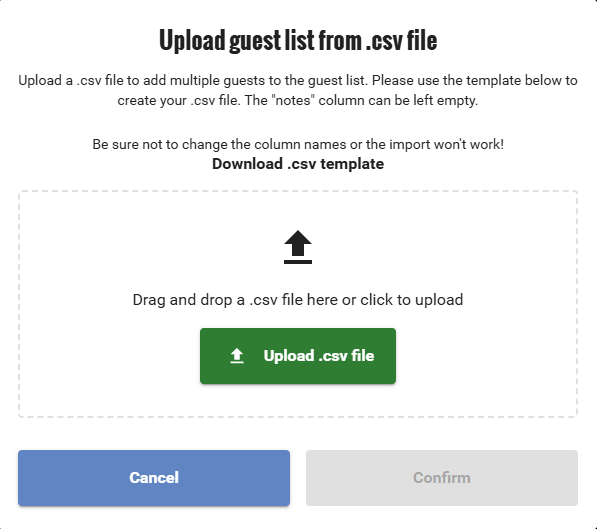
Downloading the CSV template before uploading
Tip Download the CSV template from the Guest List tab to make sure your file is formatted correctly before uploading. A formatting error will cause the import to fail.
Adding guests from the app on event day
Your team can add guests directly from The Ticketing Co. app at the door without needing to log in to the Dashboard. This is useful when last-minute additions come in on the night of the event.
Open The Ticketing Co. app and select the event.
Tap Guest List at the bottom of the screen.
Enter the guest’s name and number of people, access, and notes if needed.
Confirm. The guest is added to the list immediately and is visible to all devices scanning that event.
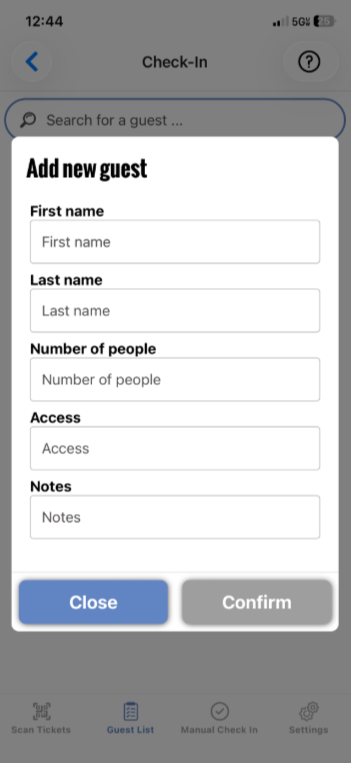
Adding a guest from the app at the door
Checking in guests at the door
Door staff check in guest list entries directly from the app without needing a QR code.
Open the app and go to Guest List for the event.
Search the guest’s name or scroll to find them.
Tap Check In next to their name.
The entry is marked as checked in and the party size is logged.
Viewing check-in status
From the Guest List tab in your Dashboard, you can see which guests have been checked in, when they arrived, and how many people were in their party. This is part of your overall check-in record for the event and can be exported as part of your post-event data.
Note Guest list entries and ticketed orders are both visible in your check-in stats. Your total check-in count includes both sources, so your attendance numbers reflect the complete door picture.
Need help?
We usually reply within minutes.