
📲 Getting Started With the App
Quick answer: Search "TTC Box Office" in the App Store or Google Play, then log in with your own account (email code or password). Assign door staff the Ticket Scanner role: scanning and box office only, no revenue data.
Before event day, make sure everyone on your team has the app installed, is logged in, and can access the right event. Five minutes of setup before the event saves a lot of stress at the door.
Downloading the app
TTC Box Office is available on both iOS and Android.
iOS (iPhone/iPad): Search "TTC Box Office" in the App Store.
Android: Search "TTC Box Office" in the Google Play Store.
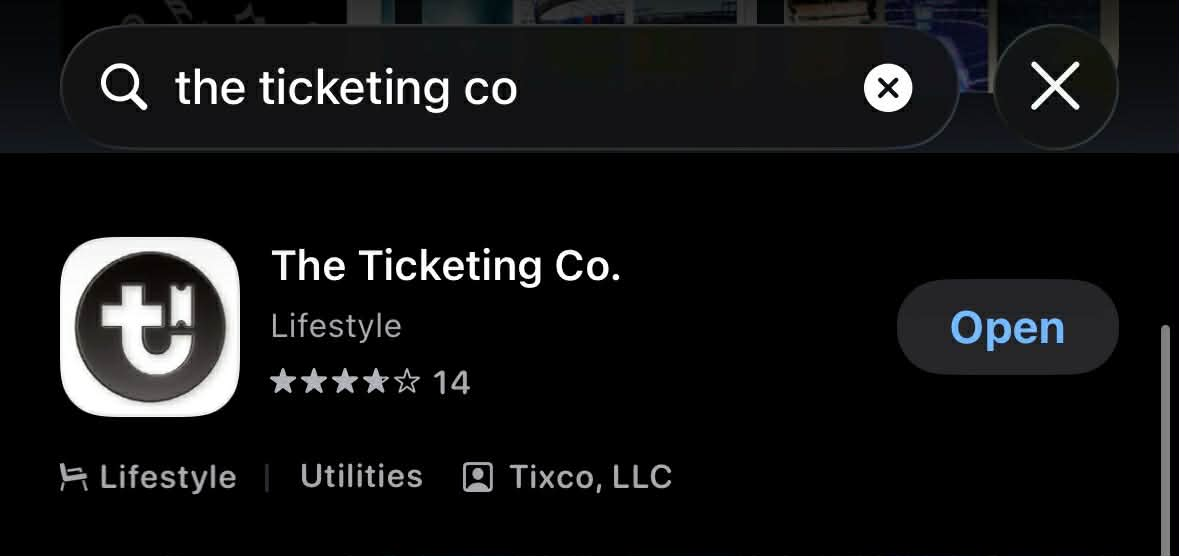
App Store search result — screenshot predates the app split and still shows the buyer app listing
Important We publish two apps, so make sure your door staff get the right one. TTC Box Office is the staff app for scanning and selling at the door — that is the one you need here. The Ticketing Co. is the buyer app, where ticket holders view their own tickets; it will not do for door ops. Check the developer name on the store listing, and do not download third-party apps that claim to be associated with the platform.
Logging in
Open the app after installing.
Enter your email address.
Tap Email Me a Login Code to receive a one-time verification code, or tap Use Password if your account has a password set.
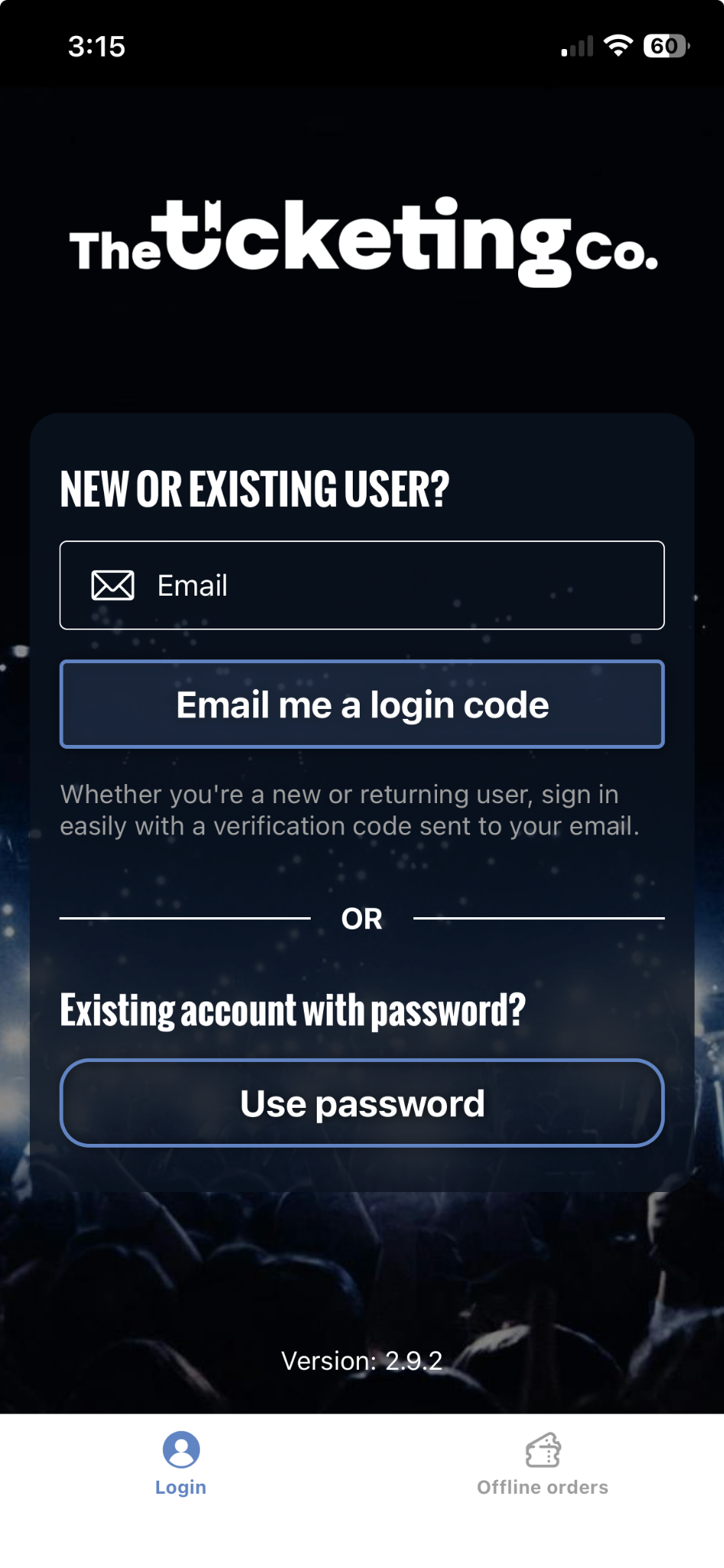
Login screen: email code or password
Note Each team member logs in with their own Ticketing Co. account, not a shared login. If a team member does not have an account yet, invite them from Events, then Team & Box Office in your organizer dashboard. They will receive an email to create their account and accept the invitation.
Switching between organizations
If you manage events for multiple organizations, you can switch between them in the app without logging out. After logging in, the Home screen lists all your organizations under the Organizations section. Tap any organization to access its events and tools. Your personal QR code for being added as a scanner by other organizers is available via the QR code icon in the top-right corner of the Home screen.
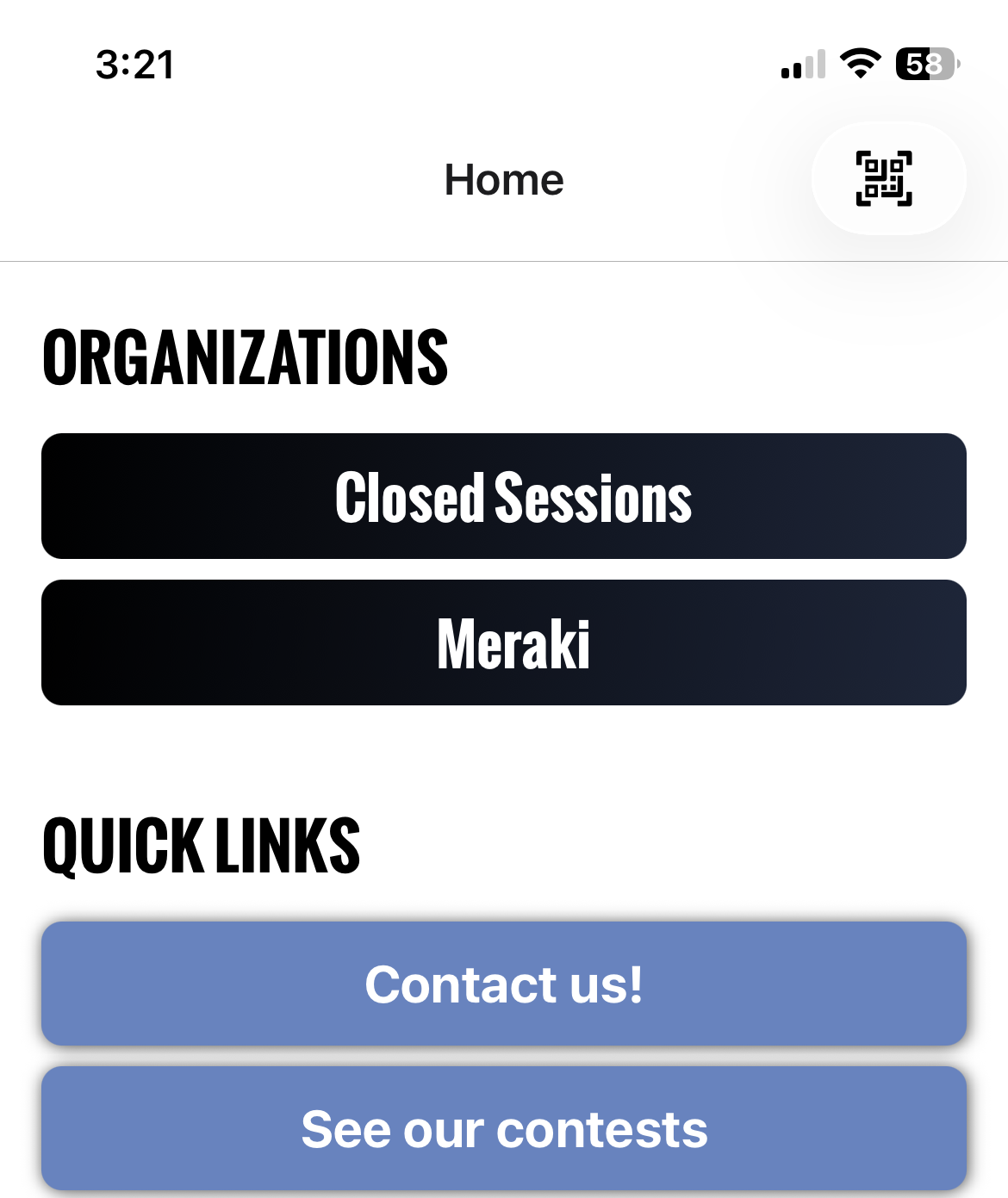
Home screen: Organizations and Quick Links
Understanding your role in the app
What you can do in the app depends on the role you have been assigned in your organization.
Role | App access |
|---|---|
Owner / Moderator | Full access: box office, scanning, event management, and stats. |
Ticket Scanner | Scanning, check-in, and box office only. No financial data, no event management. |
Tip The Scanner role is designed specifically for door staff. It gives them them scanning, check-in, and box office sales without exposing revenue data or event settings. Assign this role to volunteers, temporary staff, and anyone whose job starts and ends at the door.
Navigating your account
Once you select your organization, you will see all of your live events. At the bottom of the screen, two tabs are available:
Events: your list of upcoming events. Tap any event to access its box office, check-in, and stats.
Ticket Scanners: add scanners by email or QR code, and view all current team members who have scanning access.
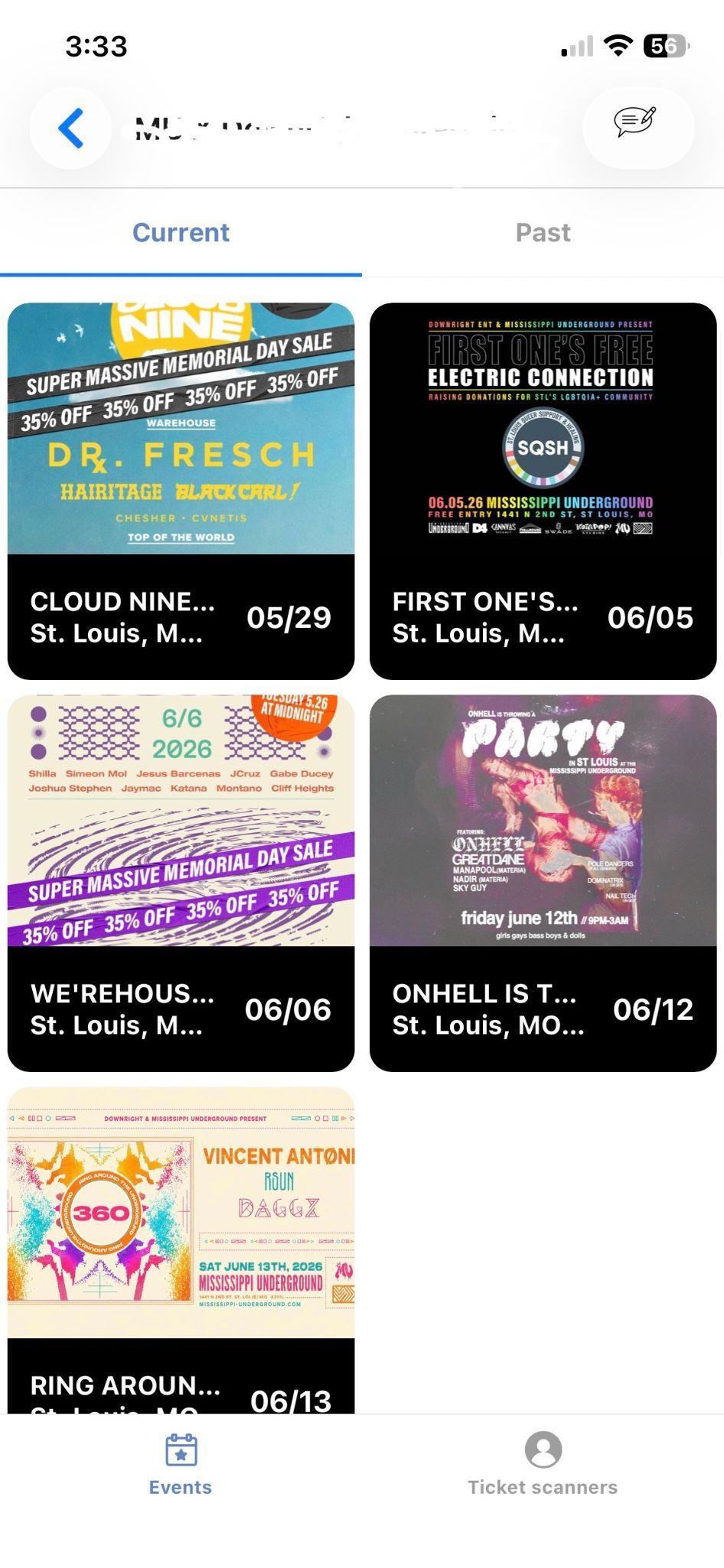
Events list: current events with dates
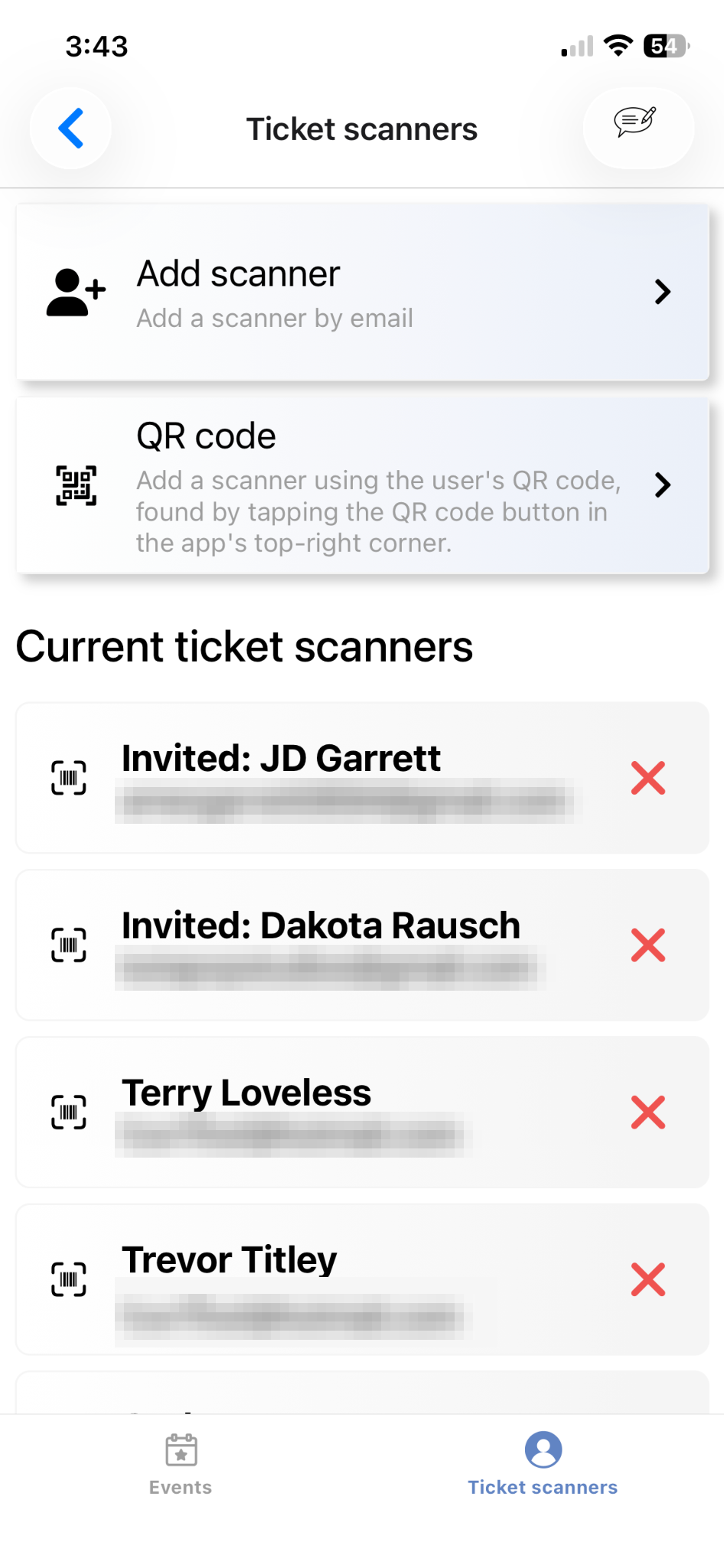
Ticket Scanners: add by email or QR code