
🎟 Ticket Scanning App
The TTC Box Office app is your all-in-one tool for event day: sell tickets at the door, scan QR codes, check in guests, and manage your event from your phone. This section covers everything from downloading and logging in, through running the box office, to scanning and troubleshooting.
Getting Started with the App
Quick answer: Search "TTC Box Office" in the App Store or Google Play, then log in with your own account (email code or password). Assign door staff the Ticket Scanner role: scanning and box office only, no revenue data.
Before event day, make sure everyone on your team has the app installed, is logged in, and can access the right event. Five minutes of setup before the event saves a lot of stress at the door.
Downloading the app
TTC Box Office is available on both iOS and Android.
iOS (iPhone/iPad): Search "TTC Box Office" in the App Store.
Android: Search "TTC Box Office" in the Google Play Store.
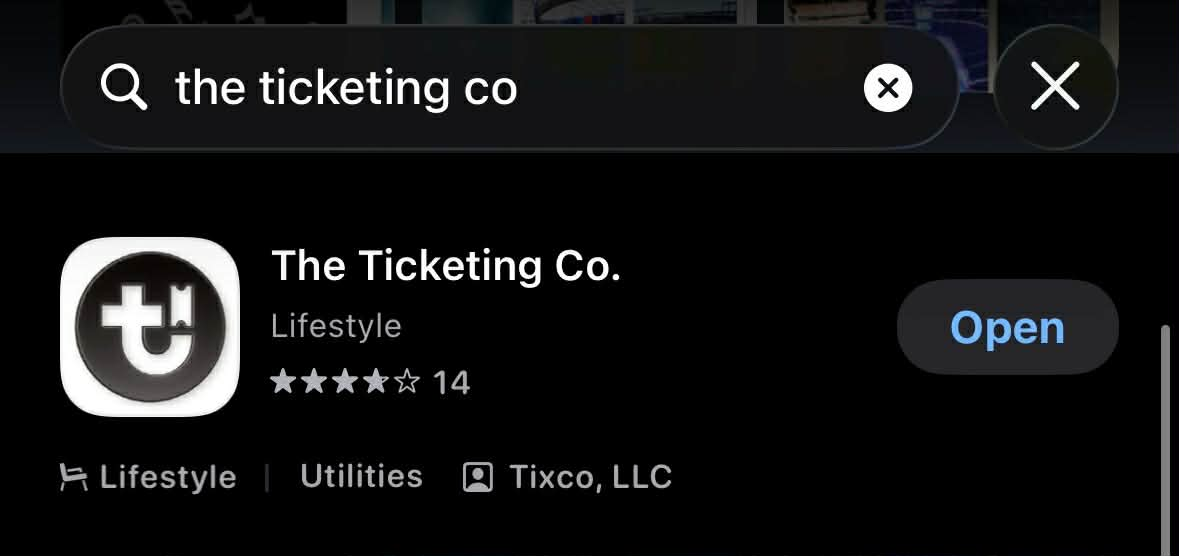
App Store search result — screenshot predates the app split and still shows the buyer app listing
Important We publish two apps, so make sure your door staff get the right one. TTC Box Office is the staff app for scanning and selling at the door — that is the one you need here. The Ticketing Co. is the buyer app, where ticket holders view their own tickets; it will not do for door ops. Check the developer name on the store listing, and do not download third-party apps that claim to be associated with the platform.
Logging in
Open the app after installing.
Enter your email address.
Tap Email Me a Login Code to receive a one-time verification code, or tap Use Password if your account has a password set.
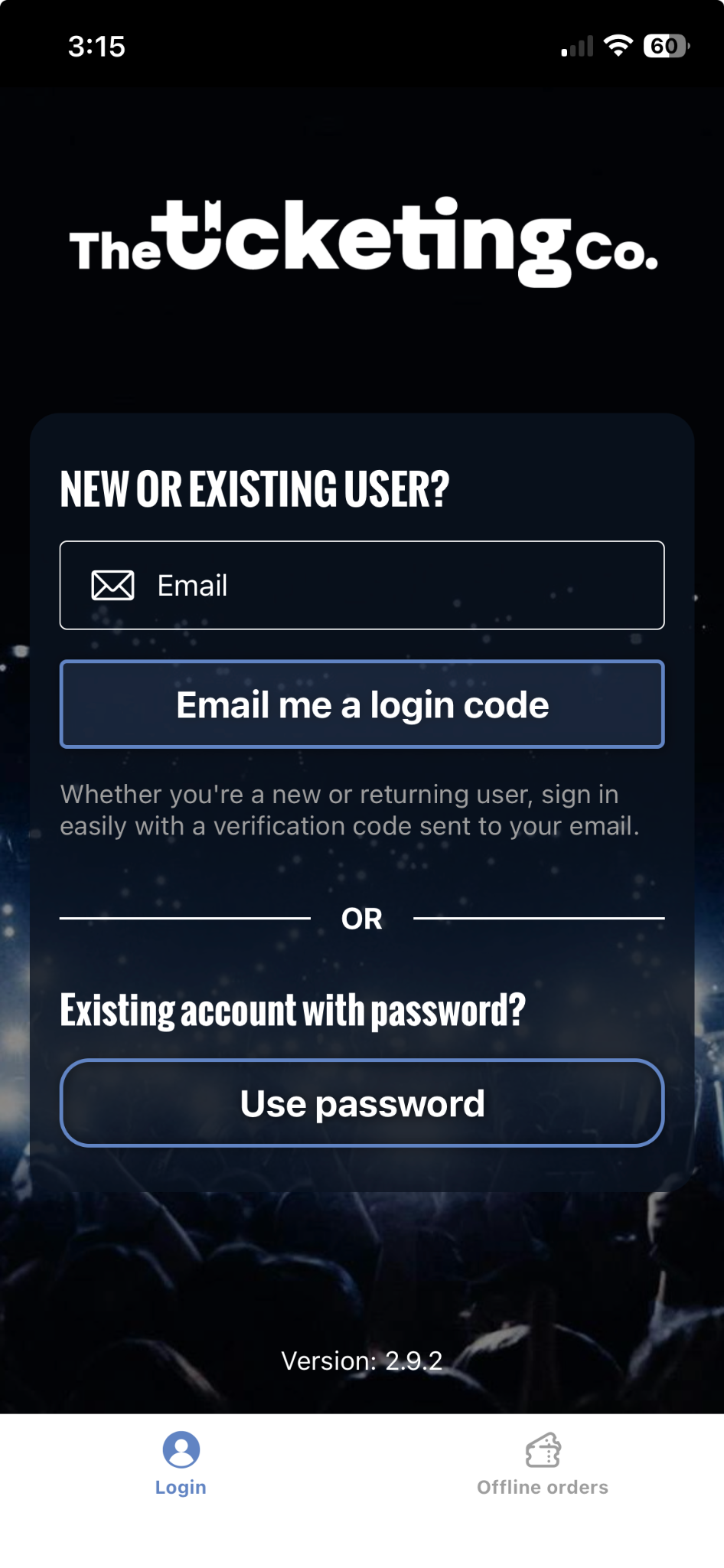
Login screen: email code or password
Note Each team member logs in with their own Ticketing Co. account, not a shared login. If a team member does not have an account yet, invite them from Events, then Team & Box Office in your organizer dashboard. They will receive an email to create their account and accept the invitation.
Switching between organizations
If you manage events for multiple organizations, you can switch between them in the app without logging out. After logging in, the Home screen lists all your organizations under the Organizations section. Tap any organization to access its events and tools. Your personal QR code for being added as a scanner by other organizers is available via the QR code icon in the top-right corner of the Home screen.
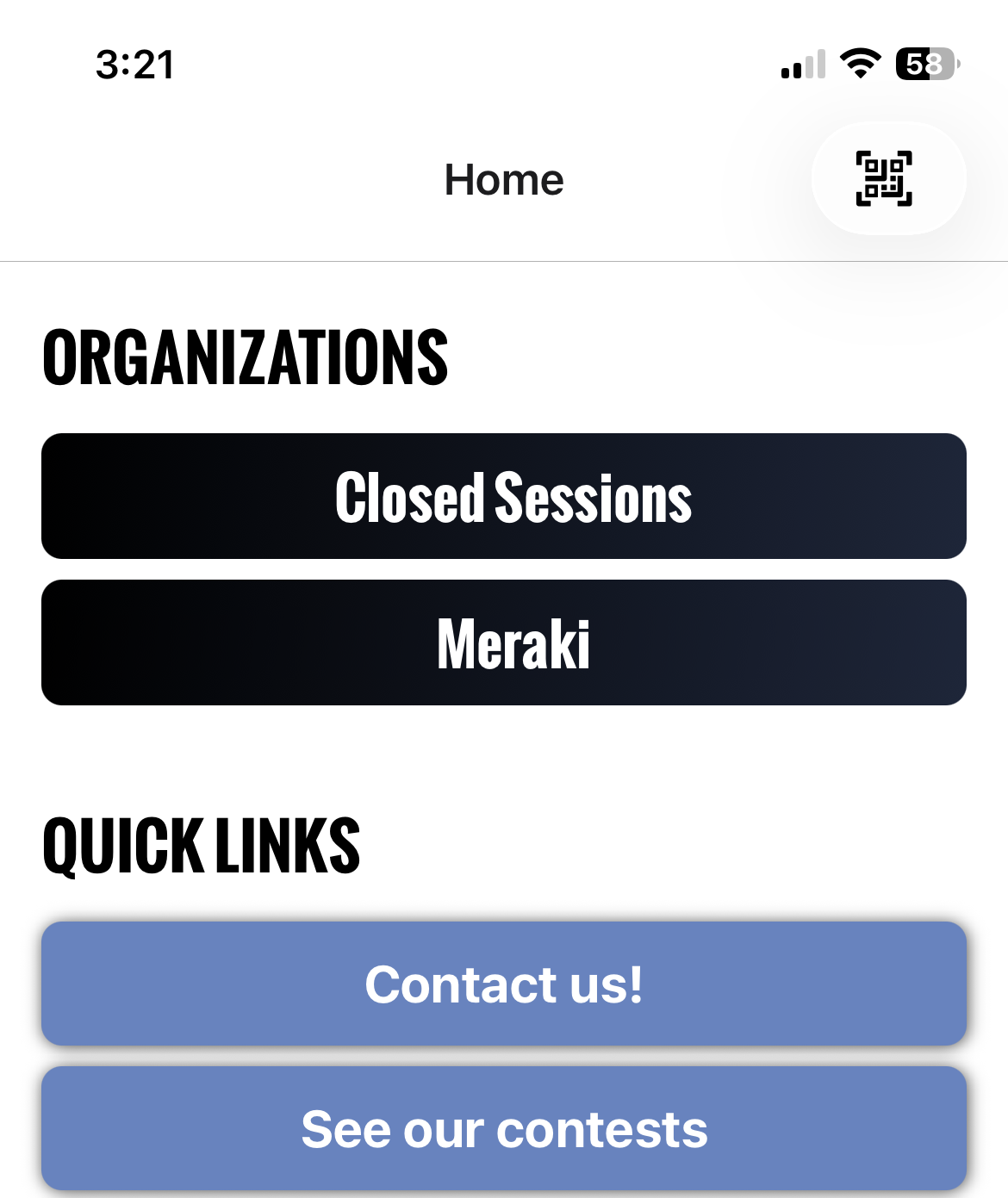
Home screen: Organizations and Quick Links
Understanding your role in the app
What you can do in the app depends on the role you have been assigned in your organization.
Role | App access |
|---|---|
Owner / Moderator | Full access: box office, scanning, event management, and stats. |
Ticket Scanner | Scanning, check-in, and box office only. No financial data, no event management. |
Tip The Scanner role is designed specifically for door staff. It gives them them scanning, check-in, and box office sales without exposing revenue data or event settings. Assign this role to volunteers, temporary staff, and anyone whose job starts and ends at the door.
Navigating your account
Once you select your organization, you will see all of your live events. At the bottom of the screen, two tabs are available:
Events: your list of upcoming events. Tap any event to access its box office, check-in, and stats.
Ticket Scanners: add scanners by email or QR code, and view all current team members who have scanning access.
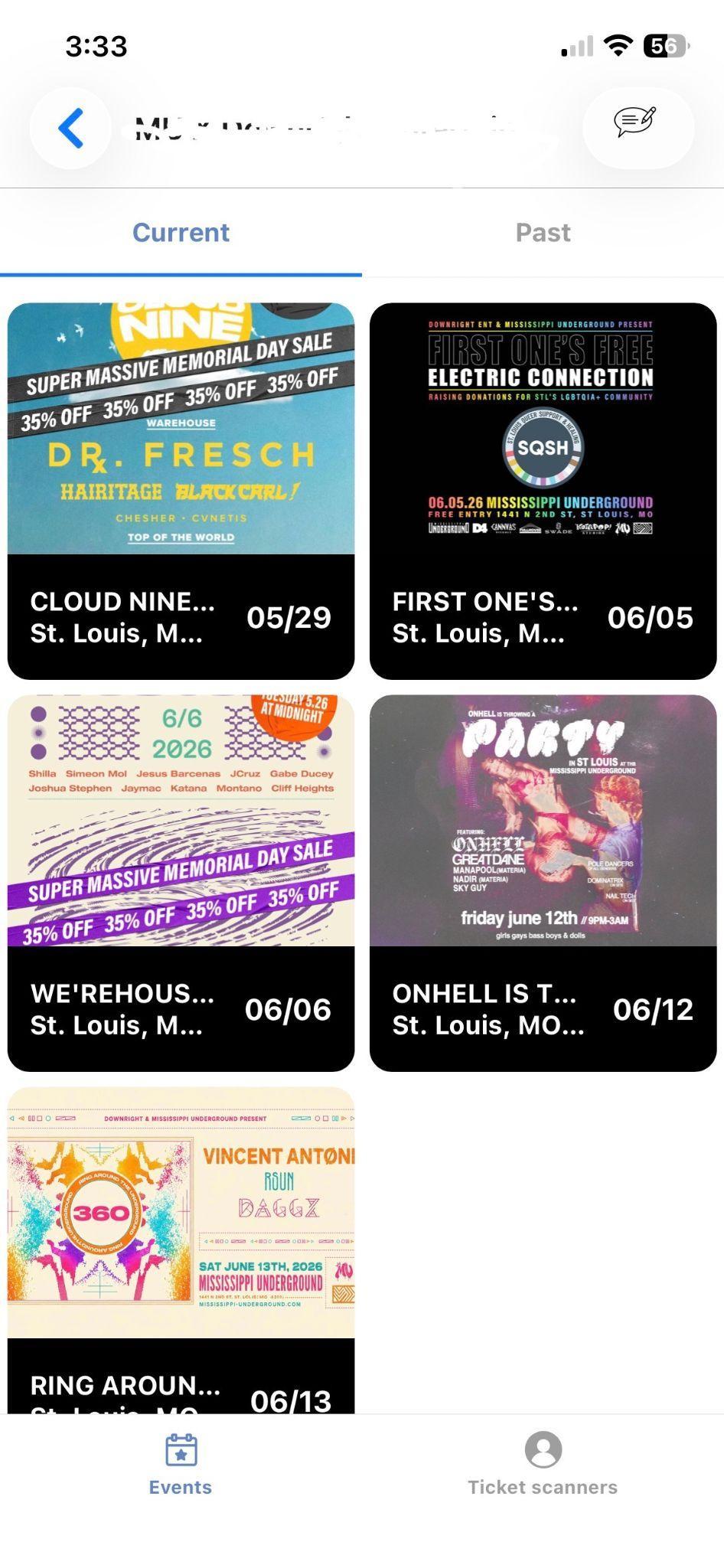
Events list: current events with dates
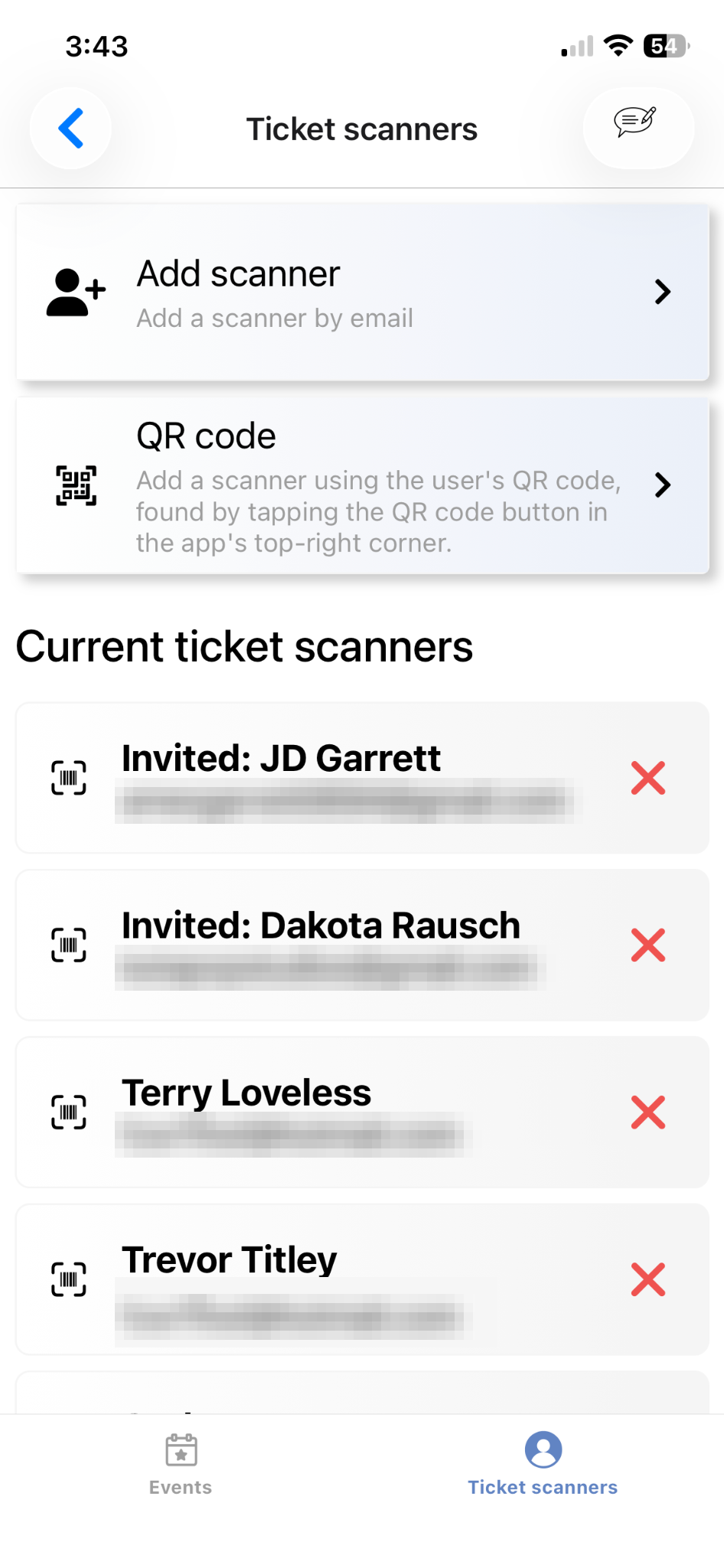
Ticket Scanners: add by email or QR code
Box Office: Selling Tickets at the Door
Quick answer: Open the event → Box Office → tap + on each tier → Proceed to Checkout → pick Tap to Pay, Terminal, or Pay Manually. Door tickets check in automatically once payment confirms. Requires internet.
The Box Office feature in the app lets you sell tickets to walk-up buyers at the door using a card reader or Tap-to-Pay. All door sales flow through your same dashboard, orders, and payout. No separate reconciliation needed.
Before you open the box office
Confirm the following before doors open:
Your event is published and the ticket tiers you want to sell at the door are active in your Event Editor under Tickets.
Your payment method is ready: Tap-to-Pay is updated in the app, or your Stripe Terminal is connected and fully charged.
Anyone running the box office is added as a Ticket Scanner.
You have cell service or Wi-Fi. The box office requires an internet connection to process payments.
Warning If your venue has a poor signal, test your connection before the event starts. If it is unreliable, ask the venue for Wi-Fi credentials ahead of time.
Opening the box office for your event
Open the app and tap the organization account for the event.
Select the event you are working.
Tap Box Office.
The box office screen shows your available ticket tiers and prices.
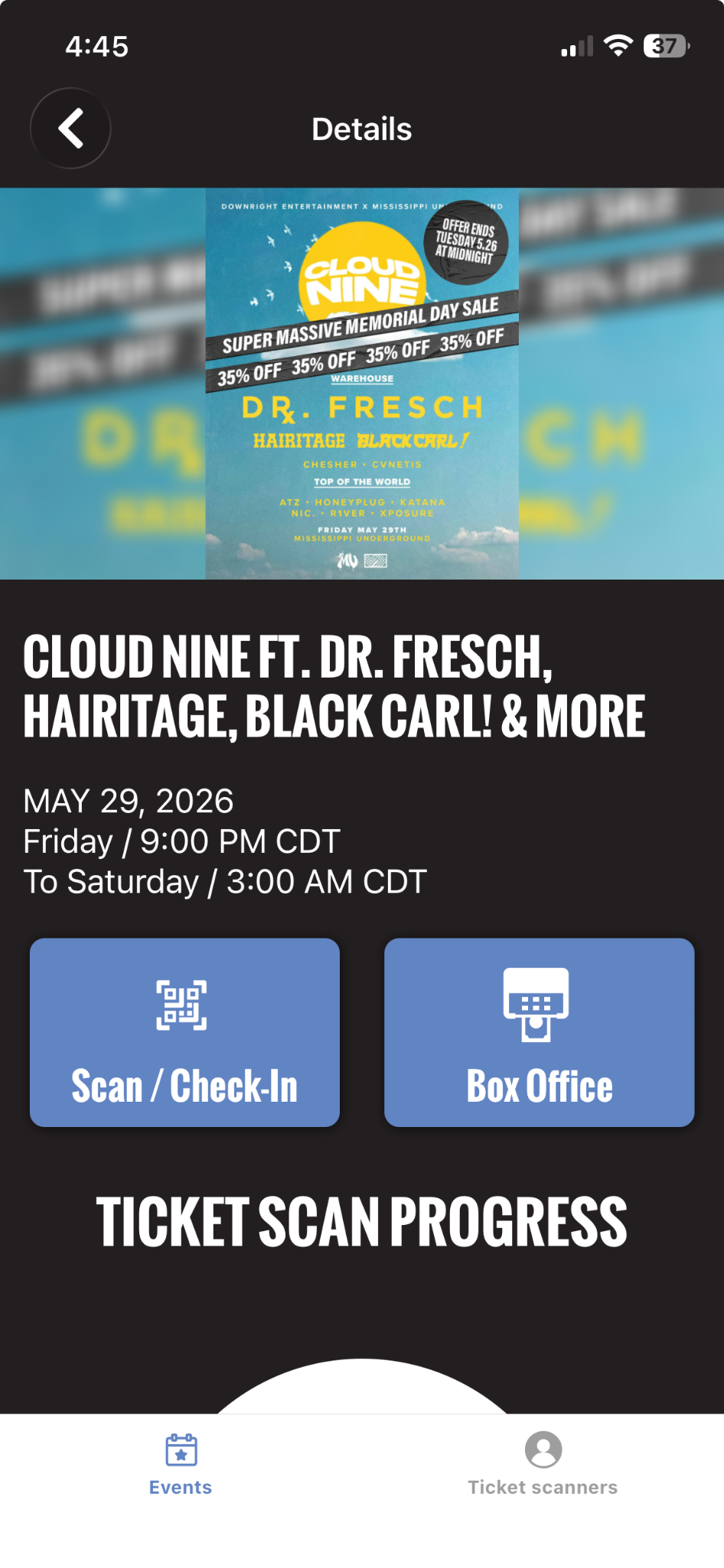
Event Details: Scan / Check-In and Box Office
Processing a door sale
On the Box Office screen, tap the + button next to each ticket tier the buyer wants.
Review the order total at the bottom of the screen, then tap Proceed to Checkout.
Select your payment method: Tap to Pay (Phone), Tap / Insert (Terminal), or Pay Manually with Card.
Complete the payment using the relevant method. See Articles 3 and 4 for details.
Door tickets are automatically checked in once payment is confirmed.
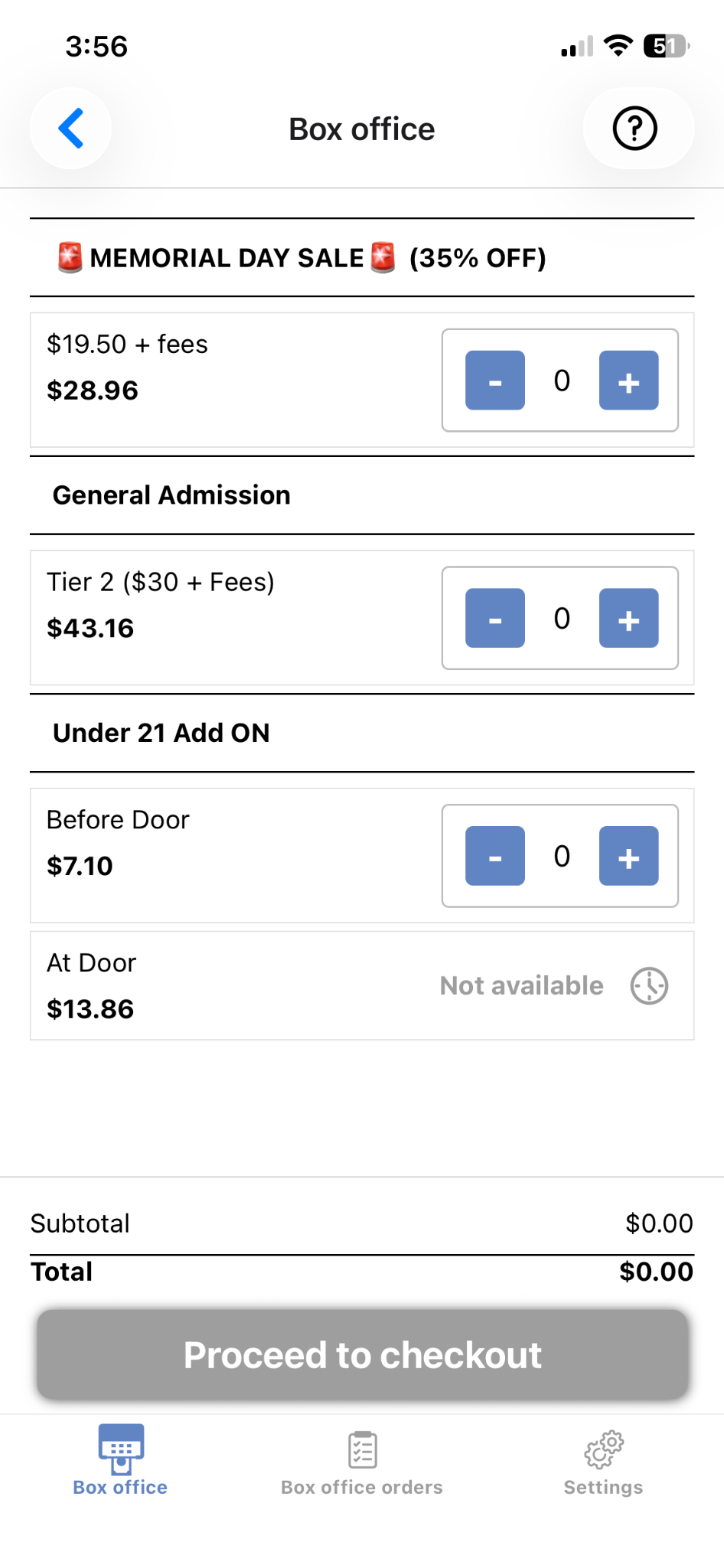
Box Office: tier selection and subtotal
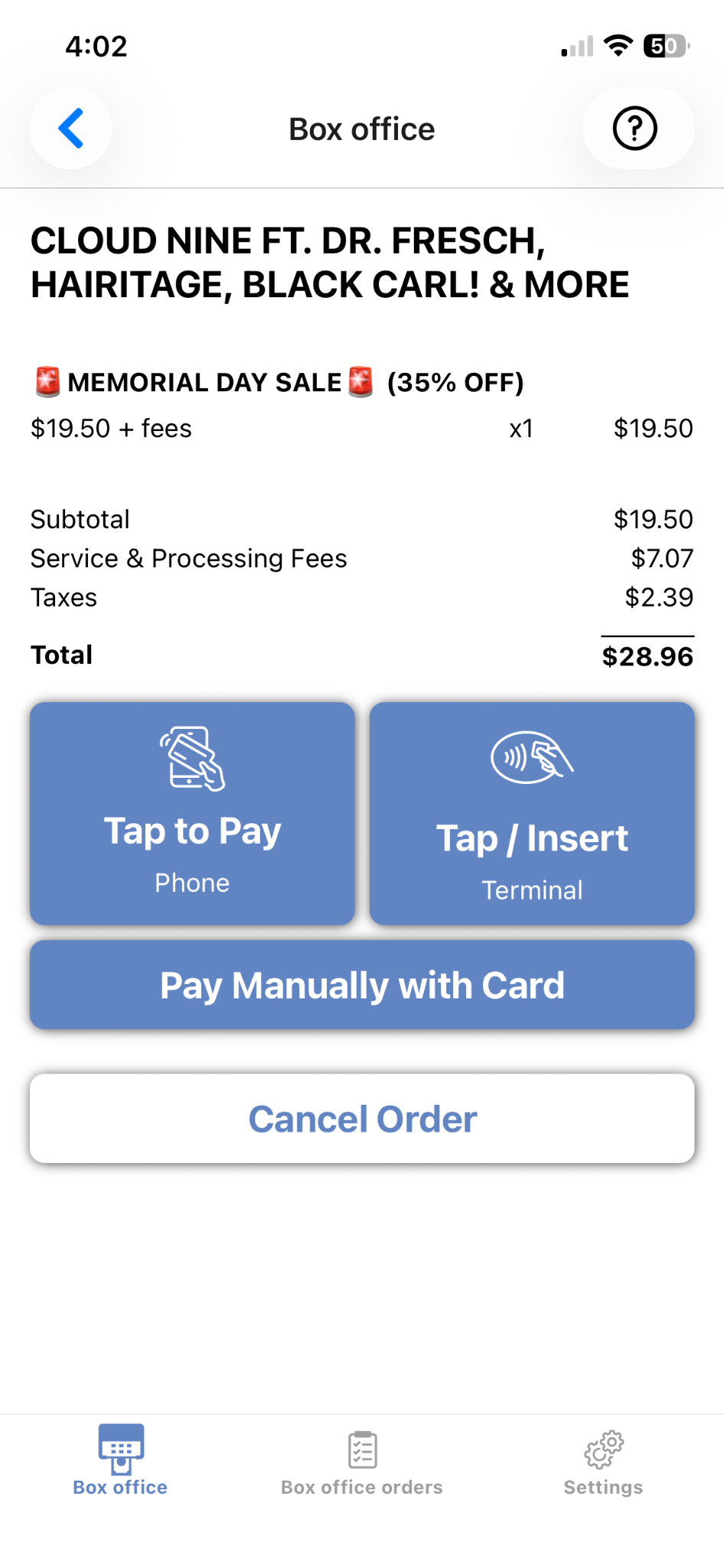
Checkout: payment method selection
Note The Pay Manually with Card option lets buyers enter their card details on screen if contactless payment is not working. Use this as a fallback, not a primary method.
Setting Up Tap-to-Pay
Quick answer: iPhone XS or later on iOS 16.4+, no hardware needed. At checkout pick Tap to Pay (Phone) and have the buyer hold their card or phone near the top of yours. iPhone only. Android uses the Terminal.
Tap-to-Pay lets you accept contactless card payments directly on an iPhone. No card reader hardware required. The buyer taps or holds their card, Apple Pay, or Google Pay to your iPhone and the payment processes instantly. It is the fastest way to run a door without any equipment.
Requirements
iPhone XS or later running iOS 16.4 or later.
TTC Box Office installed and updated to the latest version.
A stable internet connection at your event.
Note Tap-to-Pay is currently available on iPhone only. Android users should use the Stripe Terminal Bluetooth reader for card payments. See Article 4.
First-time setup
The first time you tap Tap to Pay at checkout, the app may need to download a required update. This happens automatically and takes 1 to 2 minutes. Keep the app open and the reader in range until the update is complete.
Important Do not close the app or leave the screen while the update is downloading. Cancelling the update will cancel the connection and you will need to start again.
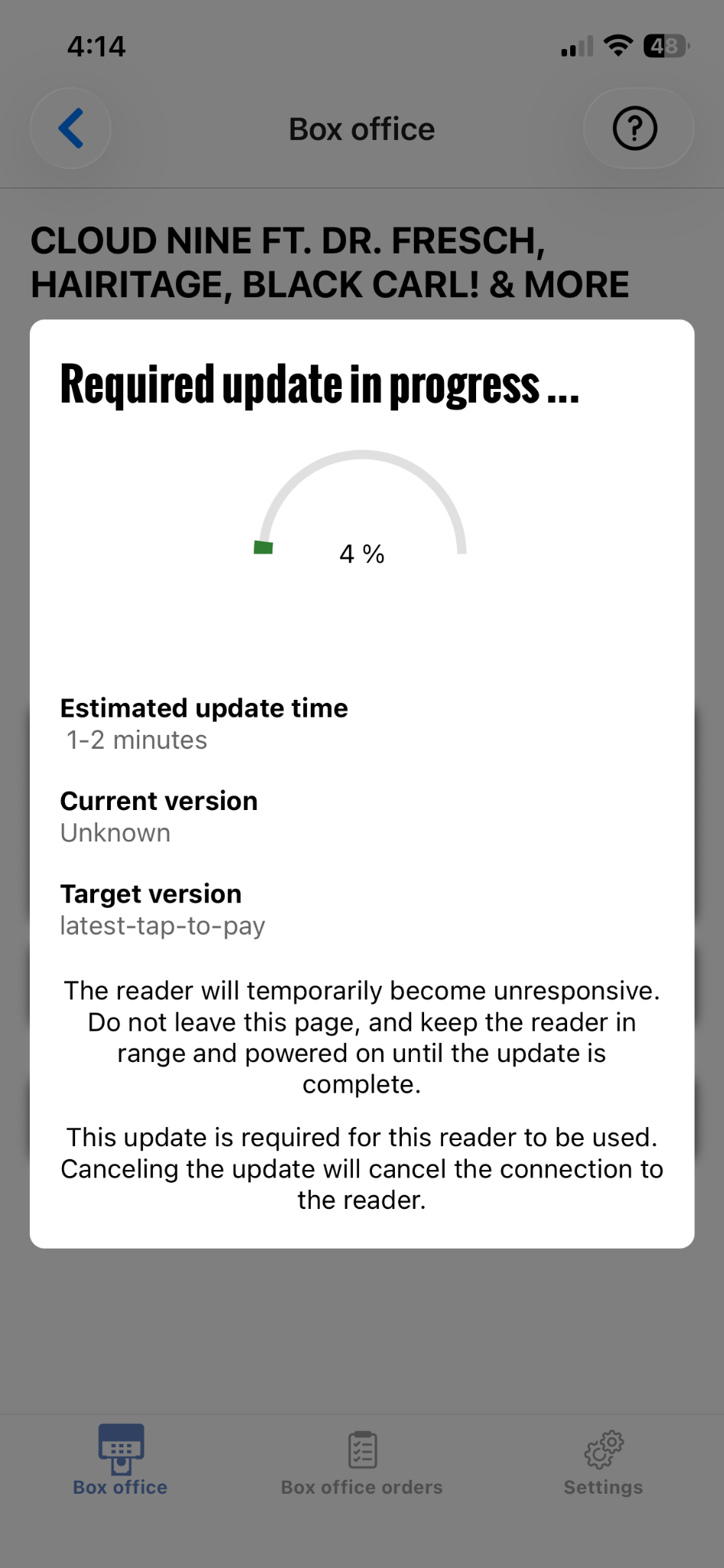
Required update: do not close the app
Taking a Tap-to-Pay payment
Process a sale from the Box Office screen and tap Proceed to Checkout.
Select Tap to Pay (Phone).
Ask the buyer to hold their card, phone, or watch near the top of your iPhone until the payment is accepted.
Note Contactless payments work with physical cards (Visa, Mastercard, Amex, Discover) as well as Apple Pay, Google Pay, and Samsung Pay. The buyer does not need to open any app. They just bring their device near the top of your iPhone.
What to do if Tap-to-Pay declines a card
Ask the buyer to try again. Brief connection issues can cause one-off declines.
Ask the buyer to hold their card still against the top of the phone for 2 to 3 seconds rather than a quick tap.
If it still does not work, select Pay Manually with Card so the buyer can enter their card details on screen.
Important A decline message means the buyer's bank has rejected the charge. It is not a processing error on your end. If the buyer receives a decline, ask them to contact their bank or try a different card.
Setting Up a Stripe Terminal
Quick answer: Charge to 100%, enable Bluetooth, then Box Office → Settings tab → pick your reader by serial number. At checkout choose Tap / Insert (Terminal). Best for high-volume doors.
The Stripe Terminal is a Bluetooth card reader that pairs with your phone and lets you accept chip and contactless payments at the door. It is the recommended option for high-volume box office situations where speed and reliability matter, or when Tap-to-Pay is not available.
Note Contact The Ticketing Co. team if you would like to purchase or rent a terminal for your events. Reach out via the dashboard chatbot or at theticketing.co/contact-us.
Charging your reader before the event
Charge your Stripe Terminal to 100% before every event. A fully charged M2 reader lasts approximately 8 to 10 hours of active use. Do not rely on charging during the event. Power outlets near the door are rarely convenient.
Important Turn the reader on and check the battery indicator before doors open. Green means the battery is good. Flashing red means the battery is low. Charge it immediately.
Pairing the reader with the app
Make sure Bluetooth is enabled on your phone.
Turn on the Stripe Terminal by holding the power button until the light pulses.
Open TTC Box Office and go to your event's Box Office.
Tap the Settings tab at the bottom of the Box Office screen.
Select your reader from the list. It will show the reader's serial number.
Once connected, you will see a confirmation that the reader is ready.
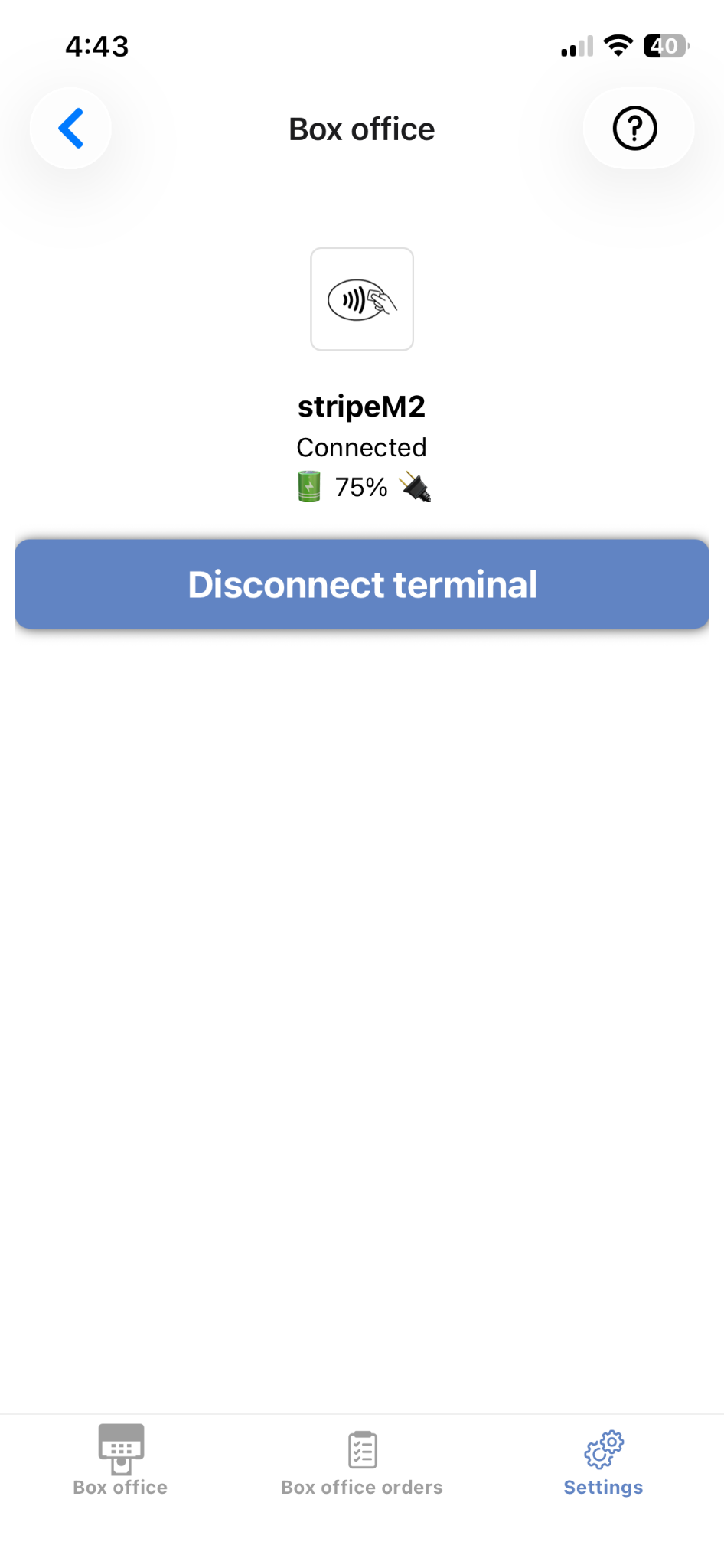
Box Office Settings: Stripe M2 connected at 75%
Tip If multiple readers are nearby at a large event with several box office stations, each reader has a unique serial number printed on the back. Match the last 4 digits of the serial number on screen to the physical device to confirm you are connecting to the right one.
Taking a payment with the Stripe Terminal
Process a sale from the Box Office screen and tap Proceed to Checkout.
Select Tap / Insert (Terminal).
The terminal screen will prompt the buyer to tap, insert, or swipe their card.
Once the transaction is approved, the confirmation screen appears. The order is automatically checked in.
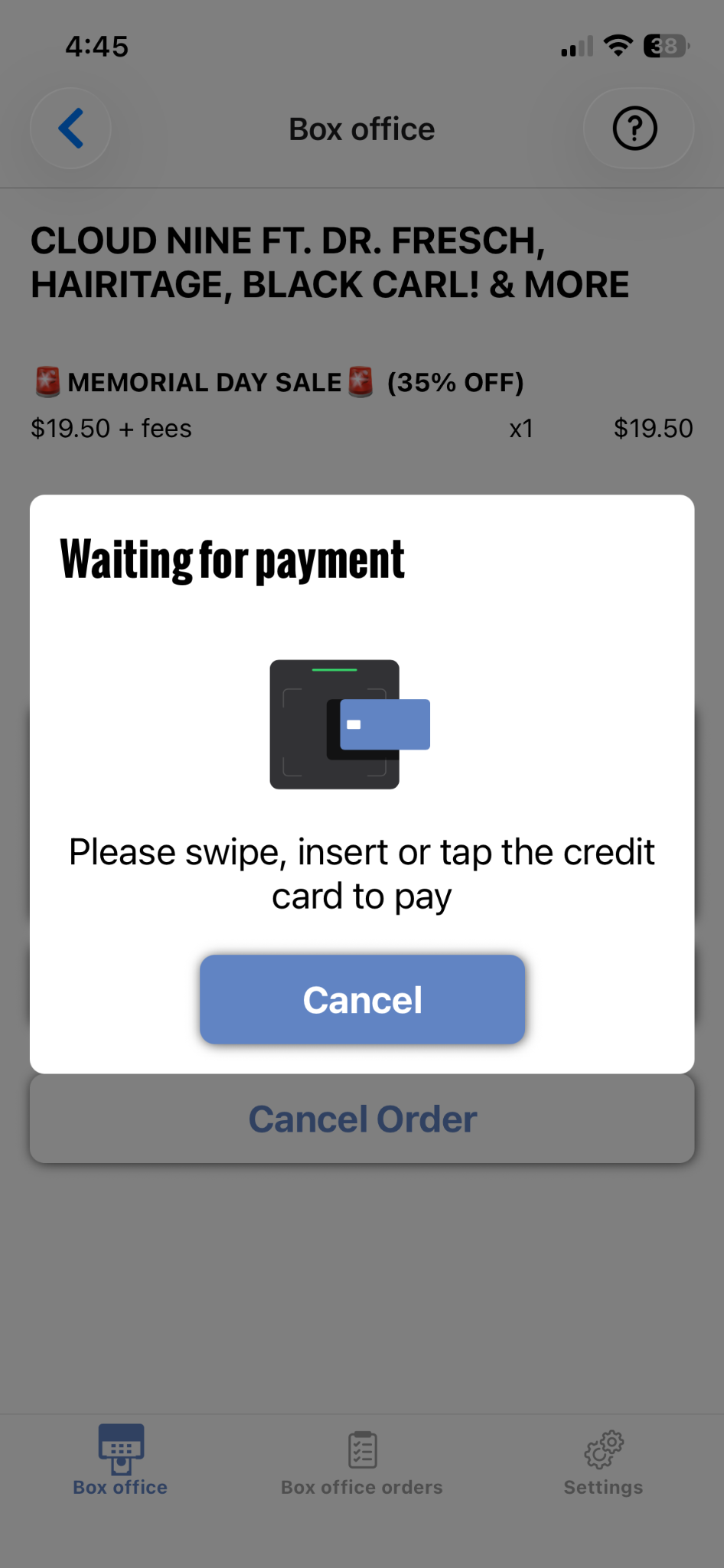
Stripe Terminal: waiting for payment
Reader auto-reconnect
If the Stripe Terminal loses its Bluetooth connection mid-event (phone goes to sleep, reader goes out of range, etc.), it will attempt to reconnect automatically when you return to the Box Office screen. Wait a few seconds before attempting a new payment.
If it does not reconnect automatically:
Close and reopen the Box Office in the app.
Go to the Settings tab and tap Connect Reader.
Select your reader from the list.
Scanning Tickets & Check-In
Quick answer: Open the event → Scan / Check-In → grant camera access → point at the QR. Three results: Valid, Already Scanned, Invalid. No QR? Use Manual Check In to search by name, email, phone, or order number.
Scanning is the core of event day operations. It gets your buyers through the door quickly and gives you an accurate count of who is inside. TTC Box Office makes scanning fast, clear, and reliable, with manual check-in as a fallback when attendees cannot locate their tickets.
Opening the scanner for your event
Open the app and select your organization.
Tap the event you are working.
Tap Scan / Check-In.
Grant camera permission when prompted. The scanner requires access to your camera.
The scanner is now active and ready to read QR codes.
Tip The scanner uses your phone's rear camera. Clean the camera lens before the event. A smudged lens causes slower or failed reads.
Scanning a ticket
Ask the buyer to open their ticket in The Ticketing Co. app or pull up their confirmation email, which has their tickets attached.
Point your camera at their QR code. Hold steady. The app reads the code in under a second when the camera has a clear view of the full QR.
After each scan, one of the following results appears on screen:
Valid: Checked In: The ticket is valid and the buyer has been successfully checked in. Their name and ticket type are displayed. The app returns to the scanner automatically after a few seconds.
Already Scanned: This QR code was already scanned. The screen shows the buyer's name, ticket type, scan time, and which device scanned it. Confirm with the buyer whether someone else in their party may have checked in using their ticket. If the scan time is just now, you may have missed the Valid screen. Check the scan log.
Invalid Ticket: This QR code is not valid for this event. Possible reasons: wrong event, voided ticket, refunded order, or a screenshot of an expired code. Do not admit the buyer. Direct them to your support contact or the event organizer.
Tip Bright screen brightness on the buyer's phone helps scanning speed. For outdoor or dark venue entrances, consider a small clip-on phone light for your scanning device.
Scanning speed tips for busy doors
Set screen brightness on your scanning phone to maximum before doors open.
Use multiple scanning devices for high-capacity events. Each scanner logs in with their own account.
Ask buyers to have their ticket open before they reach the scanner, not while standing in front of you.
The scanner processes one ticket at a time. Keep a single-file queue flow.
For multi-ticket orders, each ticket has its own QR code. Buyers need to scroll or swipe to show each one individually.
Selecting which ticket tiers to scan
By default, the scanner accepts all valid ticket types for your event. To restrict scanning to specific tiers, for example at a VIP entrance that only admits VIP ticket holders, use the tier selection settings.
On the scanner screen, tap the Settings gear at the bottom of the screen.
Under Tier Selection, uncheck any tiers you do not want this scanner to accept.
Tap Save Selection.
The scanner will now return an Invalid Ticket result for tickets belonging to deselected tiers.
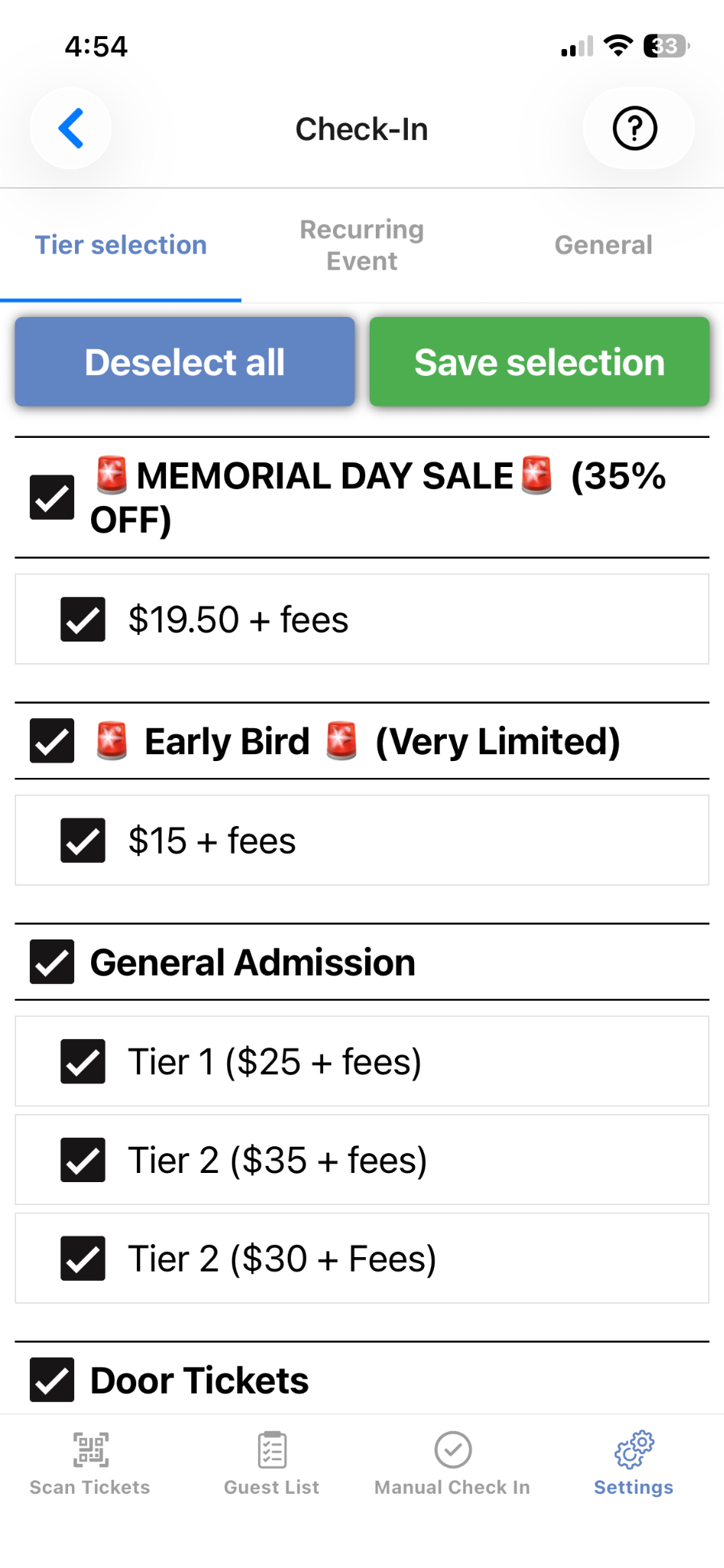
Scanner Settings: Tier Selection
Manual check-in
When a buyer cannot show their QR code, because their phone battery is dead, they cannot find the email, or they have a printed confirmation with a damaged QR, you can check them in manually using their name, email address, phone number, or order number.
At the bottom of the check-in screen, tap Manual Check In.
Type the buyer's name, email, phone number, or order number.
Find their ticket in the results.
Tap Check In. Their ticket is marked as checked in just as if it had been scanned.
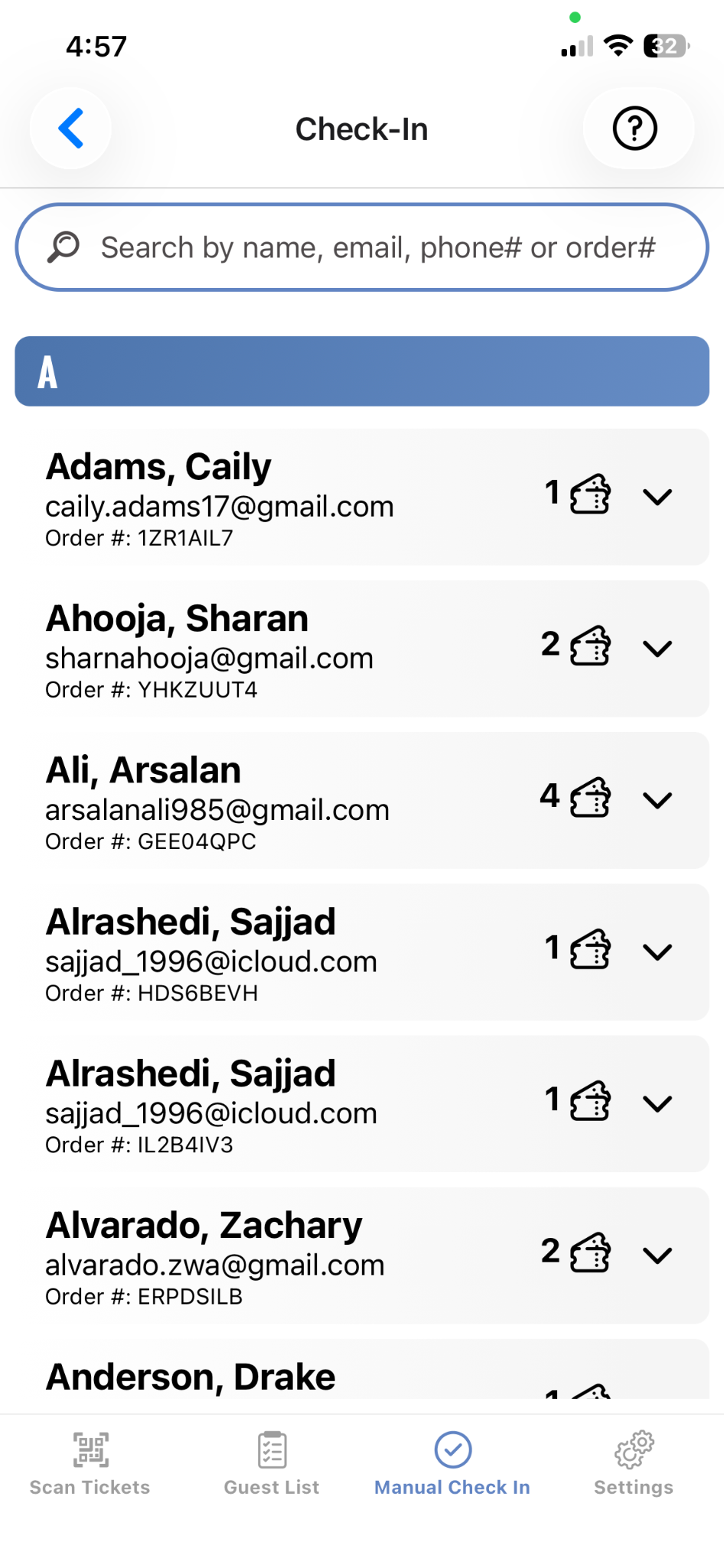
Manual Check-In: search by name, email, phone, order
Note Manual check-in requires an internet connection to look up the guest list in real time.
Guest list check-in
If a walk-up attendee claims to be on the guest list, you can check them in directly from the app, provided they were added to the guest list in your organizer dashboard beforehand.
From the event screen, tap Guest List at the bottom of the screen.
Search by the attendee's name.
Find their name and tap to check them in.
Owners and moderators can also add people to the guest list directly in the app during the event if you need to add someone on the spot.
Live check-in stats
Owners and moderators can view real-time check-in progress while scanning is underway.
From the event details screen, scroll down to the Ticket Scan Progress section.
You will see tickets scanned, tickets total, and the percentage through the door.
Tap More Scan Details to see a breakdown by ticket tier and by individual scanner.
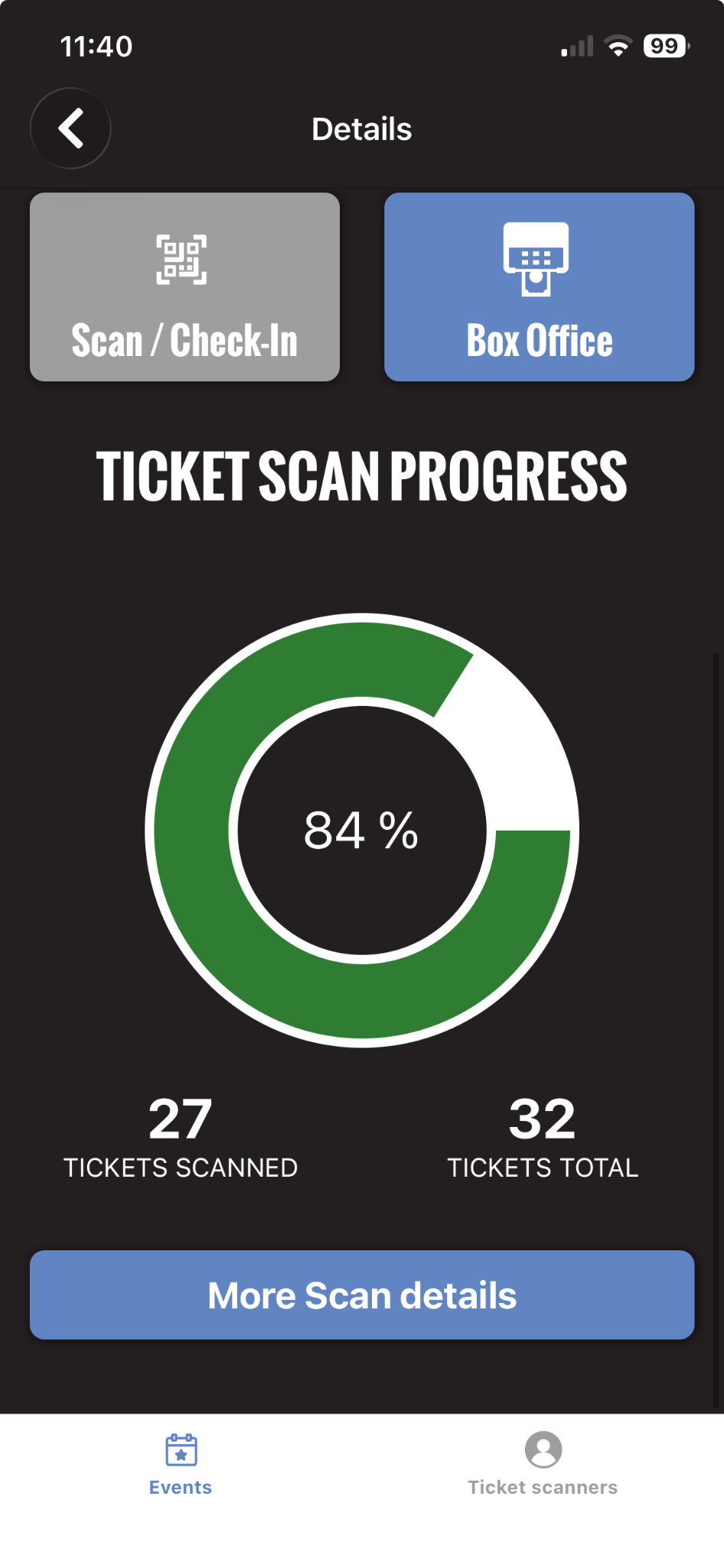
Ticket Scan Progress: live check-in stats
Troubleshooting the App
Quick answer: Most door issues are screen brightness, connection, or Bluetooth. Force close and reopen first. For anything unresolved, tap Profile → Help in the app for live chat. The team monitors events in real time.
Running into an issue on event day? Here are the most common problems and how to fix them fast.
Scanning issues
QR code will not scan
Turn up the brightness on the buyer's screen. This is the most common cause of failed scans.
Check your internet connection. The scanner requires an active connection.
Clean your camera lens.
Use manual check-in as a fallback if the QR code still cannot be read.
Scanner shows 'Invalid Ticket' for what appears to be a valid ticket
Confirm the buyer's ticket is for this specific event. They may be showing the wrong event.
Check whether the ticket has been refunded or transferred. Open the order in your dashboard to verify.
Check whether the scanner is filtering tiers. Make sure the buyer's ticket type is not excluded in your scanner settings.
If none of the above resolves it, contact support via the dashboard chatbot or at theticketing.co/contact-us.
Scanner shows 'Already Scanned' but the buyer has not been admitted
Check the scan time shown. If it was seconds ago at the same door, the buyer may have been scanned twice by mistake.
If the scan time is from earlier in the event, someone else may have used their ticket. Check the check-in log for the order to see which device scanned it.
Box office and payment issues
Tap-to-Pay not appearing as an option
Confirm you are on iPhone XS or later.
Confirm your iOS version is 16.4 or later. Update if not.
Ensure your Stripe payout account is fully verified and active.
Force close and reopen the app.
Stripe Terminal will not connect
Make sure Bluetooth is enabled on your phone.
Confirm the reader is powered on. Hold the power button until the light pulses.
Stay within 30 feet (9 metres) of the reader.
Force close the app, reopen it, and try Connect Reader again.
If the reader has been used by a different device today, it may need a reset. Hold the power button for 10 seconds until the light goes solid, then release.
Payment declined
Ask the buyer to try again. Brief connectivity issues can cause one-off declines.
Suggest the buyer try a different card.
A decline message means the buyer's bank has rejected the charge. It is not a processing error on your end.
As a last resort, ask the buyer to purchase through your event page directly using their card.
App and login issues
Cannot log in
Double-check the email address for typos.
Use the login code option. Tap Email Me a Login Code to receive a one-time link by email.
Contact support if you are locked out: theticketing.co/contact-us.
App is running slowly or crashing
Force close the app and reopen it.
Check your phone's available storage. If storage is nearly full, the app may run slowly.
Ensure your phone's operating system is up to date.
If crashing persists, delete and reinstall the app. Your account and data are stored server-side and nothing will be lost.
Event is not showing in the app
Pull down to refresh the Events list.
Confirm the event is published (not in Draft status) in your dashboard.
Confirm the team member is added as a Ticket Scanner for that event. Events are only visible to scanners who have been assigned to them.
Tip For any issue you cannot resolve from this guide, tap Profile, then Help in the app for live chat with our support team. Our team monitors events in real time and can help you work through door issues quickly.
Note The Ticketing Co. offers scanner hardware rentals for organizers. Reach out to the team to see the available options. Hardware scanners are particularly useful for high-speed, high-volume box office situations.
Need help?
We usually reply within minutes.