
🗂 Organization
Quick answer: Dashboard → Settings → Organization. Fill in your name, website, socials, description, avatar, custom URL, contact info, and timezone. Then click Save in each section.
Your organization profile is what ticket buyers see when they visit your page on The Ticketing Co. A complete, well-branded profile builds trust with buyers and makes your events easier to find. This article walks you through every field.
To reach your organization profile: log in, go to your Dashboard, then navigate to Settings, then Organization.
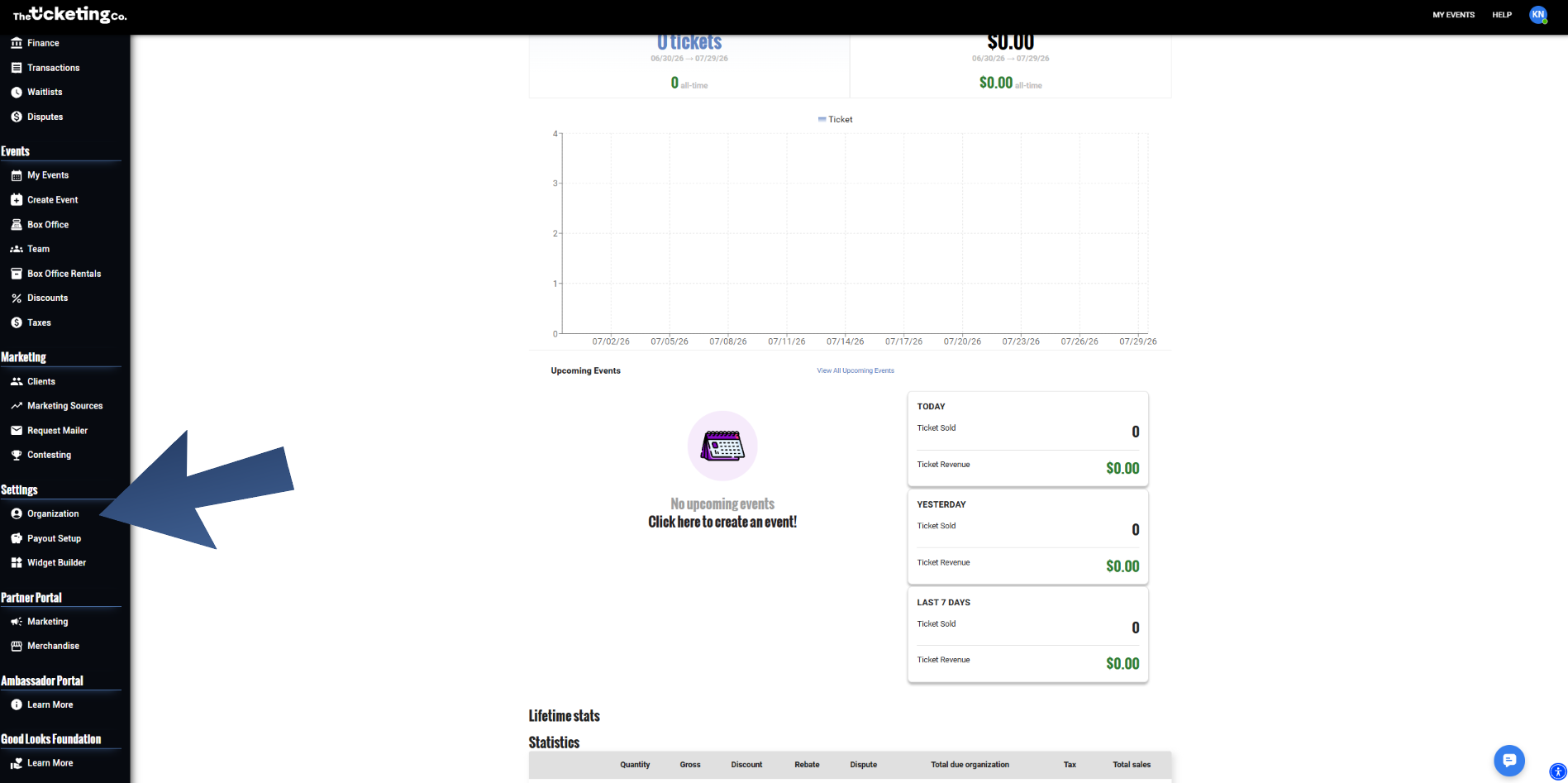
Dashboard: Settings > Organization in the left sidebar
Basic information
Organization name
This is the public-facing name buyers see on your event pages, tickets, and confirmation emails. Use the name your audience knows you by.
Website
Your main website URL. This link appears on your organizer profile page so buyers can learn more about you.
Social media handles
Add your Instagram, X (formerly Twitter), and Facebook accounts. These appear as clickable icons on your organizer profile page and on your event pages. You do not need to add all of them: only the platforms you actively use.
Description
A short description of who you are and what kind of events you run. This appears on your public organizer profile page and is the first thing a first-time buyer reads when they land on your page.
A strong description covers three things: who you are, what kinds of events you host, and what makes your events worth attending. Two to four sentences is the right length. Write it as your direct introduction to a new buyer, not a company bio, not a list of achievements.
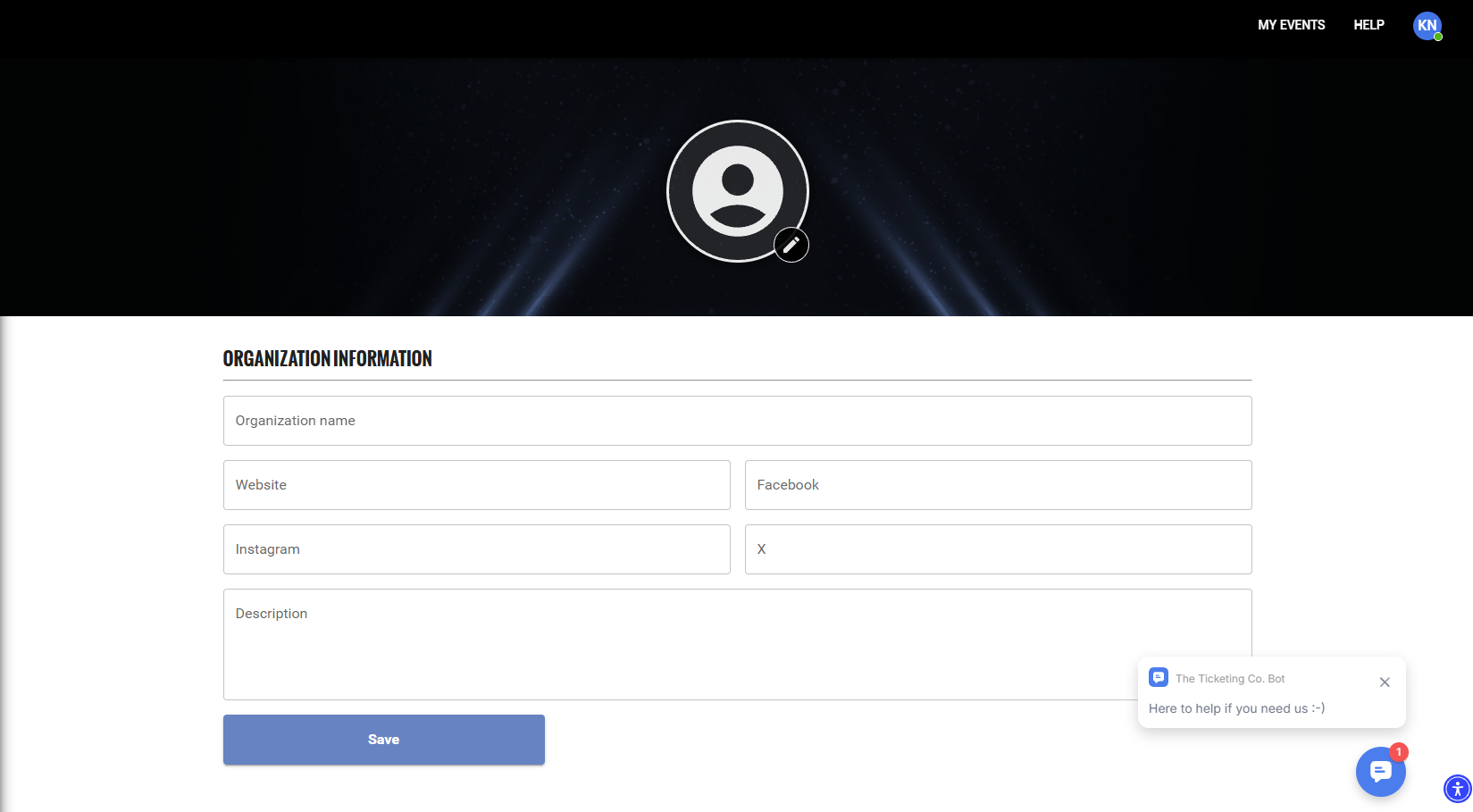
Organization Information: name, website, social handles, and description
Branding
Avatar
Your avatar is the profile image displayed at the top of your organizer profile page. Use a high-quality version of your logo.
Recommended size: 1500 x 500 px
Supported formats: JPG, PNG
Custom URL
Your custom URL is the shareable link for your organization page, where buyers can browse all your live events. Set a URL that is short, recognisable, and tied to your brand name.
Note The custom URL must be at least 5 characters, contain only alphanumeric characters separated by hyphens, and must not have been used before.
Contact information
Your contact details are used by The Ticketing Co. for platform communications and by ticket buyers when they need to reach you. Keep this information current.
Contact name
Contact email
Phone number: used for urgent platform communications
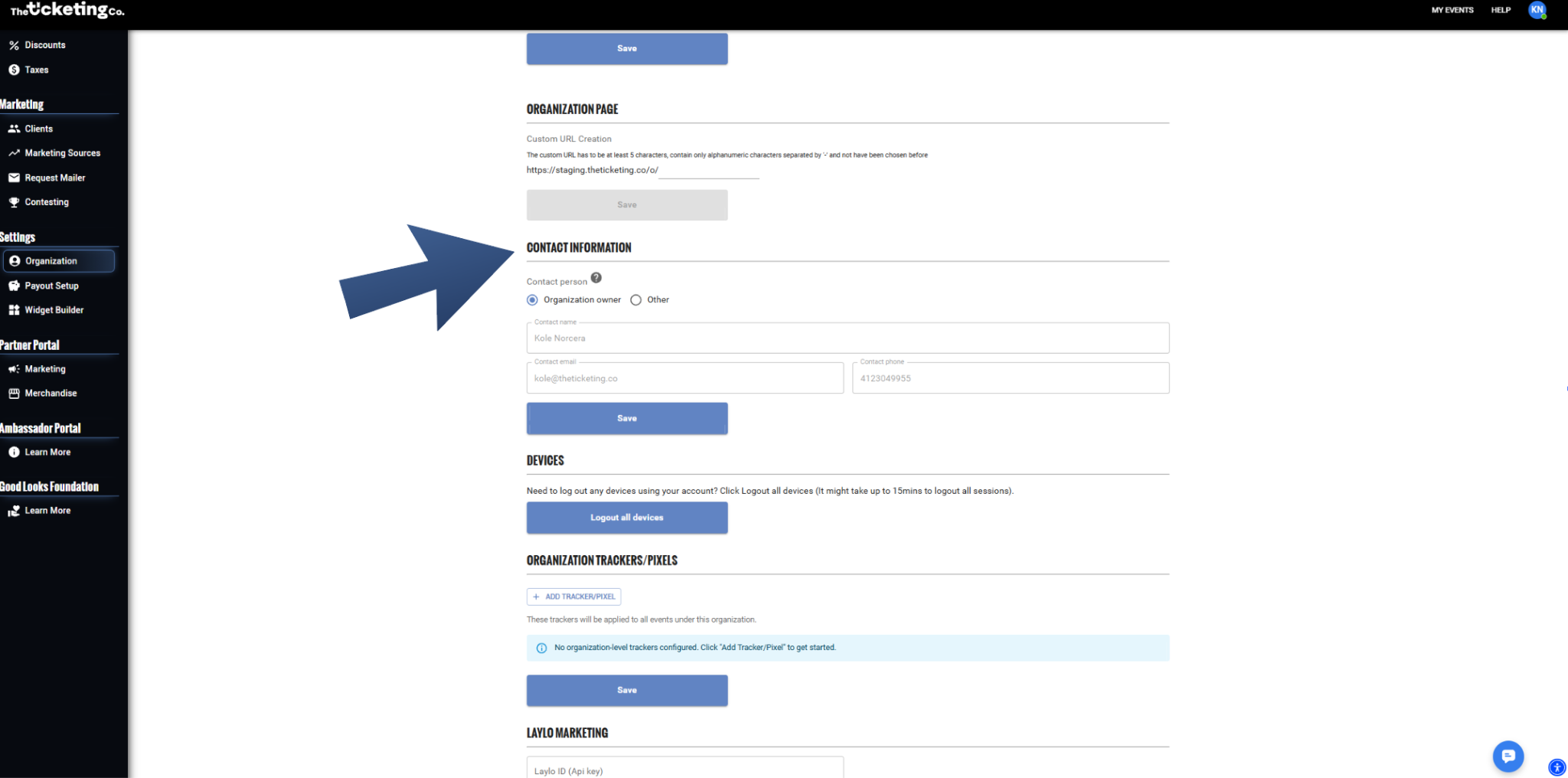
Organization Settings: Custom URL and Contact Information sections
From-name and from-email (sending preferences)
When The Ticketing Co. sends transactional emails to your ticket buyers, such as order confirmations and layaway reminders, the emails are sent from The Ticketing Co. customer service line.
You can configure how buyer enquiries are routed when they contact The Ticketing Co. through your event’s Contact Us form:
Organization owner: the default contact for both platform communications and buyer enquiries via the Contact Us form.
Other: an alternative email address that is looped in when a buyer submits a Contact Us enquiry. Use this if a different team member handles customer-facing emails.
Organization trackers and pixels
Add your Meta, TikTok, Snapchat, and Google Analytics pixel IDs here to apply tracking across all events in your organization. Trackers added at the organization level are applied automatically to every event you create. You can also add event-specific trackers in the individual event settings.
Default timezone
Your organization’s default timezone is used as the starting point for event dates and times. Set this to the timezone where most of your events take place. The timezone can be overridden at the individual event level when you add a venue location.
Note Event times are always shown to buyers in the event’s timezone, the venue’s local time, regardless of where the buyer is located.
Saving your changes
Changes to your organization profile are saved per section. Click Save at the bottom of each section after making updates. Changes take effect immediately on your public profile page.