
Setting Up a Stripe Terminal
Quick answer: Charge to 100%, enable Bluetooth, then Box Office → Settings tab → pick your reader by serial number. At checkout choose Tap / Insert (Terminal). Best for high-volume doors.
The Stripe Terminal is a Bluetooth card reader that pairs with your phone and lets you accept chip and contactless payments at the door. It is the recommended option for high-volume box office situations where speed and reliability matter, or when Tap-to-Pay is not available.
Note Contact The Ticketing Co. team if you would like to purchase or rent a terminal for your events. Reach out via the dashboard chatbot or at theticketing.co/contact-us.
Charging your reader before the event
Charge your Stripe Terminal to 100% before every event. A fully charged M2 reader lasts approximately 8 to 10 hours of active use. Do not rely on charging during the event. Power outlets near the door are rarely convenient.
Important Turn the reader on and check the battery indicator before doors open. Green means the battery is good. Flashing red means the battery is low. Charge it immediately.
Pairing the reader with the app
Make sure Bluetooth is enabled on your phone.
Turn on the Stripe Terminal by holding the power button until the light pulses.
Open TTC Box Office and go to your event's Box Office.
Tap the Settings tab at the bottom of the Box Office screen.
Select your reader from the list. It will show the reader's serial number.
Once connected, you will see a confirmation that the reader is ready.
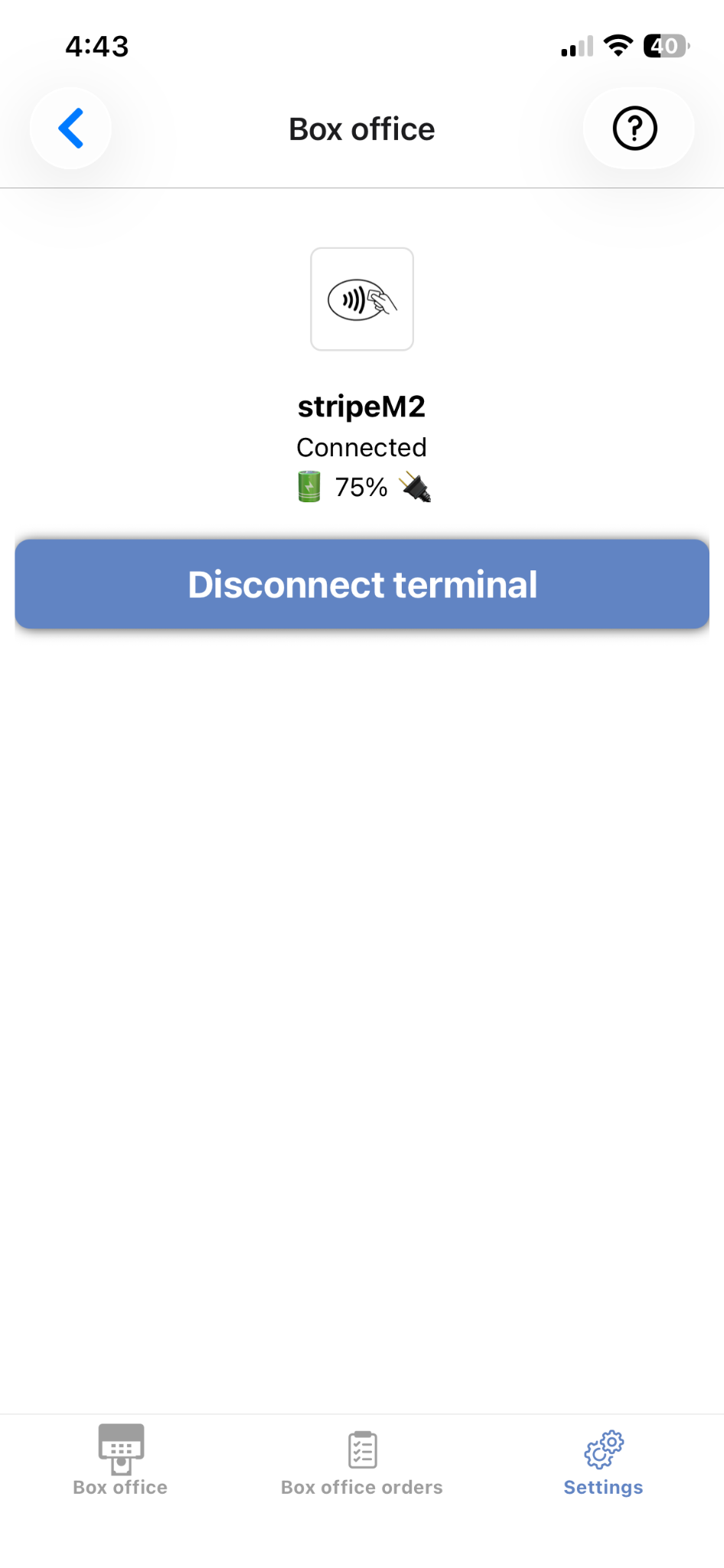
Box Office Settings: Stripe M2 connected at 75%
Tip If multiple readers are nearby at a large event with several box office stations, each reader has a unique serial number printed on the back. Match the last 4 digits of the serial number on screen to the physical device to confirm you are connecting to the right one.
Taking a payment with the Stripe Terminal
Process a sale from the Box Office screen and tap Proceed to Checkout.
Select Tap / Insert (Terminal).
The terminal screen will prompt the buyer to tap, insert, or swipe their card.
Once the transaction is approved, the confirmation screen appears. The order is automatically checked in.
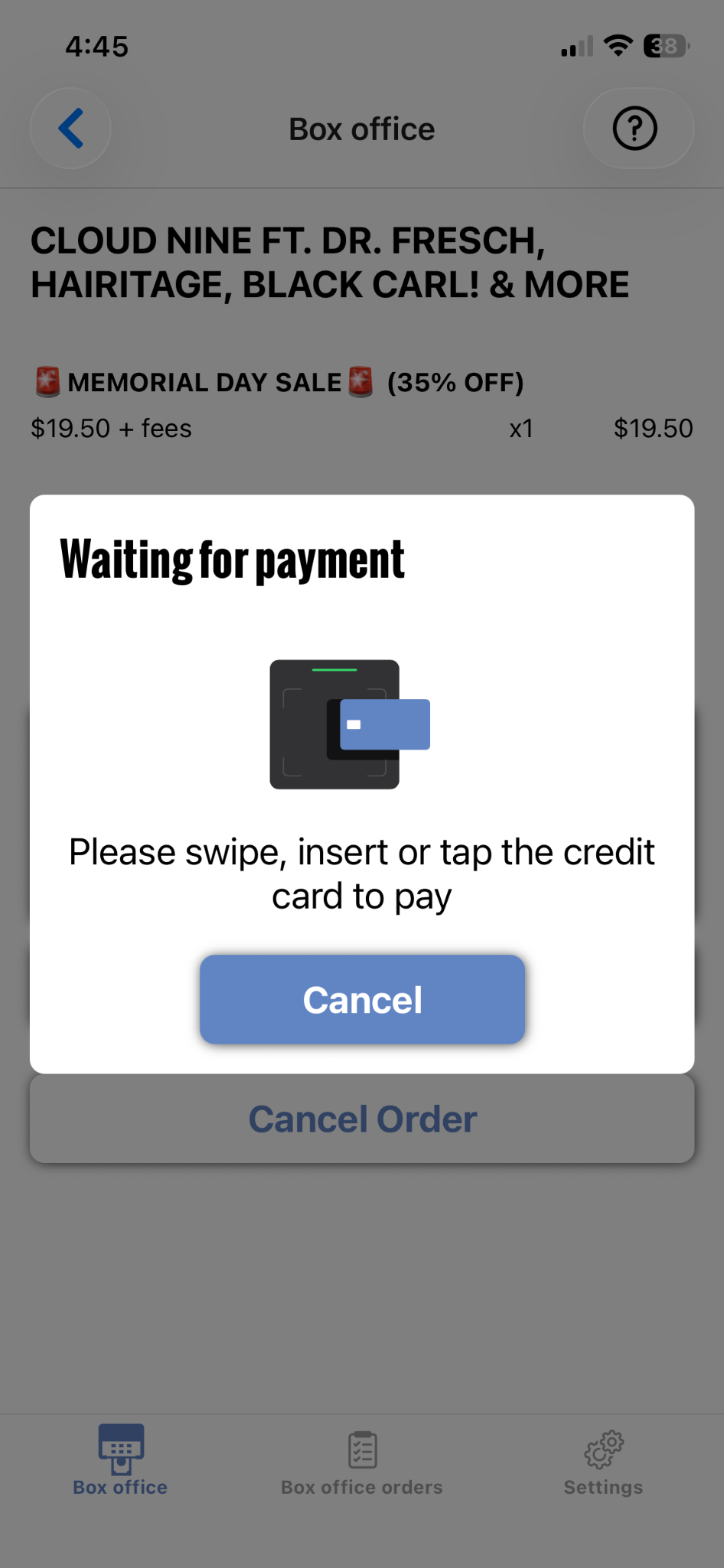
Stripe Terminal: waiting for payment
Reader auto-reconnect
If the Stripe Terminal loses its Bluetooth connection mid-event (phone goes to sleep, reader goes out of range, etc.), it will attempt to reconnect automatically when you return to the Box Office screen. Wait a few seconds before attempting a new payment.
If it does not reconnect automatically:
Close and reopen the Box Office in the app.
Go to the Settings tab and tap Connect Reader.
Select your reader from the list.