
Setting Up Tap-to-Pay
Quick answer: iPhone XS or later on iOS 16.4+, no hardware needed. At checkout pick Tap to Pay (Phone) and have the buyer hold their card or phone near the top of yours. iPhone only. Android uses the Terminal.
Tap-to-Pay lets you accept contactless card payments directly on an iPhone. No card reader hardware required. The buyer taps or holds their card, Apple Pay, or Google Pay to your iPhone and the payment processes instantly. It is the fastest way to run a door without any equipment.
Requirements
iPhone XS or later running iOS 16.4 or later.
TTC Box Office installed and updated to the latest version.
A stable internet connection at your event.
Note Tap-to-Pay is currently available on iPhone only. Android users should use the Stripe Terminal Bluetooth reader for card payments. See Article 4.
First-time setup
The first time you tap Tap to Pay at checkout, the app may need to download a required update. This happens automatically and takes 1 to 2 minutes. Keep the app open and the reader in range until the update is complete.
Important Do not close the app or leave the screen while the update is downloading. Cancelling the update will cancel the connection and you will need to start again.
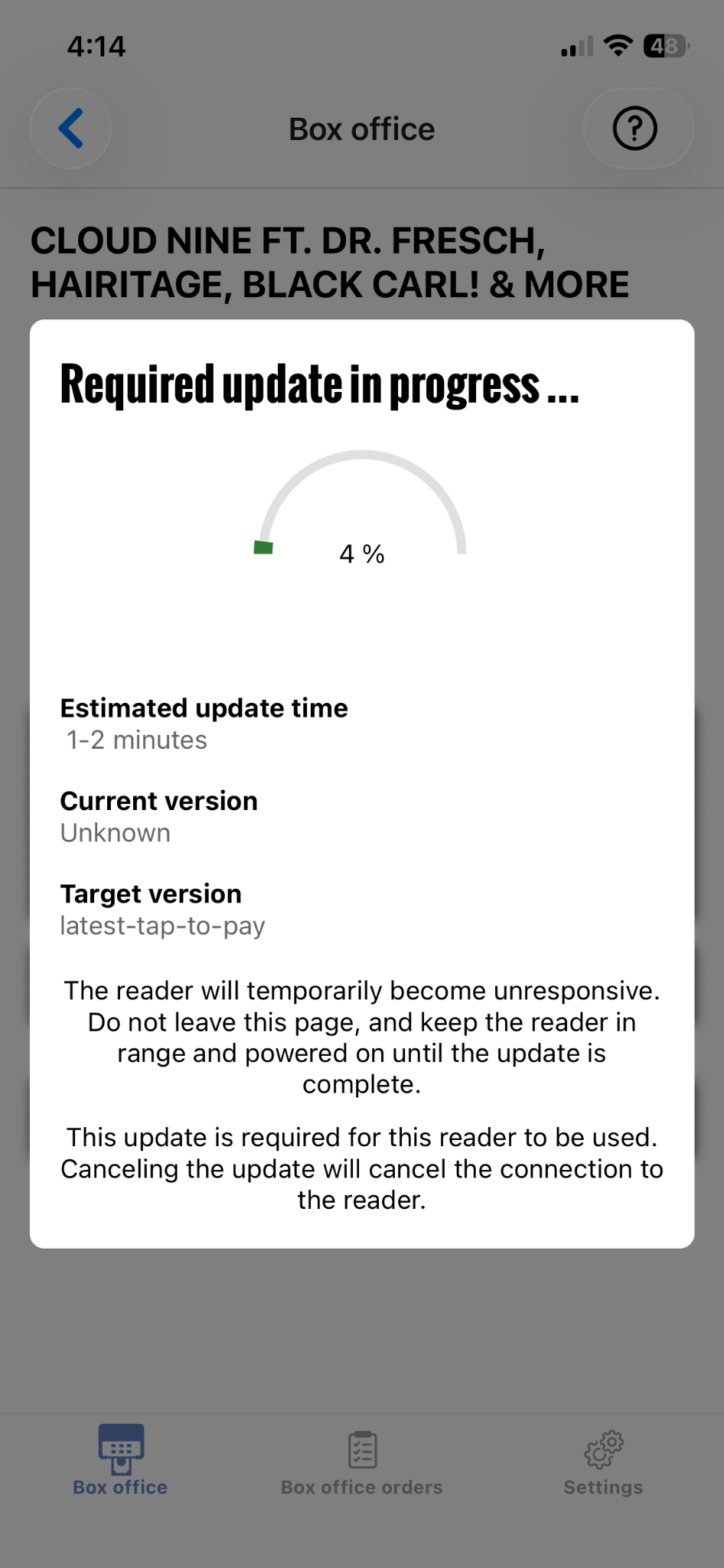
Required update: do not close the app
Taking a Tap-to-Pay payment
Process a sale from the Box Office screen and tap Proceed to Checkout.
Select Tap to Pay (Phone).
Ask the buyer to hold their card, phone, or watch near the top of your iPhone until the payment is accepted.
Note Contactless payments work with physical cards (Visa, Mastercard, Amex, Discover) as well as Apple Pay, Google Pay, and Samsung Pay. The buyer does not need to open any app. They just bring their device near the top of your iPhone.
What to do if Tap-to-Pay declines a card
Ask the buyer to try again. Brief connection issues can cause one-off declines.
Ask the buyer to hold their card still against the top of the phone for 2 to 3 seconds rather than a quick tap.
If it still does not work, select Pay Manually with Card so the buyer can enter their card details on screen.
Important A decline message means the buyer's bank has rejected the charge. It is not a processing error on your end. If the buyer receives a decline, ask them to contact their bank or try a different card.