
Finding & Viewing Orders
Quick answer: Two ways to view orders: organization-level (Orders in the sidebar, every event) or event-level (My Events → your event → Orders tab). Use Columns and Filters to find any order fast.
The Ticketing Co. gives you two ways to view orders: across your entire organization (all events at once) or scoped to a single event. Knowing when to use each saves time, especially when you are managing multiple events simultaneously.
Organization-level orders
To see orders across every event in your organization:
Log in and go to your Dashboard.
Click Orders in the left sidebar. This shows every order placed across all your events.
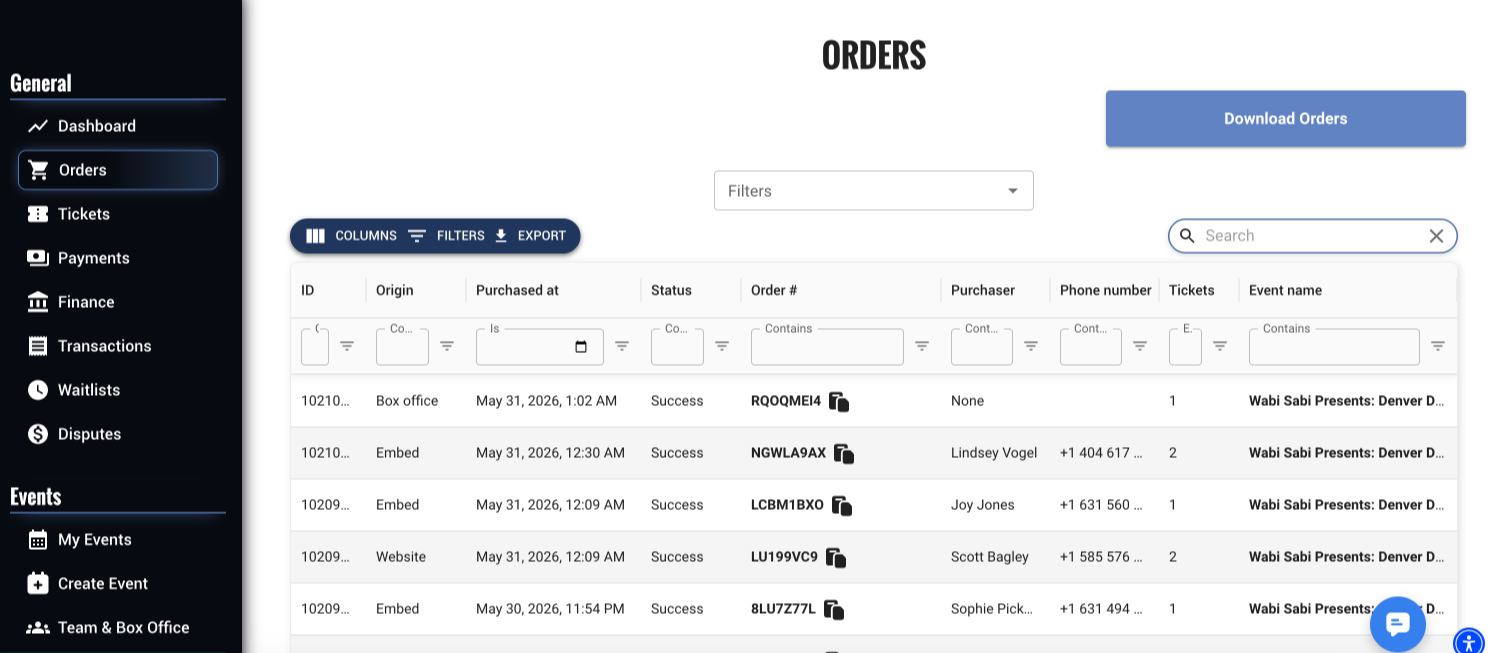
Organization-level Orders view: sidebar navigation and order list
Tip Use the organization-level Orders view when looking up a buyer who may have tickets to multiple events, or when you need to find an order but are not sure which event it belongs to.
Event-level orders
To see orders for a specific event:
Go to Dashboard, then My Events.
Click the event you want to view.
Click the Orders tab inside the event dashboard.
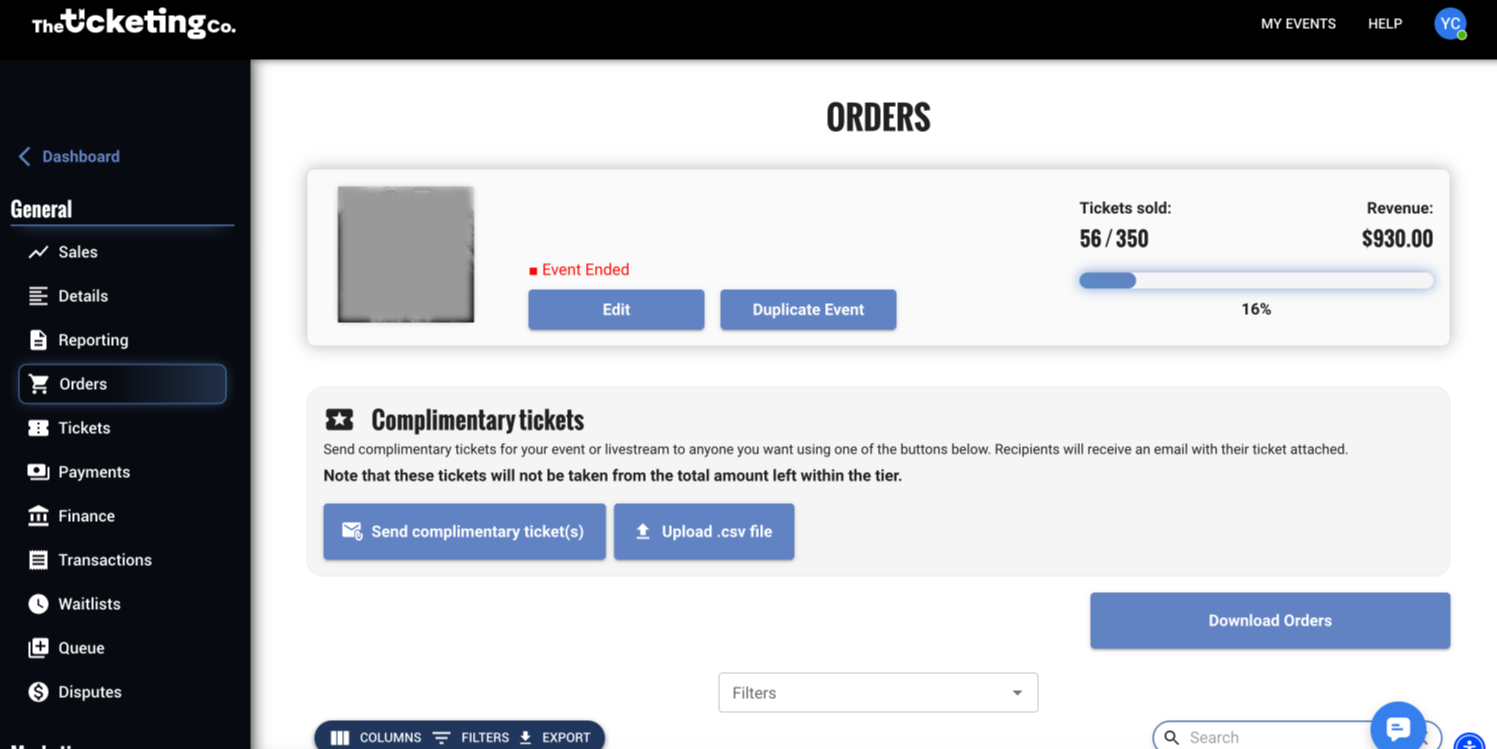
Event-level Orders tab: showing complimentary ticket options and order list
Note The event-level Orders tab is also where you can send complimentary tickets. All complimentary tickets include a QR code so your scanning team can check them in at the door.
The Tickets tab
Directly below the Orders tab, you will find the Tickets tab. While the Orders tab shows purchase transactions, the Tickets tab shows information on individual tickets, including custom question responses, ticket tier and category, check-in status, discount codes applied, and more. Use this tab to track what is happening at the individual ticket level.
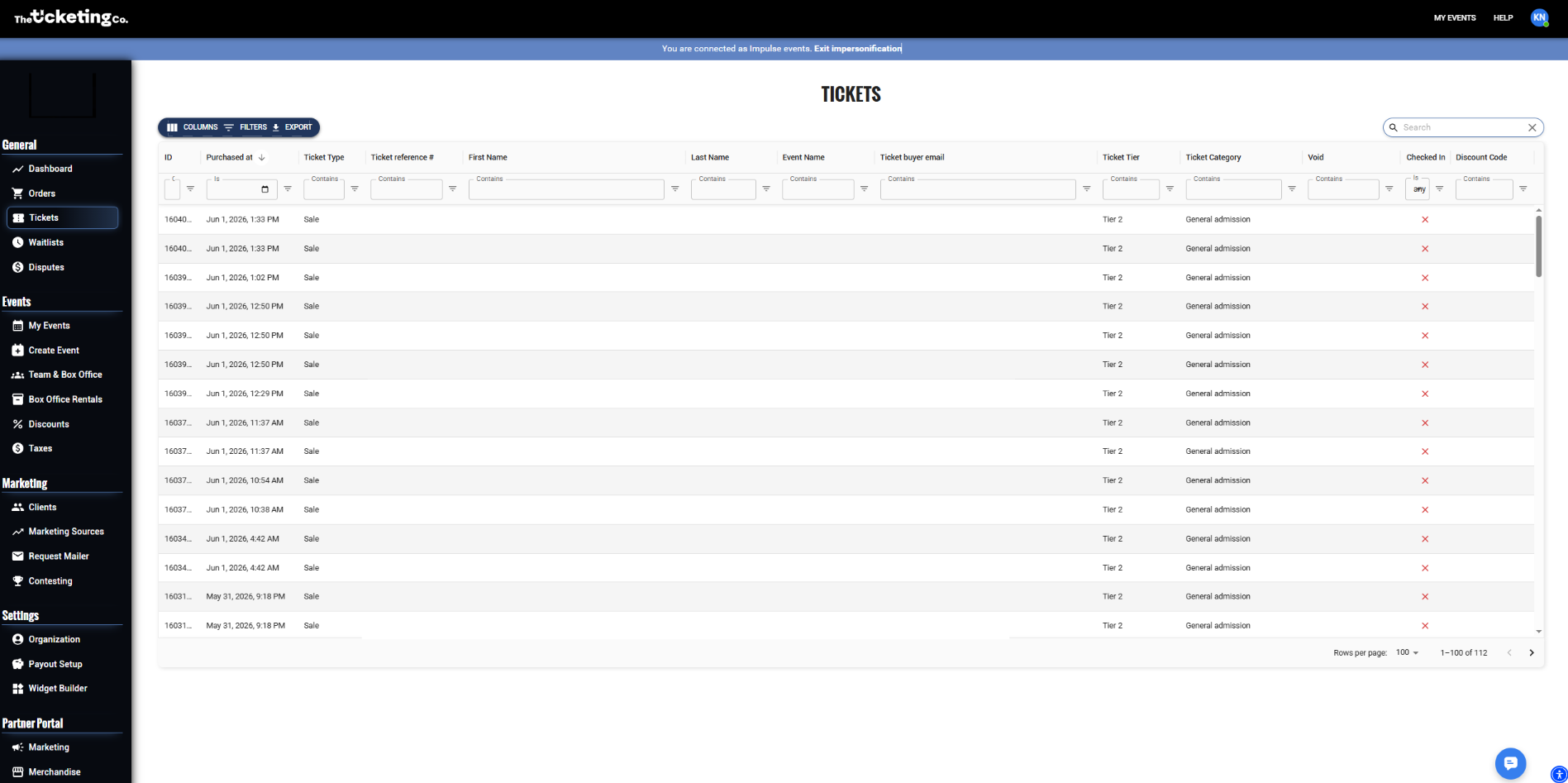
Tickets tab: individual ticket records with tier, category, and check-in status
Filtering and searching orders
Both order views support filtering and searching so you can find exactly what you need. Click Columns to choose which fields are visible in your order list, and use the Filters panel to narrow results.
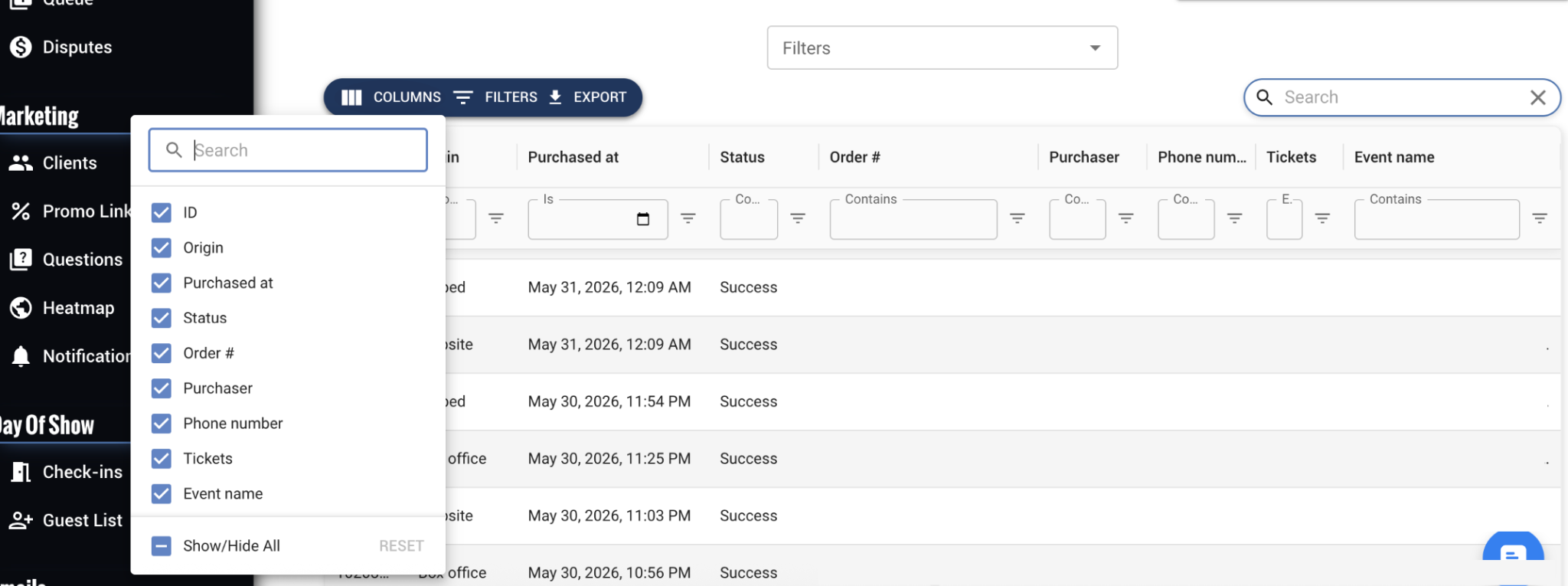
Columns selector: choose which fields appear in your order list
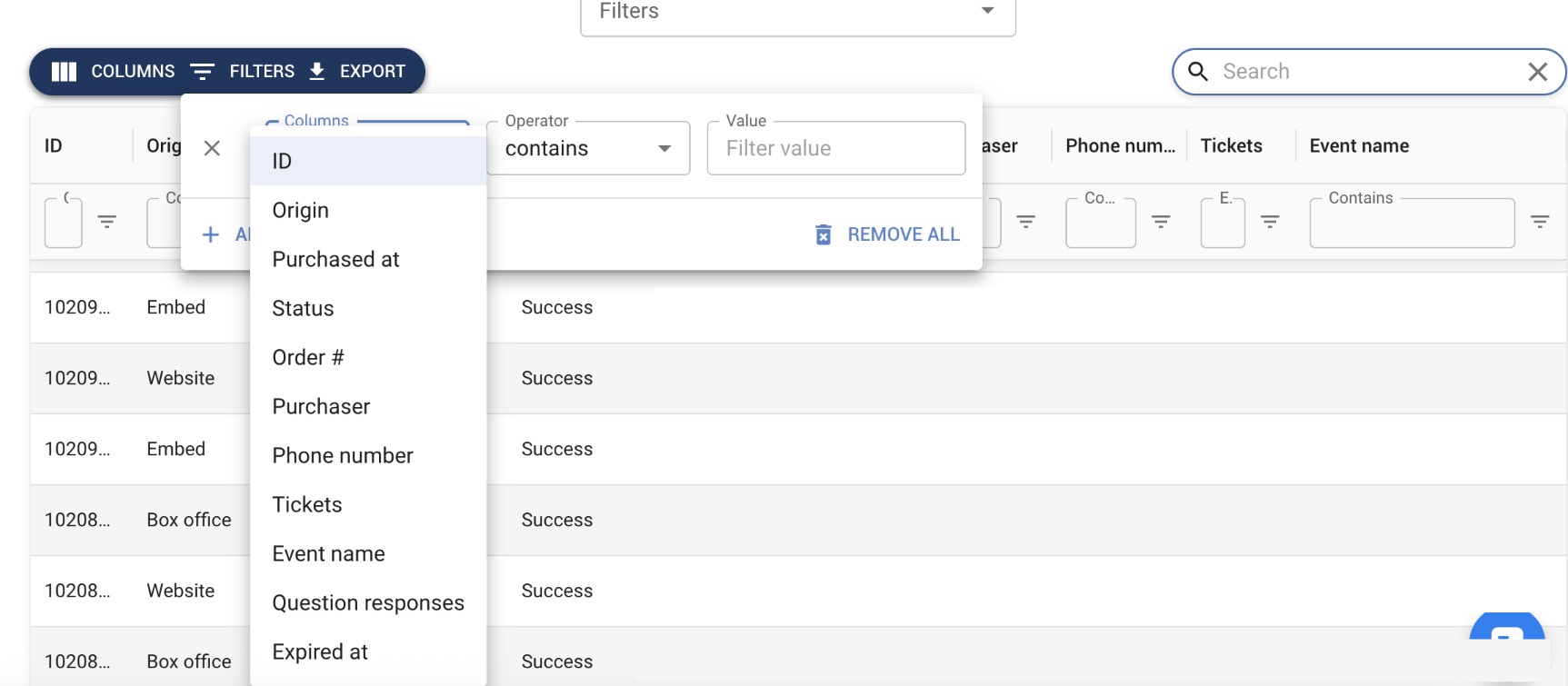
Filters panel: filter by column, operator, and value
Filter / search option | What it does |
|---|---|
Search by name | Find a specific buyer by their name. |
Search by origin | Find orders by where they were placed: embed, website, or box office. |
Filter by ticket amount | Show orders by the number of tickets they contain. |
Filter by order status | Filter by Complete, Refunded, Layaway, or Complimentary. |
Filter by date range | Narrow results to orders placed within a specific date window. |
Filter by event name | Narrow results to orders for a specific event. |
Understanding order statuses
Status | What it means |
|---|---|
Complete | Paid in full. Ticket is valid and active. |
Adjusted | A layaway plan where tickets were swapped out during the payment schedule. |
Layaway in progress | Buyer is on an active layaway plan. At least one payment has been made and remaining installments are scheduled. Tickets are not yet valid for entry. |
Layaway completed | Layaway plan is paid in full. Ticket is valid and active. |
Layaway cancelled | Layaway plan was cancelled due to non-payment. Ticket is no longer valid. |
Refunded | A full refund has been issued on this order. |
Note The Orders tab shows purchase transactions. One order can contain multiple tickets. For example, a buyer who purchased 4 General Admission tickets in one checkout has one order with four tickets.
Exporting your orders
You can export your full order list as a CSV from either the organization-level or event-level Orders tab. Click the Export button at the top of the list.