
Publishing Your Event
Quick answer: Run the checklist below, then go to the last tab in the left nav and click Publish. Status flips Draft → Live immediately. You can edit almost everything afterwards, and payout setup must be complete or you will not get paid.
Once you have filled in your event details, added your tickets, and reviewed everything, you are ready to go live. This article covers the publish flow, what to check before you hit publish, and what happens after.
Pre-publish checklist
Publishing is not a manual checklist. The system lists any incomplete sections for you and keeps the Publish button greyed out until everything required is done. Use the list below to understand what it will ask for.
Important Paid tiers in high-tax states must meet a minimum price threshold before the event can publish, unless your organization has nonprofit status on file.
Before clicking Publish, run through this checklist:
Event name is correct and spelled as you want it to appear on tickets and emails.
Date, time, and timezone are accurate.
Venue address is correct and the map pin is in the right place.
Banner image is uploaded and looks good at both desktop and mobile sizes.
Event description covers the key details buyers need to know.
Artists are tagged correctly.
At least one active ticket tier is set up with the correct price and quantity.
Sale start date on ticket tiers is correct (or blank if on sale immediately).
Event policies and guidelines are filled in (optional).
Age restriction is set if applicable.
Payout setup is complete. You will not receive payment without it.
How to publish
From your event editor, go to the last tab in the left-side navigation.
Click the Publish button at the bottom of the screen.
Your event is now live. The status will change from Draft to Live.
Note Publishing is immediate. Your event page goes live the moment you confirm. If you set a future launch date, the page will exist but will not be discoverable until that date.
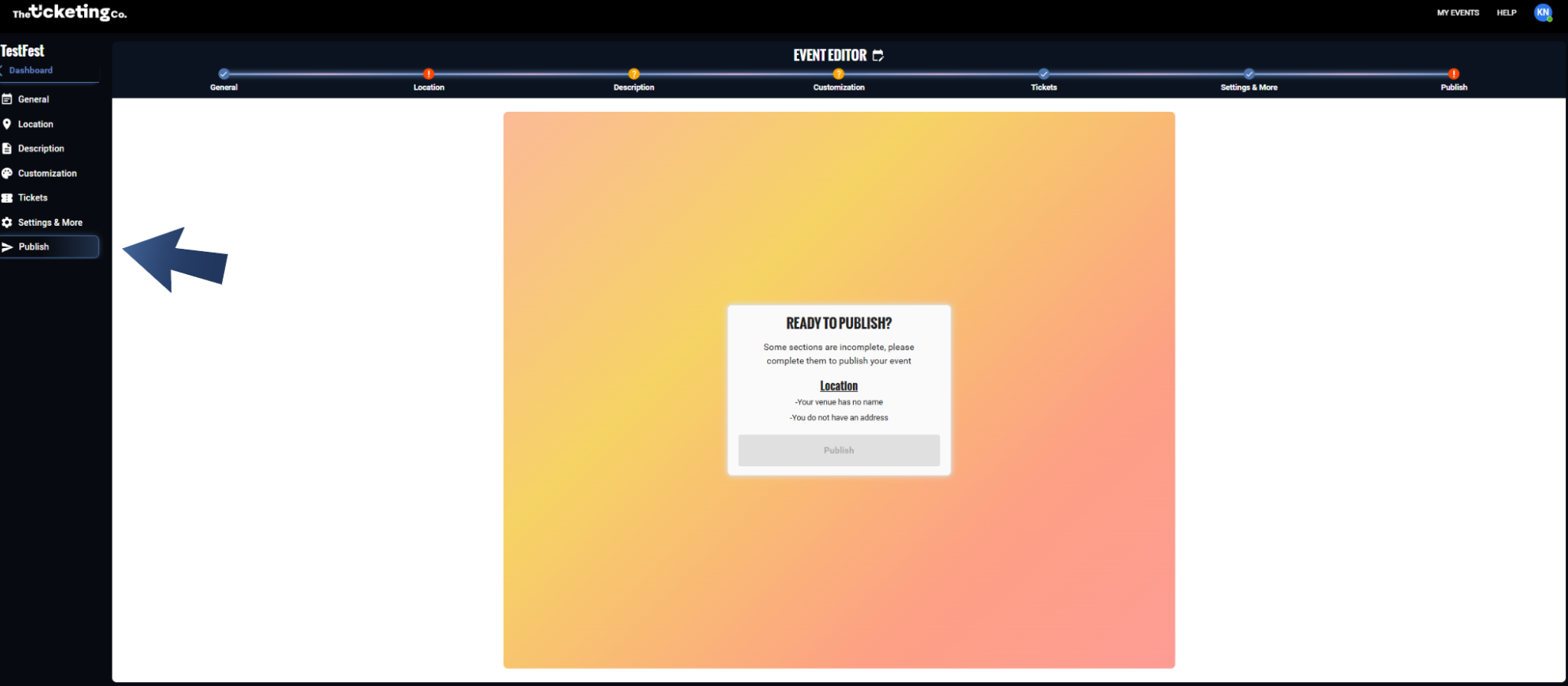
Publishing your event: status changes from Draft to Live
What happens after you publish
Your event page is live at its URL and visible in The Ticketing Co. search.
Ticket sales open immediately, unless you set a specific sale start date on your tiers.
Your event appears on your organizer profile page.
Buyers can find, share, and purchase tickets to your event.
Making changes after publishing
You can edit almost everything about a live event: details, description, ticket quantities, and settings. Changes take effect immediately on the live event page.
Important Once an event is marked as settled, every field locks and can no longer be edited. If the editor will not accept changes and gives no reason, check whether the event has been settled.
A few things cannot be changed once a ticket has been sold. Reach out to The Ticketing Co. team via the dashboard chatbot and they can make those changes from the admin side.
Tip If you need to make a significant change that affects existing buyers, such as a date change, lineup change, or venue change, send your ticket holders an email to notify them directly. Contact The Ticketing Co. team to send a message to all current ticket holders.