
Access, Age Limits & Event Settings
Quick answer: Everything in this article lives in the Settings & More tab of your event. There you choose whether the event is Listed (publicly discoverable) or Unlisted (link only), set an age limit, add accessibility information and event guidelines, and apply discounts and tracking pixels. Note that the age limit is a disclosure to buyers only; your door staff still enforce it at the event.
This article covers the settings that control who can see your event, age requirements, accessibility information, and more, all found in the Settings & More tab of your event editor.
Event access
You can control whether your event is publicly listed or accessible only via a direct link.
Listed | Unlisted |
|---|---|
Appears in search results, on your organizer profile page, and is shareable. Anyone can find and buy tickets. | Not listed in search or on your profile. Only buyers with the direct link can access it. Useful for private or invite-only events. |
Tip Unlisted events still have a working event page and checkout. They are just not publicly discoverable. Share the link directly with your intended audience via email, SMS, or a private group.
Age limit
If your event has a minimum age requirement, set it here. The age restriction appears prominently on your event page so buyers are aware before purchasing, and it supports check-in decisions for your door staff.
All Ages: no restriction · 16+ · 17+ · 18+ · 19+ · 21+
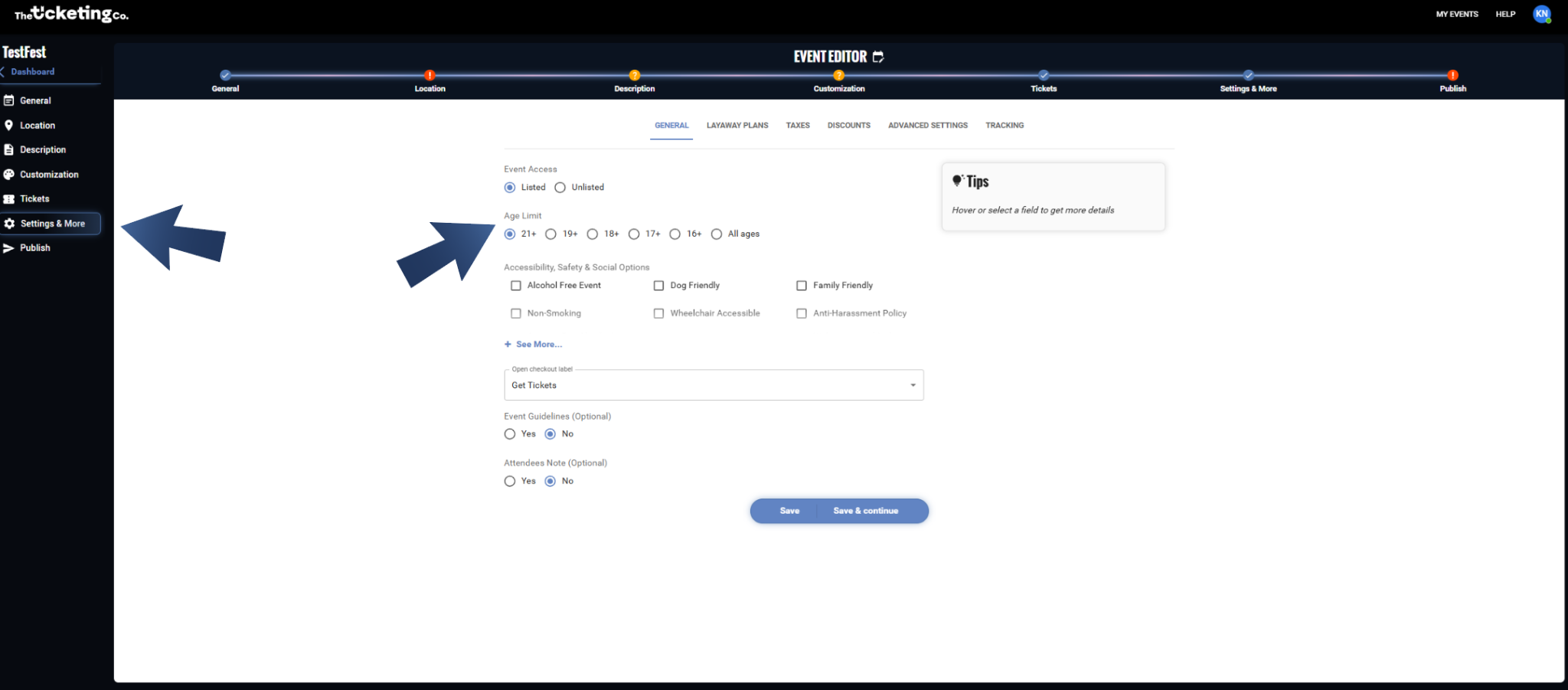
Age limit setting in Settings & More
Important Setting an age restriction here does not enforce it automatically at checkout. It is a disclosure. Enforcement happens at the door. Make sure your door staff know the policy and are checking IDs.
Accessibility, safety & social options
Let buyers know what accessibility features and amenities your venue has. These appear as icons and labels on your event page and help buyers with specific needs make informed decisions.
Options include:
Alcohol Free Event
Dog Friendly
Non-Smoking
On-site Medical Support Available
And more. See the platform for the full list of available options.
Tip Even if your venue does not have every accessibility feature, being transparent about what is and is not available builds trust with buyers and reduces refund requests from attendees who discover a limitation on event day.
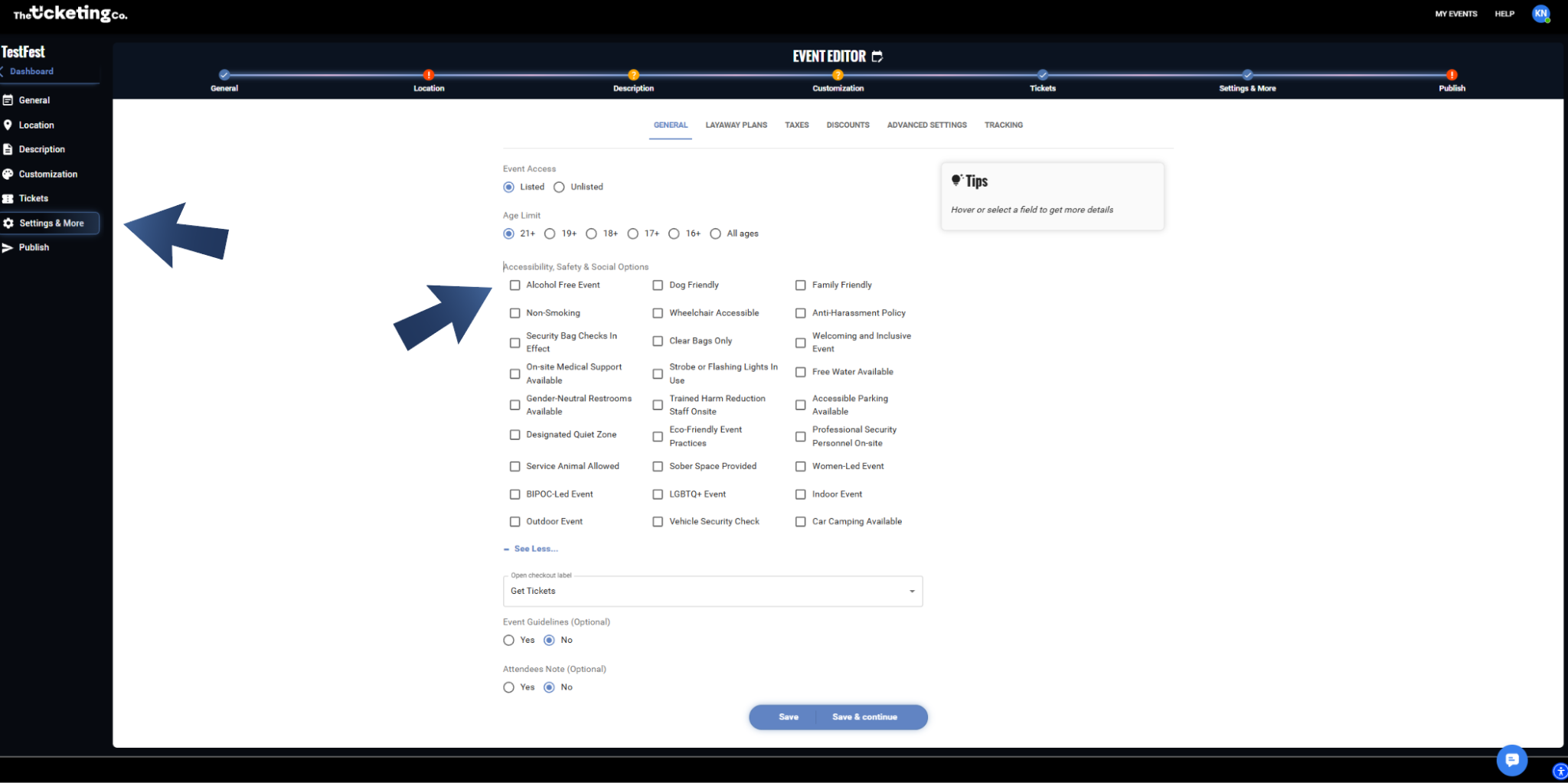
Accessibility, safety & social options
Event guidelines (optional)
The guidelines field is a plain-text area for event-specific rules and information. These appear in a dedicated section of your event page. This is different from your event description. Guidelines are typically formatted as a list of rules, policies, and need-to-knows.
Good content for guidelines:
Entry requirements (ID, dress code, bag policy)
Re-entry policy
Prohibited items
Venue-specific rules (no outside food, no professional cameras, etc.)
Health and safety requirements
Note Fill in your event guidelines and enable the option to require attendees to accept them at checkout before completing their purchase.
Attendee note (optional)
Note This note will display at the bottom of your event tickets.
Discounts
Configure discount codes specific to this event. You can add, edit, or remove codes to offer special pricing to your attendees.
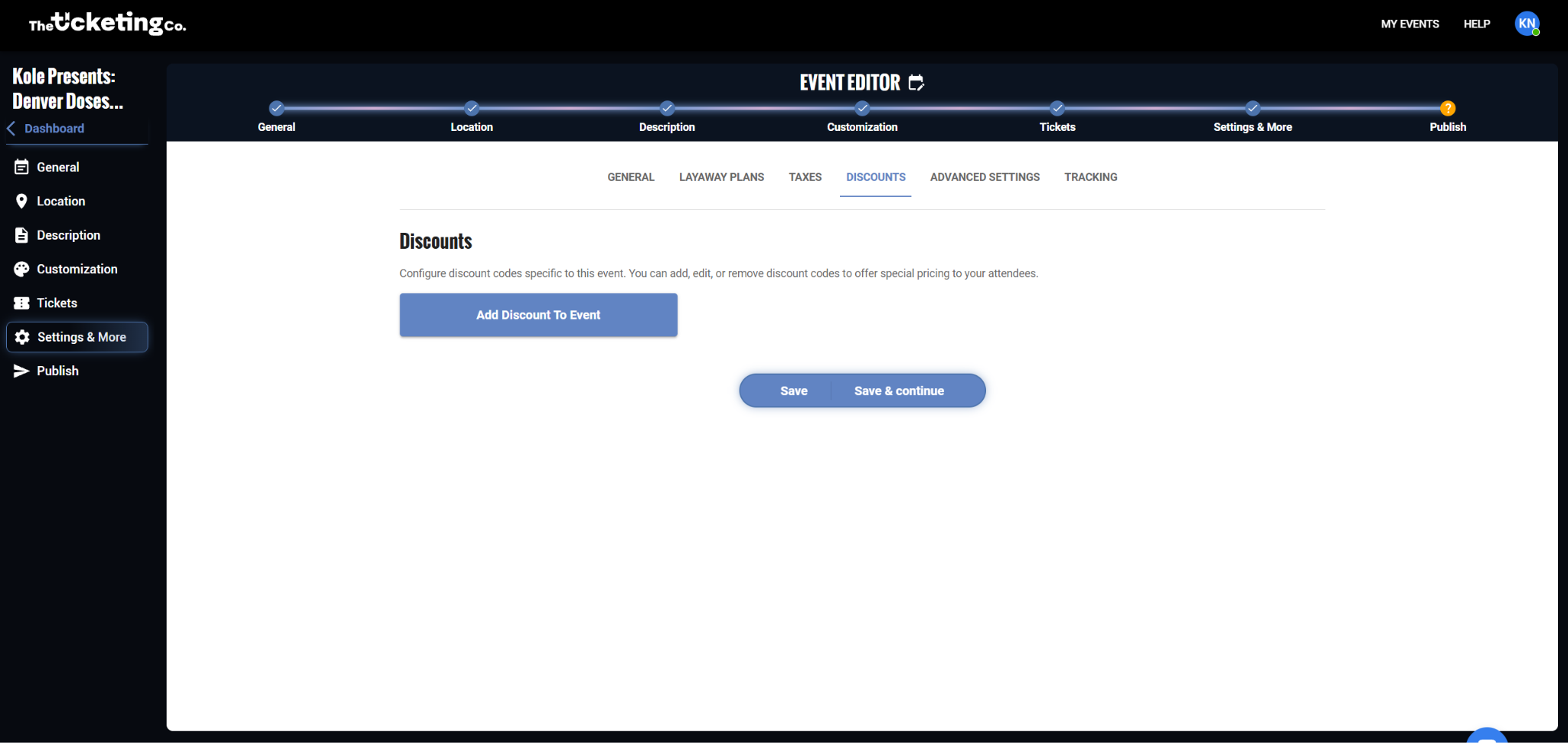
Event-specific discount codes
Trackers and pixels
Organization-level trackers are automatically added to all your events. You can also add trackers specific to an individual event in this section. Organization trackers are applied by default and do not need to be re-added here.
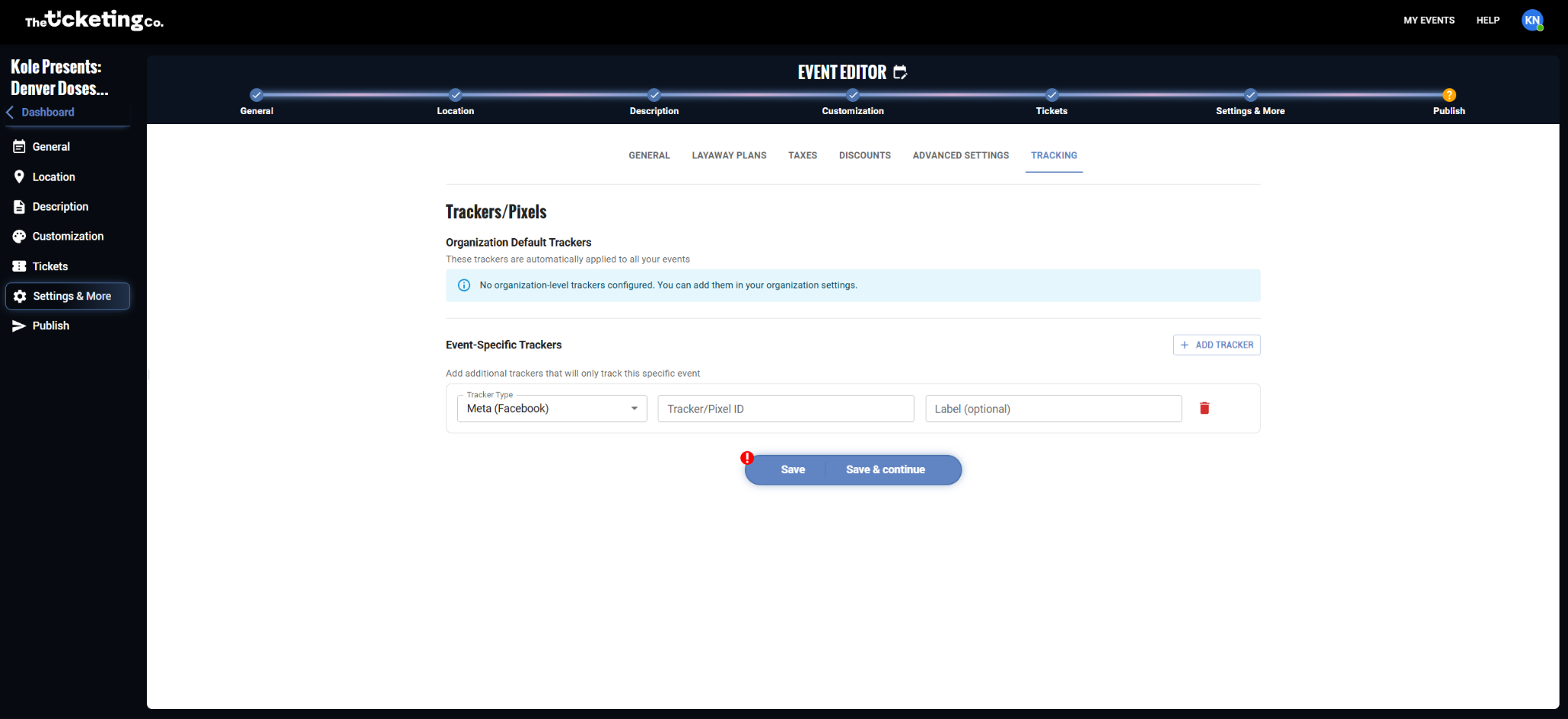
Trackers and pixels
Taxes
Apply a tax rate to this event. Rates are configured in your organization settings first, then selected here. Tax is calculated on top of the ticket price and shown to buyers in the checkout breakdown.
Layaway
The Layaway tab shows the plan attached to your event. It is read-only for organizers: The Ticketing Co. team sets up and edits layaway plans on your behalf. Reach out via the dashboard chatbot to enable it or change a plan.
Advanced settings
Disable ticket generation: stop QR tickets being issued for this event, for cases where entry is managed another way.
Hide end date: show only the start date and time on your event page.
Hide starting price: remove the "from $X" price shown on listings and the event page.
Open checkout label
Set the label shown on the button that opens checkout on your event page, in place of the default wording.