
Ticket Tiers & Pricing
Quick answer: Ticket tiers are created in the Tickets section of your event. Use New category and New tier to build out what you are selling, then save from the footer at the bottom of the tab. From there you can group related tiers under categories, and sell extras like parking as add-ons. Contact The Ticketing Co. team via the dashboard chatbot to turn on layaway.
The Tickets section of your event is where you set up what you are selling: the different categories, tiers, prices, quantities, and sale windows. This article covers the full ticket creation flow. Advanced ticket settings (tier description, password protection, dates available, visibility, and more) are covered in the Advanced Ticket Settings article.
Creating a ticket tier
In the Tickets section of your event, you will see the default Category Name and Tier Name fields.
Fill in the tier details using the field reference below.
Click Save Tier.
Repeat for each tier you want to offer.
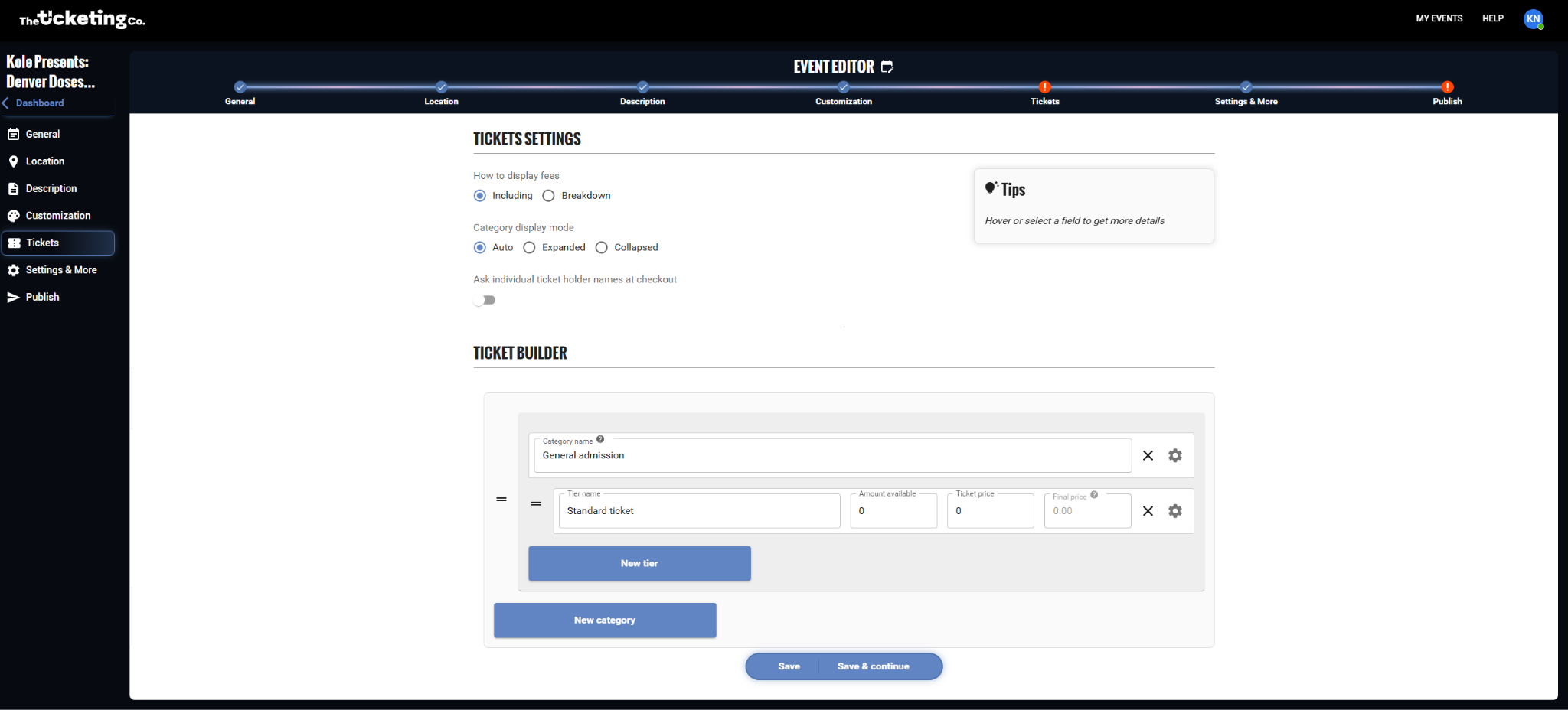
Tickets section: creating a ticket tier
Ticket tier fields: reference
Field | Description |
|---|---|
Tier name | What buyers see, for example 'General Admission', 'VIP', or 'Early Bird'. Be specific and clear. |
Ticket price | The face value of the ticket. Set to $0.00 for free events or free tiers. |
Amount available | Total number of tickets available for this tier. Once sold out, the tier shows as unavailable. |
Tier information | Optional short description shown under the tier name on the event page. Useful for explaining what is included (for example, 'Includes open bar 9–11 pm'). |
Max tickets per order | The maximum number of this tier a single buyer can purchase in one order. Must be between 1 and 100. Useful for limiting bulk purchases and ensuring fair access. |
Group size | Sell a tier in bundles. Buyers must purchase in multiples of this number. For example, a group size of 4 means buyers can purchase 4, 8, or 12 tickets at a time. The price shown is always per ticket. Make sure the maximum per order is a multiple of the group size. |
Rebate | An additional fee added to your tickets that you keep. Contact a Ticketing Co. admin via the dashboard chatbot if you need to increase the current limit. |
Tier visible | Toggle on or off to show or hide this tier on your event page. |
Tier enable | Toggle on or off to open or pause sales for this tier. |
Hide tier when off sale | When this tier is no longer available for sale (sold out, sale end time reached, etc.), it will be hidden from your event page. |
Hide tier until previous tier is off sale | This tier stays hidden until the tier listed above it is no longer on sale. |
Sale start date | When buyers can start purchasing this tier. Leave blank to go on sale immediately when the event is published. |
Sale end date | When this tier stops being available for purchase. Useful for early bird deadlines. Leave blank to stay on sale until sold out or the event date. |
Password | Buyers cannot see or access this tier until they enter the correct password. |
Tier display | Choose where the tier is available: your event page, the box office, or both. |
Final price / Tax amount / Service fees / Facility fee | Read-only boxes showing the calculated buyer-facing breakdown once you set the price. |
Show upcoming on-sale date | Switch that displays the future on-sale date on your event page before sales open. |
Password scheduling | Set the window during which the tier password requirement applies. |
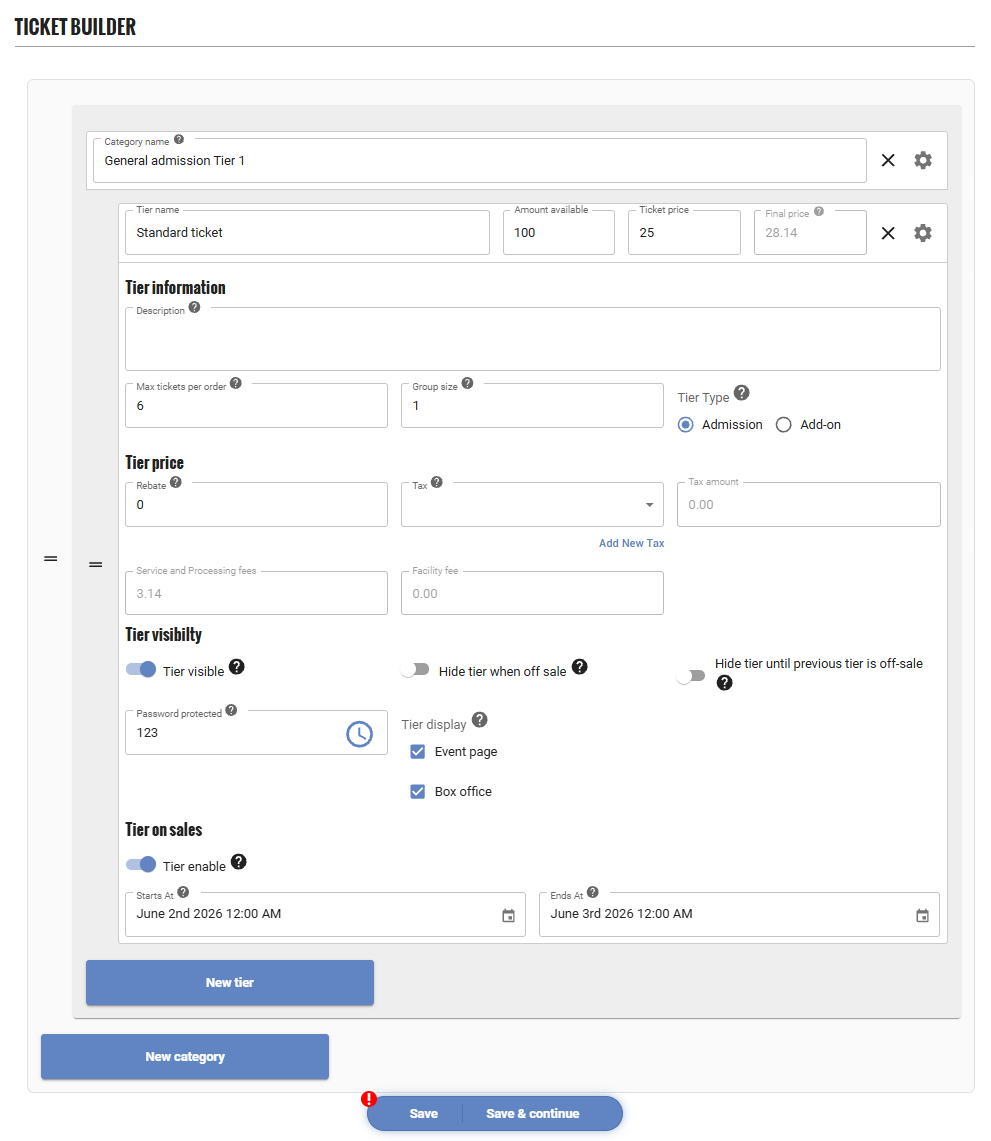
Ticket tier settings and fields
Important Per-tier sale windows (sale start and sale end dates) are disabled entirely for recurring events. If you run a weekly or recurring series, you cannot use tier sale windows for early-bird pricing.
Needs confirmation The Tier information field is described above as a short description shown under the tier name, but the dashboard tooltip says it displays on the bottom of your event’s tickets. Confirm which is correct before publishing.
Ticket categories
Categories let you group ticket tiers under a label on your event page. This is useful for events with many tiers. For example, a festival might use categories such as Single Day, Weekend Pass, and VIP to organize tiers visually for buyers.
Click Add Category in the Tickets section.
Give the category a name.
Click Add New Tier to add tiers inside that category.
Note Categories are display-only. They do not affect pricing, inventory, or checkout behavior. They are purely for organizing the buyer-facing ticket selection.
Tier type: Admission or add-on
Tier type lets you choose whether a tier is for Admission or an Add-on. It is not chosen while you are creating the tier: create the tier first, then open its advanced settings with the gear icon and pick the type using the radio buttons there. Add-ons are optional items buyers can include in their order at checkout: things like parking passes, merchandise, drink tokens, or VIP upgrades. They appear as a separate section below the main ticket tiers.
Create the tier, then open its advanced settings with the gear icon and select Add-on on the tier type radio buttons.
Fill in the add-on name, price, and quantity.
Offering a layaway plan
Layaway plans let buyers split the ticket cost into monthly installments. They pay the first installment at checkout and the rest on specific planned dates. Organizers do not define the schedule: the Layaway tab is read-only unless The Ticketing Co. team sets the plan up for you. This is one of The Ticketing Co.'s standout features, especially for higher-priced events.
There are three plan formats:
Custom down payment: you set the deposit taken at checkout, with the balance spread across the remaining dates.
Equal payments: the total is divided evenly across every scheduled date.
Layaway fee down payment: the layaway fee itself is taken as the down payment at checkout.
Note This feature is activated by the Ticketing Co. team. Reach out via the dashboard chatbot in the bottom-right corner of your screen.
Tip To block a specific tier from layaway eligibility, for example a $10 general admission tier where installments do not make sense, ask The Ticketing Co. to set Block Layaway on that tier. The toggle is admin-only and is not available to organizers.
Applying taxes to a tier
If you have set up a tax rate in your organization settings, you can apply it to individual ticket tiers here.
In the ticket tier settings, click the gear icon or open Advanced Settings.
Find the Tax dropdown.
Select the tax rate to apply.
Save the tier.
The tax will appear as a separate line item at buyer checkout, clearly labeled with the tax name you defined.
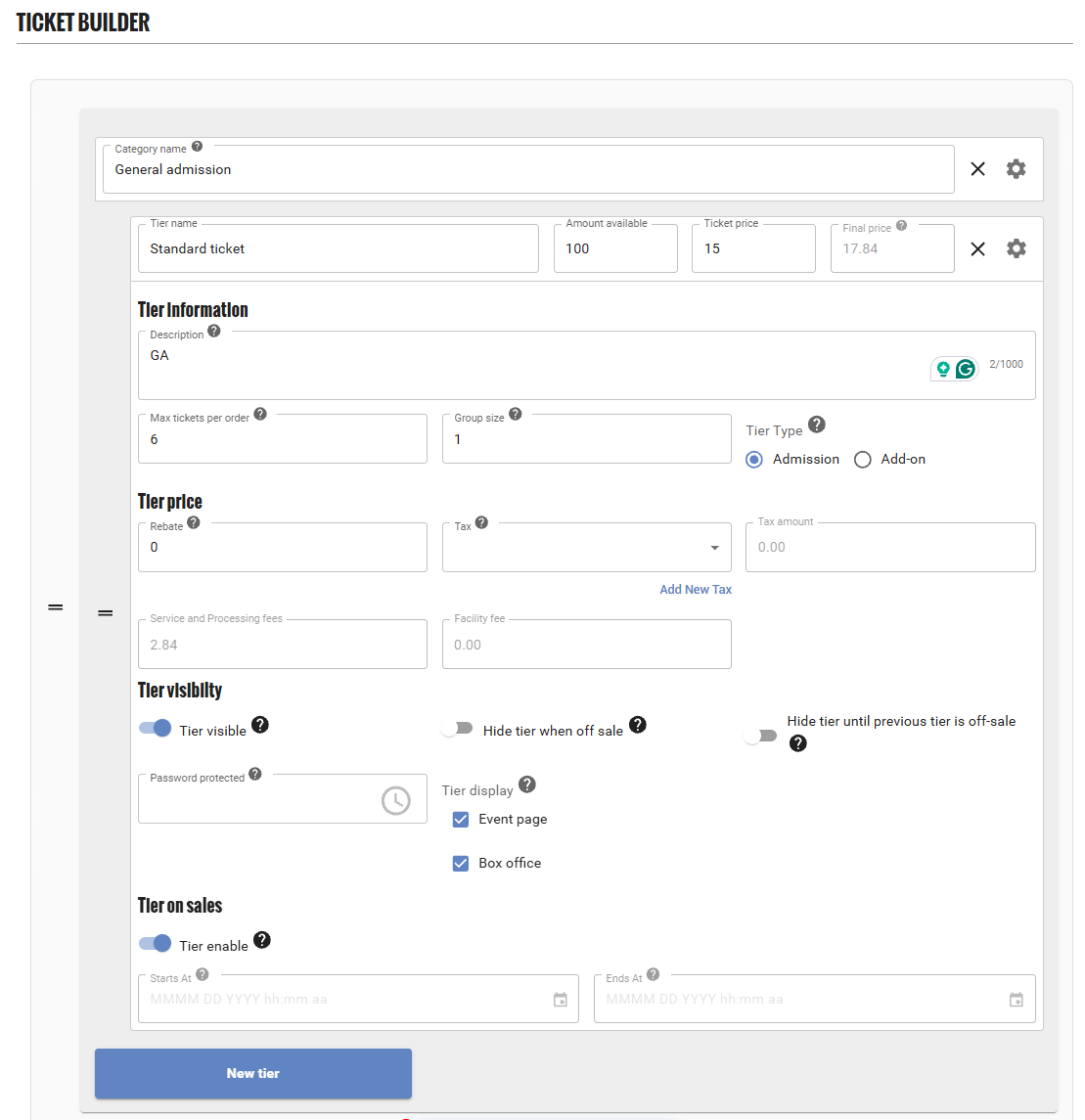
Tax dropdown in tier settings
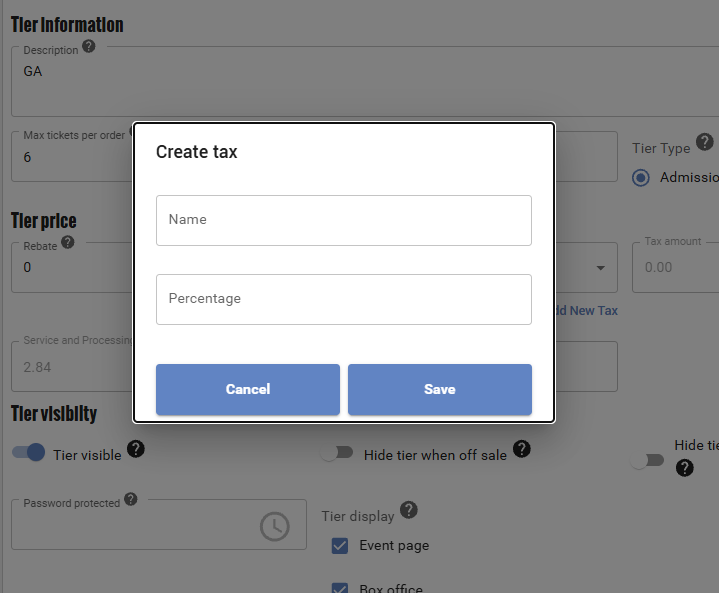
Tax shown as a line item at checkout