
Customizing Your Event Page
Quick answer: Upload a banner at 1920 × 1080 px with your event name in the design. Then go to Customization → Theme & Colors to set background, accent, and accent contrast colors. Keep enough contrast for readable buttons.
Beyond the content and details, The Ticketing Co. gives you design customization options to make your event page match your brand's look and feel. This article covers the visual theme settings for your event.
Event banner image
Your event banner is the main visual that appears at the top of your event page, in search results, and in marketing emails. It is the first impression buyers get.
Banner requirements
Recommended size: 1920 x 1080 px (16:9 ratio).
Maximum file size: 5 MB.
Accepted formats: PNG, JPEG, GIF, and WebP.
Images larger than 2000 px on the longest side are downscaled automatically.
The platform supports vertical, horizontal, and square formats for maximum flexibility.
Banner best practices
Use a high-resolution image. Blurry or pixelated banners look unprofessional.
Include your event name in the image design so it is immediately readable in search thumbnails.
Avoid placing critical text near the edges. Different viewports crop the banner differently.
Dark, high-contrast images tend to perform better. Light backgrounds can wash out on event pages.
Tip No designer? Canva has free event flyer templates that export at the right dimensions. Make sure you have the rights to any images or fonts you use.
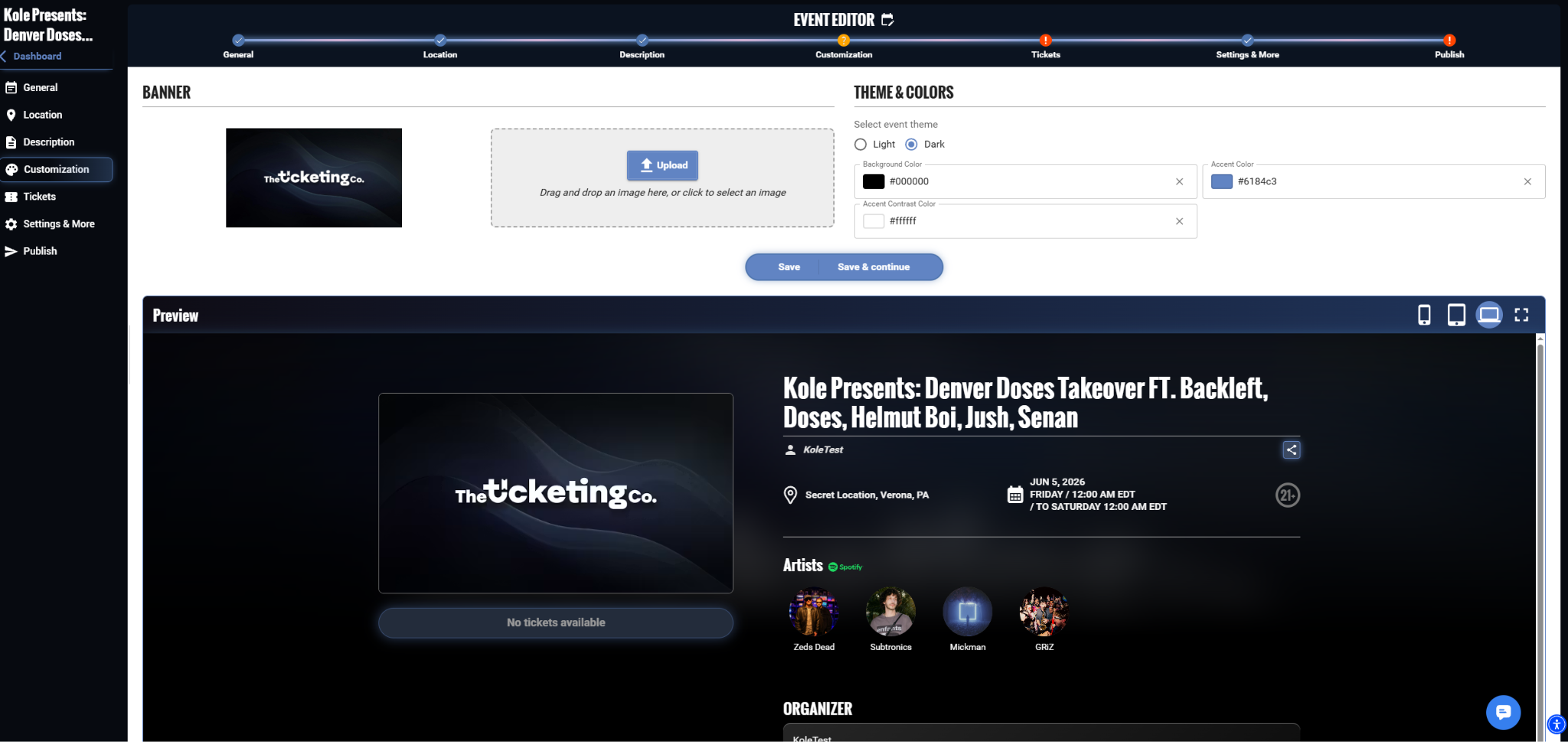
Event banner image upload
Theme & colors
You can set a primary color for your event page that tints the buttons, highlights, and accent elements. New events default to the Light theme with a white background and brand blue (#6184C3). The page does not take its colors from your banner image. Setting a custom color makes the page feel more on-brand for your event.
In the event creation flow, go to Customization.
Select Theme & Colors.
Adjust the Background Color, Accent Color, and Accent Contrast Color.
Preview how it looks across the page elements.
Click Save or Save and Continue.
Important Choose a color with enough contrast against white backgrounds to keep buttons readable. Very light colors (pastels or near-white) can make calls to action hard to see and reduce conversions.
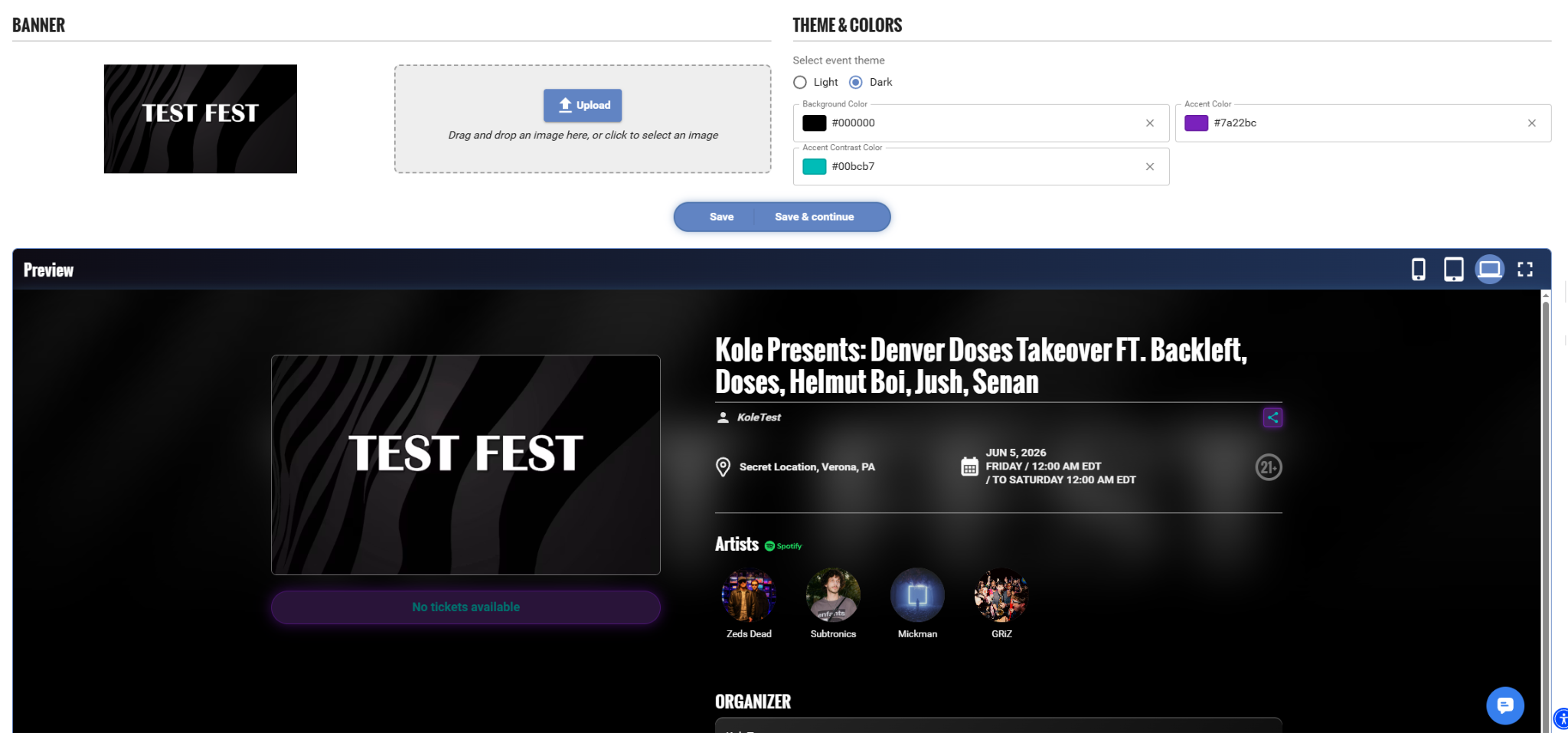
Theme & Colors: background, accent, and accent contrast