
Organization Settings
Quick answer: Payout setup runs in order: W-9 → identity verification → payout method. Discounts, Taxes, and the Widget Builder all live under Settings in your dashboard.
This article covers the remaining settings available under your organization dashboard: Payout Setup, Discounts, Taxes, and the Widget Builder. Each is found under Settings in the left-side navigation of your dashboard.
Payout setup
You must complete payout setup before you can receive payment for ticket sales. The process has three steps that must be completed in the following order.
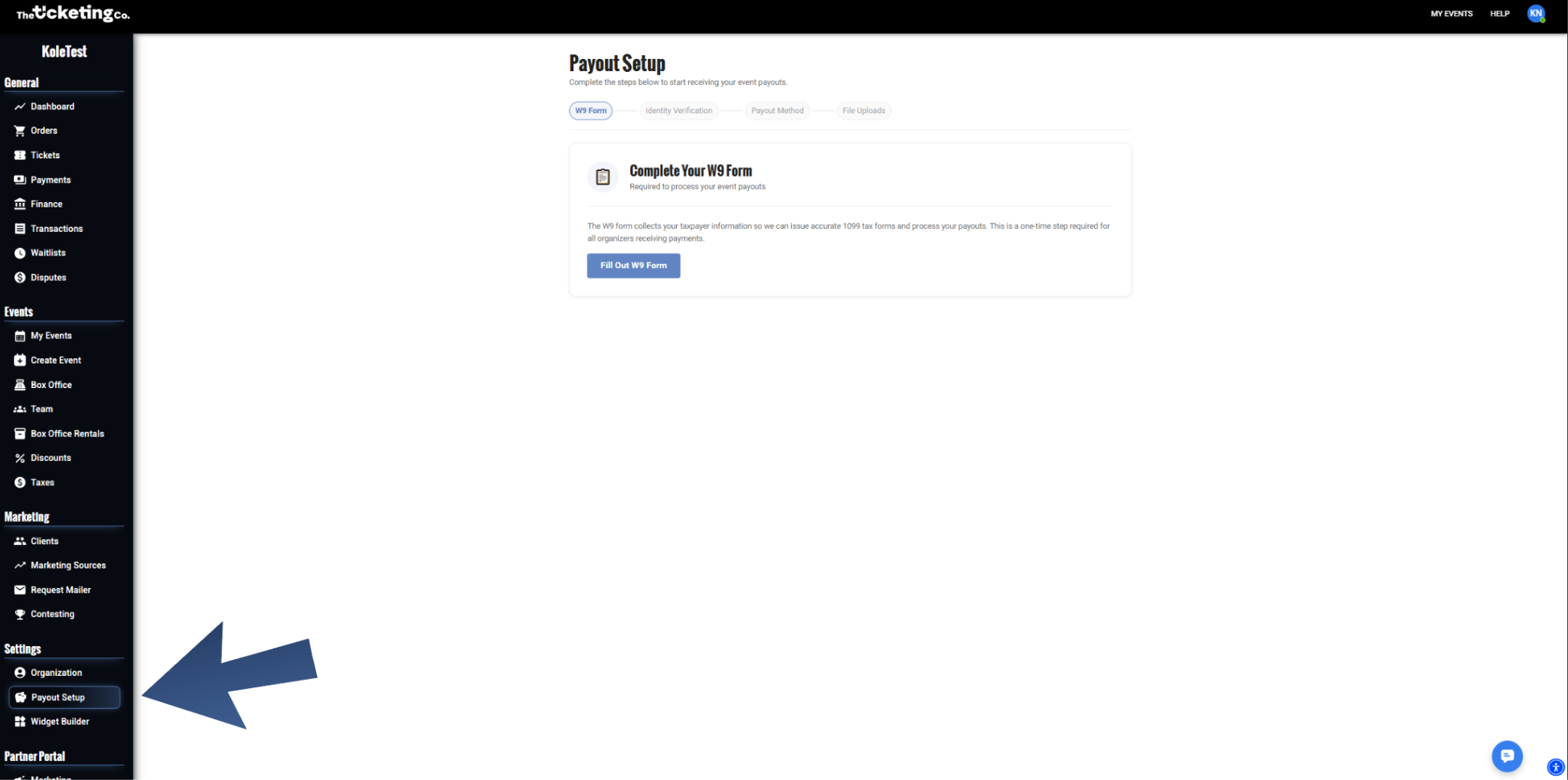
Payout Setup: W9 Form, Identity Verification, Payout Method, and File Uploads steps
The three steps
Complete your W-9 form. Required for US-based organizers for tax reporting purposes.
Complete identity verification. This is required before you can set up a payout method. The process is powered by Veriff and can be fully verified in less than an hour, but may take longer in some cases if the compliance team requests additional information.
Choose and set up your preferred payout method.
To begin: log in, go to Dashboard, then go to Payout Setup.
What you will need
Your bank account number and routing number (for ACH transfers)
A completed W-9 form if you are a US-based organizer (required for tax reporting)
A government-issued ID or passport for identity verification
Payout methods available
Method | Fee |
|---|---|
Next Day ACH | Free: funds arrive the next business day |
Same Day ACH | $3 per payout |
Bank Wire | $25 per wire |
Real Time Payments | 1.5% or $5, whichever is greater |
Venmo | 1.5% or $5, whichever is greater |
PayPal | 1.5% or $5, whichever is greater |
Paper Cheque | $5 per cheque, mailed |
Payout schedule
For standard events, payouts are processed on the Tuesday following your event. For festivals and large-scale events, payouts are processed on the Wednesday following your event. Payout timing may be affected during bank holidays. A sales summary is sent before payment is released.
Note For festivals, large events, or at The Ticketing Co.’s discretion, a chargeback reserve of 1 to 5% of gross sales (or higher in rare cases if deemed necessary) may be held for 90 days. This protects against post-event disputes and refunds. The reserve is released, minus any actual chargebacks, after the 90-day window closes.
Questions about payouts
For any questions about your payout status, schedule, or setup, contact the accounting team directly at accounting@theticketing.co.
Discounts
Create and manage discount codes that apply across your events. Codes can be a fixed dollar amount or a percentage off, and can be scoped to specific ticket tiers or applied organization-wide. See the Discounts and Promo Codes article for the full walkthrough.
Taxes
If your events are subject to sales tax or other local taxes, configure your tax rate here. Once set, the tax is applied to applicable ticket tiers and shown as a separate line item at buyer checkout.
Go to Settings, then Taxes.
Click Add Tax Rate.
Enter the tax name (for example, State Sales Tax), the percentage rate, and whether it applies to service fees.
Click Save.
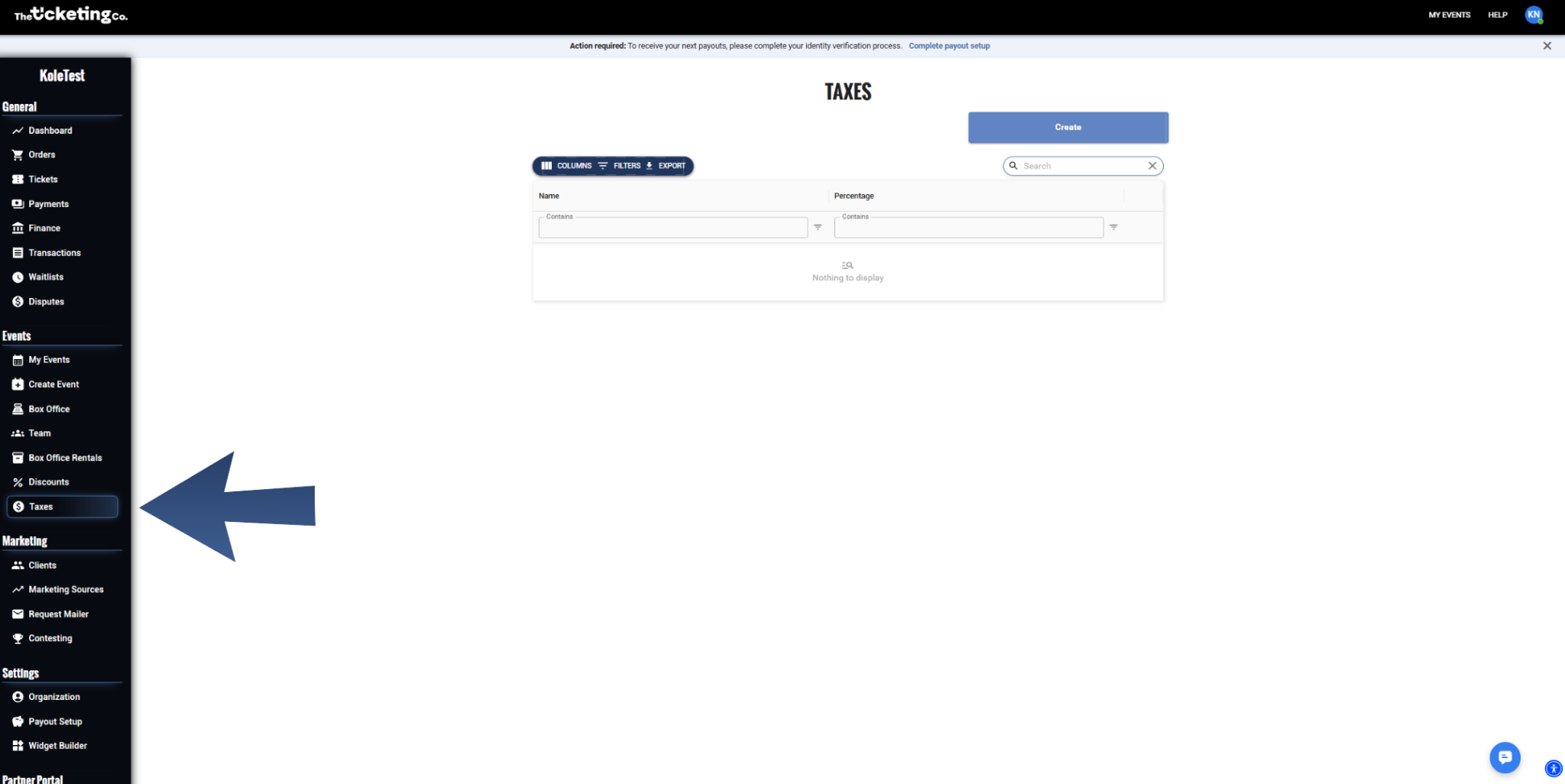
Taxes: add a tax rate and choose whether it applies to service fees
Important Tax requirements vary by state, city, and event type. Consult a tax professional to confirm what rates apply to your specific events. The Ticketing Co. collects and displays the tax you configure. You are responsible for remitting it to the appropriate authority.
Widget Builder
The Widget Builder lets you embed your organization’s event page or a ticket sales widget directly on your own website. Before the widget can be used, you need to submit your base URL to request embedding permission for your domain.
Go to Settings, then Widget Builder.
Enter your base URL in the Request Permission for Embedding on Your Domain field and click Send Request.
Once your domain is approved, return to Widget Builder to choose your widget type and copy the embed code.
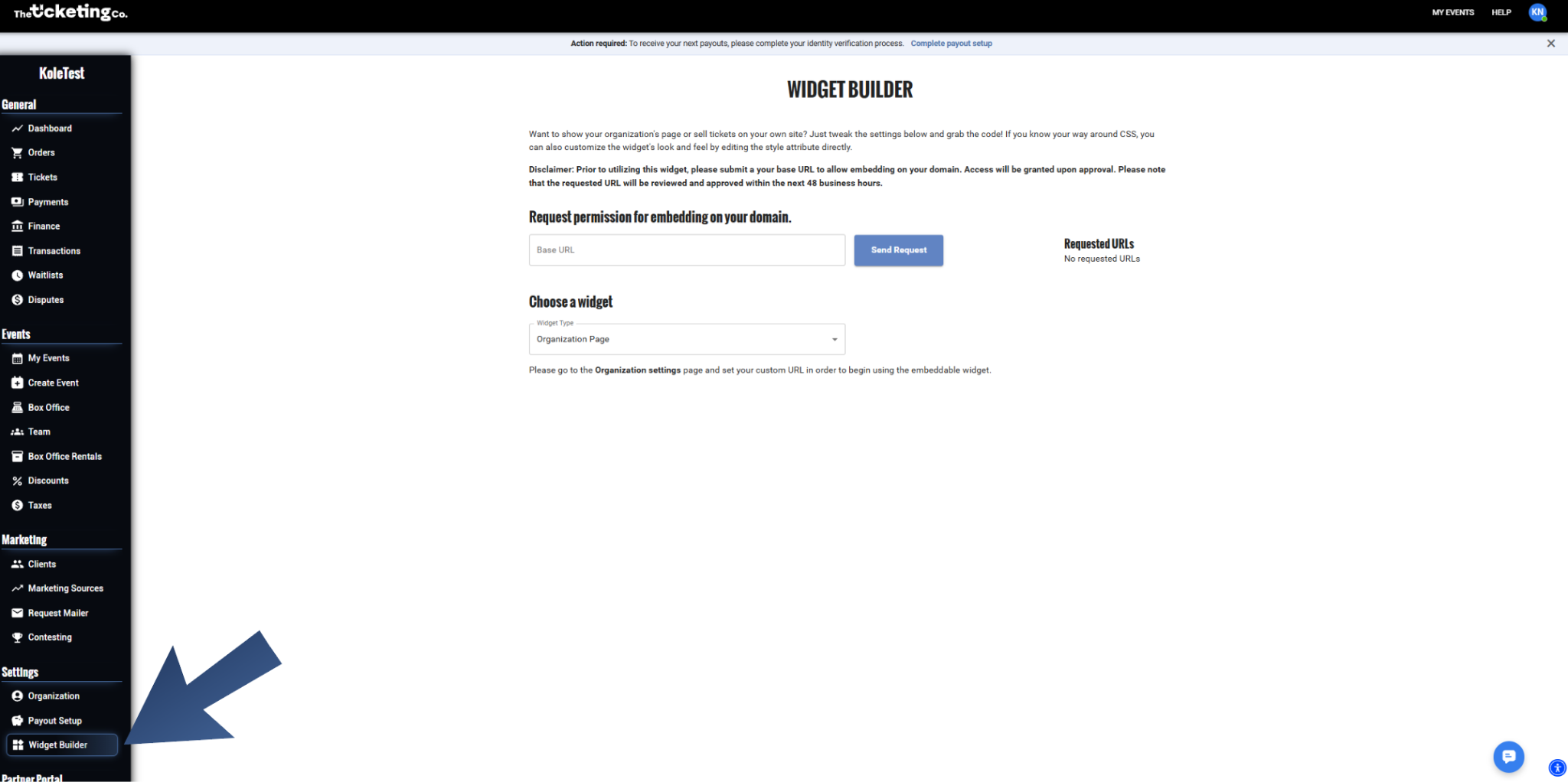
Widget Builder: domain permission request and widget type selector
Note Your base URL must be submitted and approved before the widget can be used on your domain. Approvals are processed within 48 business hours.