
Event Overview: General Info & Details
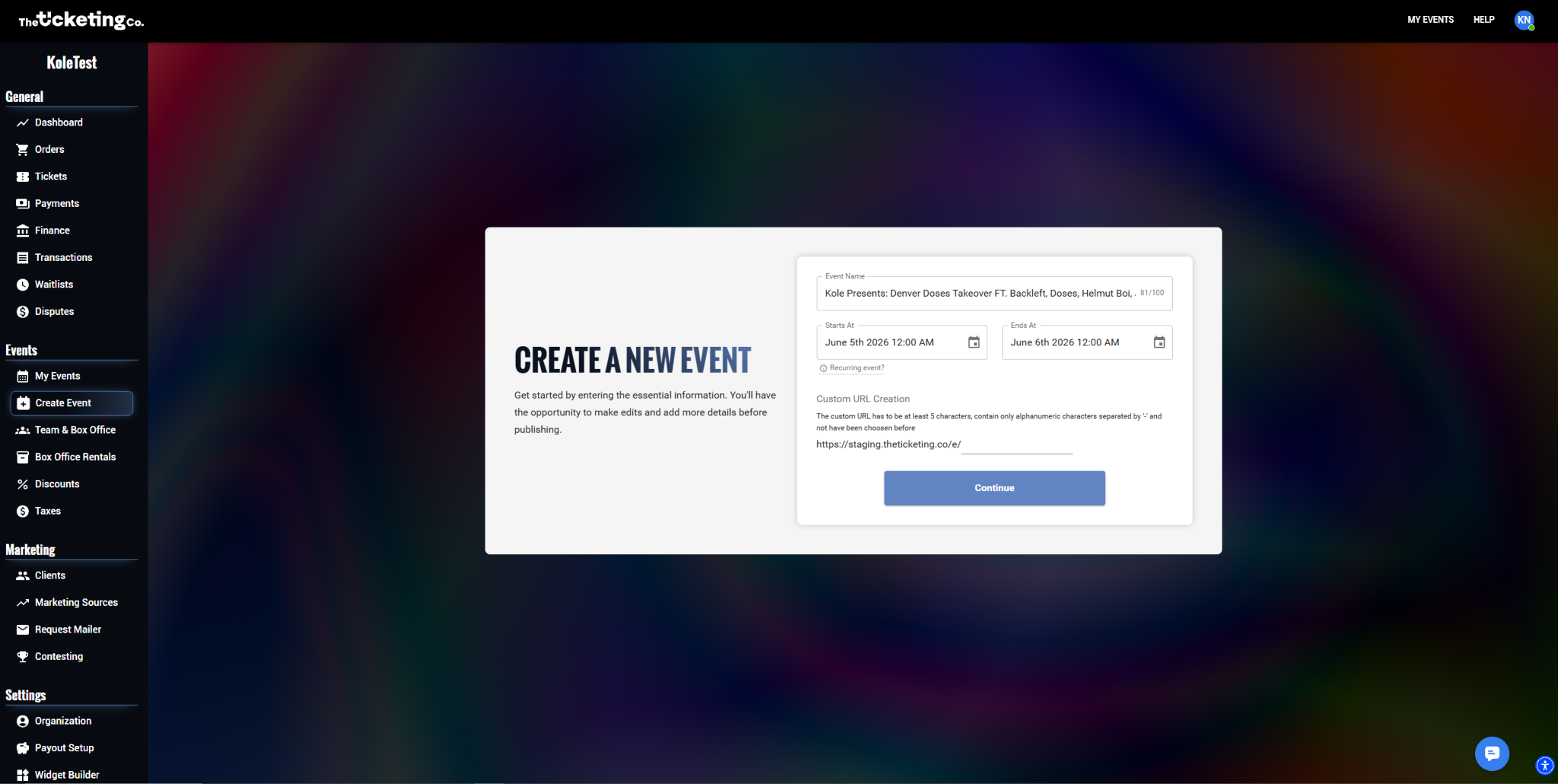
Quick answer: Dashboard → Create Event. Fill in name, slug, and date/time, then Continue. The launch date controls page visibility; ticket sale windows control when buyers can actually purchase. Events stay in Draft until you publish.
The first step when creating a new event is filling in the general information: the details that tell buyers what, when, and where. This article covers the General Info section of the event creation flow.
To get started: Log in, go to your Dashboard, then select Create Event.
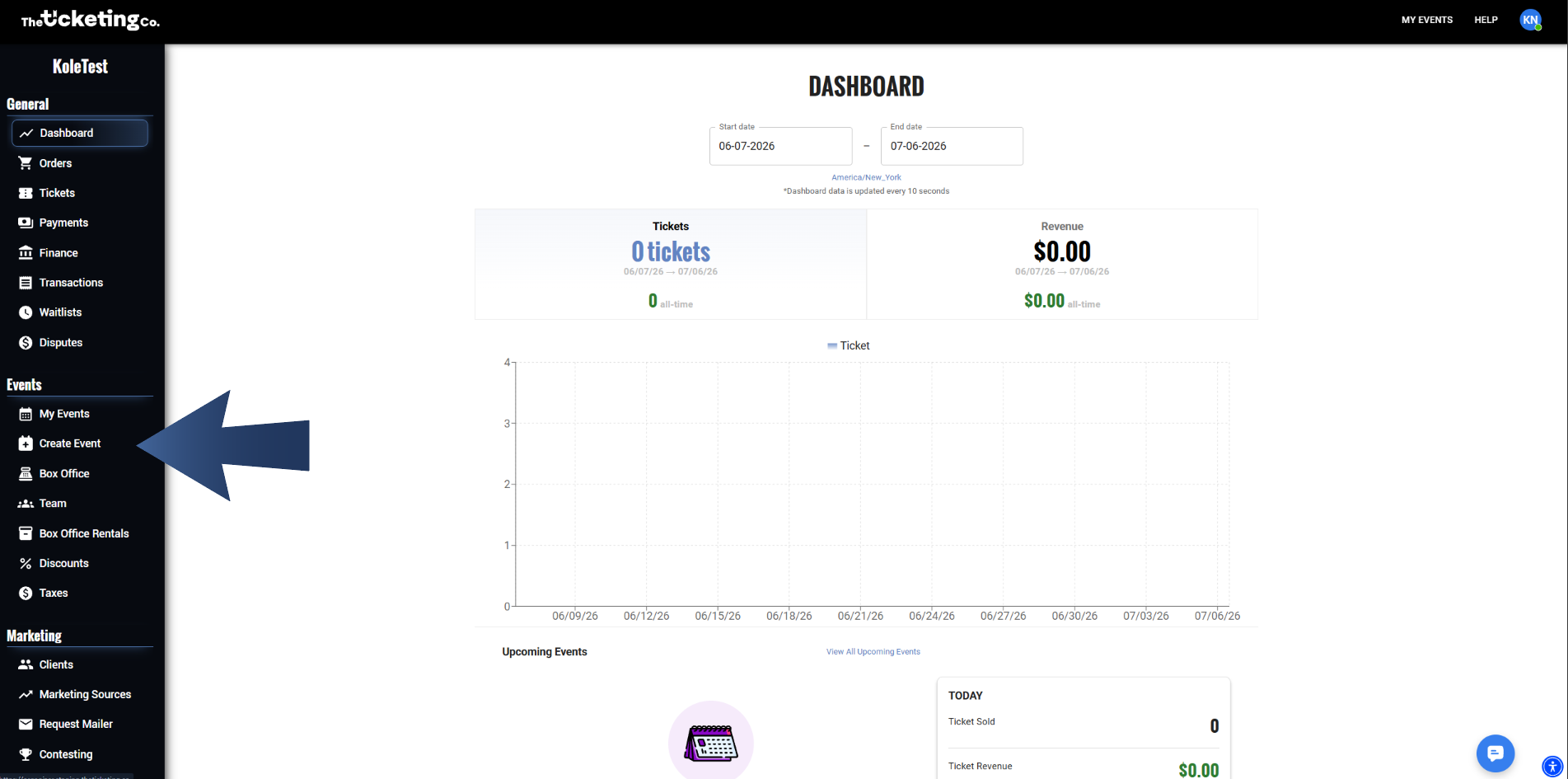
Create Event: the General Info section of the event creation flow
Event name
Your event name is the headline. It is the first thing buyers see in search results, on your event page, and on their tickets. Make it clear and descriptive.
Use the name buyers will search for. If your event has a known title, use it exactly.
Include the edition or year for recurring events (for example, "Neon Nights Vol. 4" rather than just "Neon Nights").
Event URL slug
The slug is the short identifier that appears at the end of your event's URL. Choose something specific to your event.
Important The custom URL must be at least 5 characters, contain only alphanumeric characters separated by hyphens, and must not have been used before.
Event date and time
Set the start date, start time, end date, and end time for your event. All times are displayed to buyers in the event's timezone.
Field | Description |
|---|---|
Start date & time | When doors open or the event begins. This is what buyers see prominently on the event page. |
End date & time | When the event concludes. Shown on the event page and used to determine when check-in closes. |
Timezone | Defaults to the timezone of the browser used to create the event, not your organization's timezone. |
Important Selecting a venue can reset the timezone and shift event times you have already saved. After you pick a venue, go back and confirm your start and end times are still correct.
Note For multi-day festivals the start and end date pickers are read-only. Use Manage days instead: each day gets its own name, doors time, and start and end time.
Date & Time: start, end, and timezone fields
Event launch date
After you click Continue, you will reach the General page of your event editor. This includes everything you have just added, plus the launch date. The launch date controls when your event page becomes publicly visible, separate from when ticket sales open. This is useful when you want to announce the event and build awareness before sales go live.
Set a future launch date to keep your event hidden until that date.
Leave it blank to make the event visible immediately when you publish.
Ticket sale windows on individual ticket tiers control when buyers can actually purchase. The launch date only controls page visibility.
Pro tip A common strategy: launch the event page a week before tickets go on sale with a countdown, then open sales on a specific date. This builds anticipation and lets you share the page link early.
Category, sub-category and genre
Every event must have a Category and a Sub-category before it can be published. Music events also require a Genre. These drive how your event is classified and where it surfaces for buyers.
Important Missing category, sub-category, or genre is the single biggest cause of failed publish attempts. Set these before you get to the Publish tab.
Validation rules to know
The event URL slug must be lowercase.
An event cannot run longer than one year from start to end.
The launch date cannot be after the event start date.
Setting up a recurring event
Log in and click Dashboard, then Create Event.
Fill in your event name, location, description, and upload your event image.
When you reach the Date & Time section, look for the Recurring Event option, enable it, and save.
Choose multiple dates by pattern for weekly events.
Set the duration and start time for those dates.
Under Repeat rule, choose the days of the week the event occurs, then set the start and end dates for the recurring series.
Once the days of the week are chosen, click Add.
Select your preferred display format in checkout: Calendar, Dropdown Select, or Buttons.
Note Each occurrence of a recurring event has its own event overview, check-in stats, and QR codes.
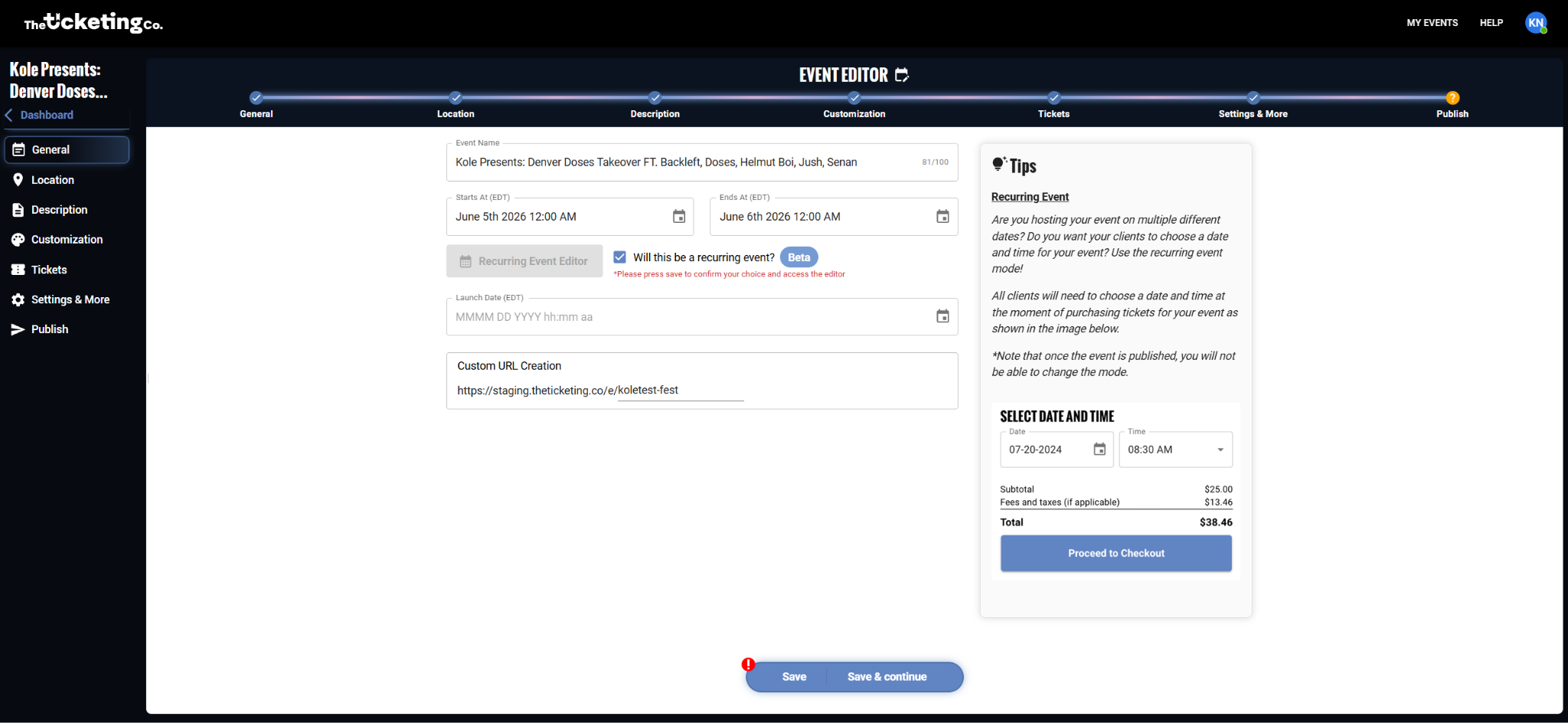
Enabling the Recurring Event option
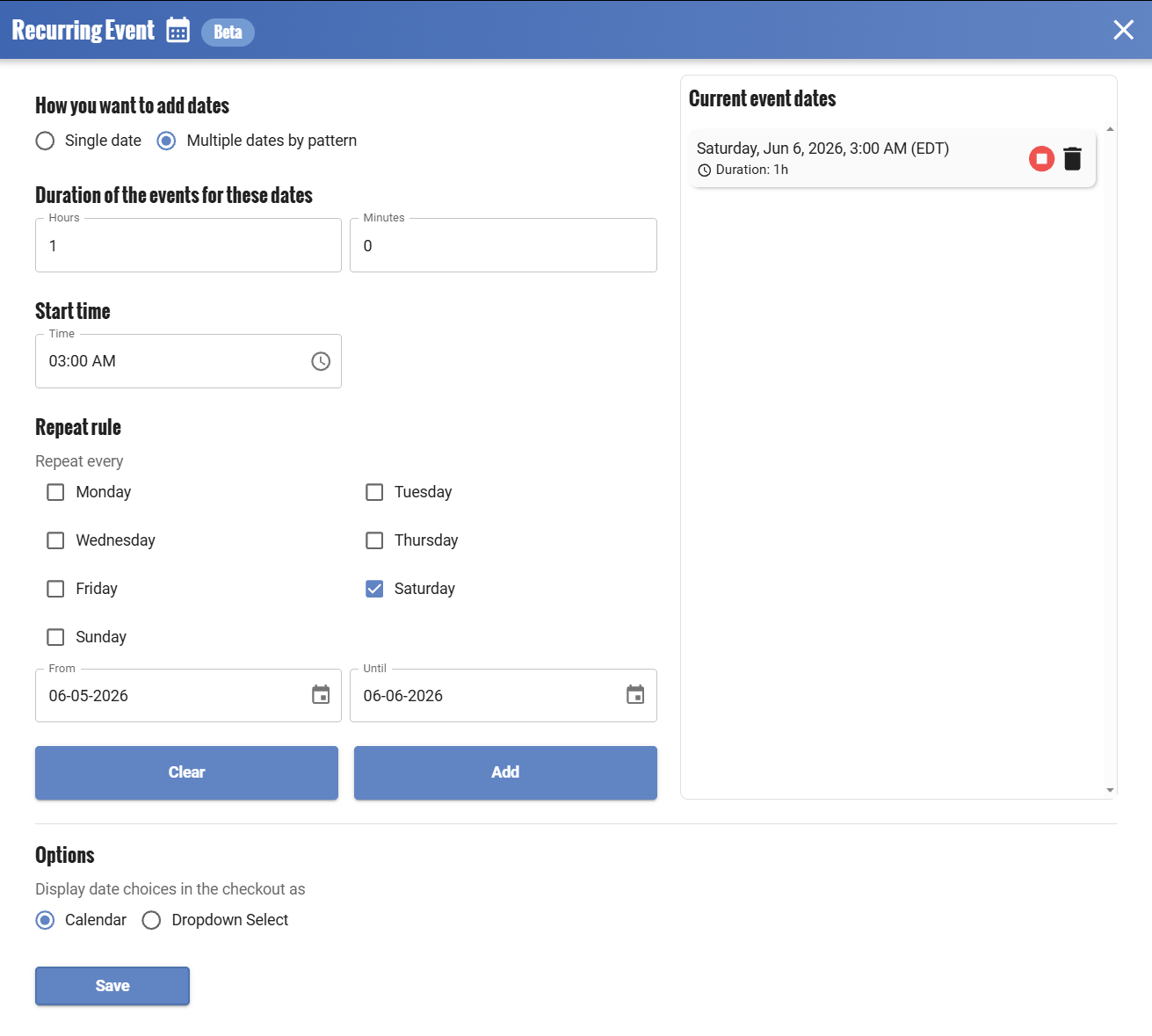
Repeat rule: days of the week and series dates
Pausing or deleting a single occurrence
If one date in a recurring series needs to be paused or deleted while the rest continue, go to your recurring event editor. Under Current Event Dates, you can pause, delete, or reactivate individual occurrences.
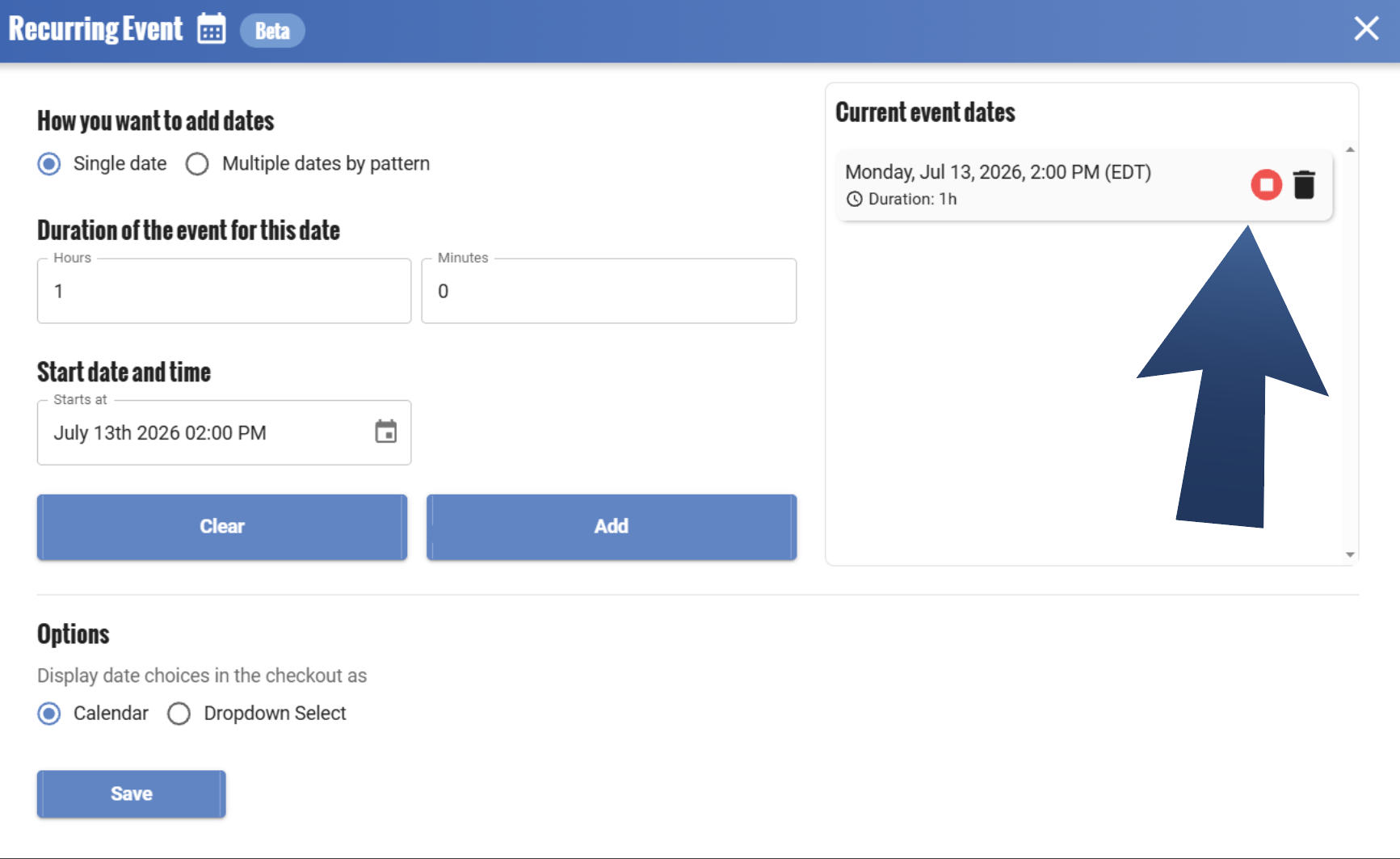
Current Event Dates: pause, delete, or reactivate individual occurrences
Setting up an event series
An event series is the right choice when your dates are not on a fixed schedule.
Go to Recurring Event Editor.
Under How You Want to Add Dates, choose Single Date.
Fill in the Duration of the Event for This Date and Start Date and Time, then click Add.
Repeat for each additional date, linking them all to the same event page.
Orders and check-in across a series
Each event in a series, whether recurring or manually linked, has its own separate orders and tickets. A buyer who purchases tickets for three dates in your series will have three separate orders, each with their own QR code.
To view check-in stats or orders for a specific date, go to your event overview and use the Filter By Event Dates control to select the date you want to review.
Saving your progress
The event creation flow saves when you click Save or Save and Continue as you move between sections. Your event will be in Draft status and will not be visible to buyers until you publish.
Tip You can have multiple events in Draft at the same time. Your full draft list is visible on your Dashboard under My Events. Filter by status to find your drafts.